Using iView
8-30 Manual # 42-02-7223 C1
Controller - Layouts
With iView, you can move and size tabs to suit the task to be performed. When you find a partic-
ular arrangement to be useful, you can save it as a custom layout (View > Layouts > Save as).
You can then display that layout at any time by selecting your custom lay0ut from the View >
Layouts > Custom menu.
Some useful layouts have been pre-programmed and are supplied with iView. They include:
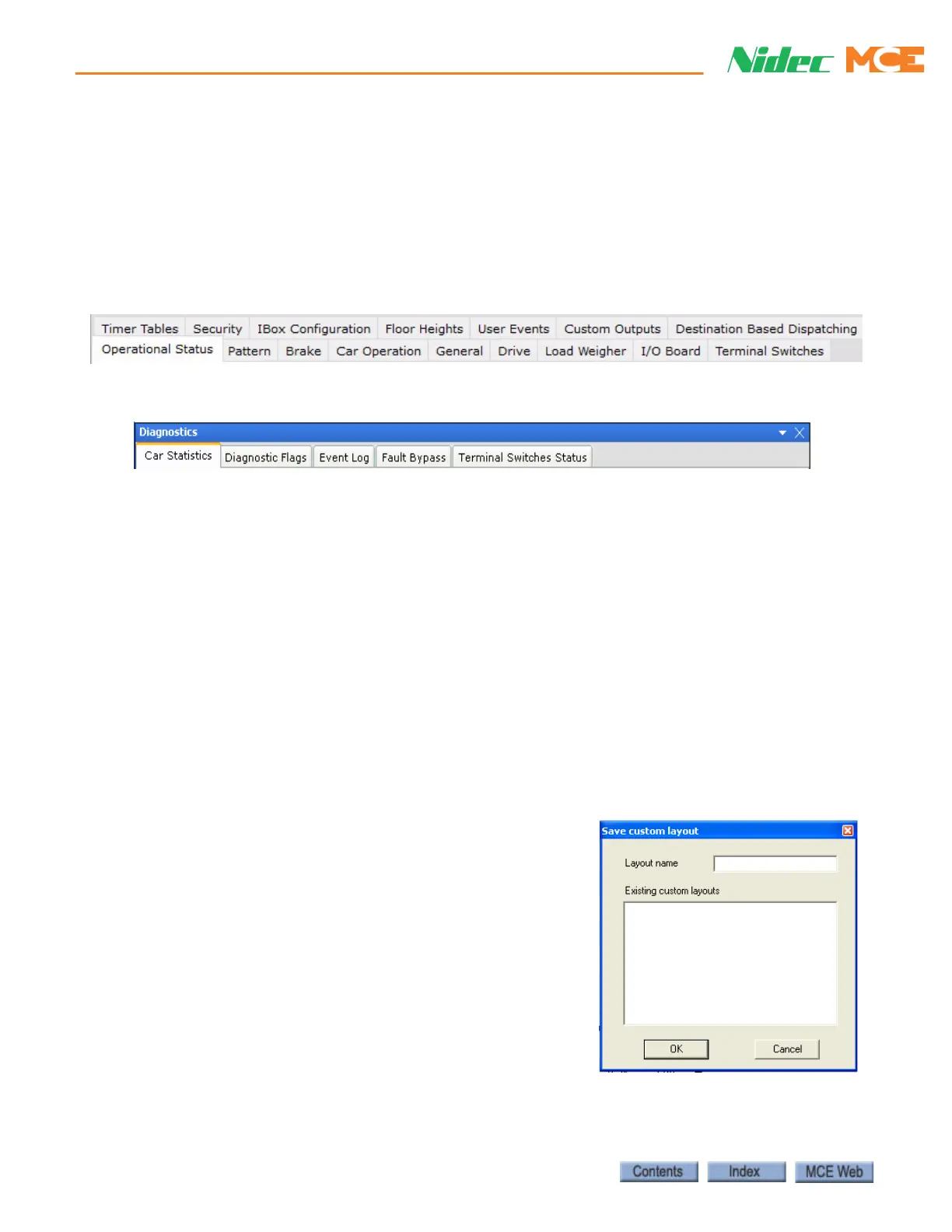
• Configuration: This layout displays all of the configuration tabs for easy selection.
• Diagnostics: Displays all of the diagnostic tabs for easy selection.
• Default: Displays the default (initial connection) layout.
--------------------------------------------------------------------------------------------------------------------------------------------------------------------------------
• Brake: Used to perform the brake calibration procedure. Displays the Brake setup and
configuration tabs plus the Hoistway pane.
• Drive: Used to perform the drive offsets calibration. Displays the Drive setup and configu-
ration tabs plus the Hoistway pane (see page 2-25).
• Floor Heights: Used to perform the hoistway (floor heights) learn operation. Displays the
Floor Heights setup and configuration tabs plus the Hoistway pane.
• Load Weigher: Used to perform the Load Weigher learn procedure. Displays the Load
Weigher setup and configuration tabs plus the Hoistway pane.
• Terminal Switches: Used to perform the Terminal learn procedure. Displays the Terminal
Switches setup, configuration and diagnostics tabs plus the Hoistway pane.
--------------------------------------------------------------------------------------------------------------------------------------------------------------------------------
• Custom: Used to select a custom layout to be displayed. This is the listing of custom lay-
outs created using View > Layouts > Save as.
• Save As: Used to create and save a custom layout.
• Enter the name for the custom layout.
•Click OK.



 To Next Page