
 To Next Page
W
William LopezSep 10, 2025
What to do if I cannot switch to shooting mode on Nikon Action Cameras?
- MMaria MeyerSep 10, 2025
If you cannot switch to shooting mode on your Nikon Action Camera, disconnect the USB cable.

What to do if I cannot switch to shooting mode on Nikon Action Cameras?
If you cannot switch to shooting mode on your Nikon Action Camera, disconnect the USB cable.
How to fix too dark images on Nikon KeyMission 80 Action Cameras?
If your Nikon Action Camera is producing images that are too dark, you can adjust the exposure compensation or try using HDR. Also, consider if the subject is backlit, as this can also cause the issue.
How to fix too bright images on Nikon KeyMission 80 Action Cameras?
If your Nikon Action Camera is producing images that are too bright, you can adjust the exposure compensation or try using HDR.
Why are my Nikon Action Cameras images out of focus?
If images from your Nikon Action Camera appear blurred or out of focus, ensure that if you are recording movies, the Movie VR is set to On (hybrid). Also, unexpected vibration from wind or the surroundings, even when using a tripod, can affect vibration reduction or autofocus. Avoid significant changes in camera direction during panning shots.
What to do if my Nikon Action Cameras is on but not responding?
If your Nikon Action Camera is on but not responding, wait for any recording to finish. If the issue continues, turn the camera off. If it doesn't turn off normally, use a sharp object to press the reset button. Note that any data being recorded will be lost, but previously recorded data will remain unaffected.
Why is O flashing on my Nikon KeyMission 80 screen?
If your Nikon Action Camera displays O flashing on the screen, it may be because the camera clock hasn't been set. Images and movies saved before setting the clock may have incorrect dates. Correct this by setting the date and time in the setup menu. Remember that the camera clock's accuracy may vary, so periodically compare it with a more accurate timepiece and reset if needed.
Why Nikon Transfer 2 does not start when connecting Nikon Action Cameras?
If Nikon Transfer 2 doesn't start when your Nikon Action Camera is connected to a computer, ensure the camera is on and the battery isn't exhausted. Check that the USB cable is correctly connected and that the computer recognizes the camera. Also, verify that the computer is set to automatically start Nikon Transfer 2. For more details, consult the help information in ViewNX-i.
Why my Nikon KeyMission 80 Action Cameras cannot take pictures?
If you cannot take pictures or record movies with your Nikon Action Camera, ensure the camera is not in playback mode by pressing the shutter-release button, or that menus are not displayed by pressing the d button. Also, check if the battery is exhausted or if the memory card has sufficient free space.
Why Nikon KeyMission 80 Action Cameras shows date/time screen on startup?
If the date and time setting screen appears when you turn on your Nikon Action Camera, the built-in rechargeable battery is exhausted, and all settings have been reset. Configure the camera settings again.
How to improve screen visibility on Nikon Action Cameras?
If the monitor on your Nikon Action Camera is hard to see, try moving to a darker area, adjusting the screen brightness, or changing the background color of the screen.
Key instructions and information to read before proceeding with camera operation.
Explains symbols and conventions used throughout the manual for clarity.
Cautionary advice on using only Nikon-certified accessories to avoid damage and warranty issues.
Recommendation to perform a test shot before important occasions to ensure camera functionality.
Instructions on securely deleting data from storage devices before disposal.
Details on the camera's shock resistance testing and standards.
Information on the camera's IP ratings and underwater usage limits.
Recommendations for checking the camera and seeking professional repair services.
Detailed illustration and labeling of the camera's exterior parts.
Explanation of the different states and meanings of the camera's status indicator light.
Instructions on how to use the camera's touchscreen for various operations.
Information displayed on the camera's monitor during shooting and playback modes.
Step-by-step instructions for inserting a memory card into the camera.
Procedure for charging the camera's built-in rechargeable battery.
Steps for initial camera configuration, including language and smart device connection.
Configuration and usage of Wi-Fi and Bluetooth for camera connectivity.
Describes additional features like remote photography and viewing images via the app.
Steps to power on the camera and its initial behavior.
Guidance on framing, focusing, and capturing still images.
How to view, navigate, and manage recorded images and movies.
Process for removing unwanted images from the camera.
Instructions for attaching and using the camera holder accessory.
Guidance on mounting the camera using an optional tripod adapter.
Step-by-step guide to recording and viewing movie footage.
Details on controlling playback, volume, and navigation of recorded movies.
Basic steps for accessing and interacting with camera menus.
Settings and options related to still photography.
Capturing images or movies automatically at set intervals while mounted.
Selecting predefined scene modes for specific shooting conditions.
Guide to capturing panoramic images by moving the camera.
Using High Dynamic Range for photos with extreme contrast.
Settings and options for movie recording.
Creating time-lapse videos by capturing images at set intervals.
Performing route shooting operations and related notes.
Configuration options for camera settings and preferences.
Adjusting white balance to match light sources for accurate colors.
Changing the color tone of saved images (Standard, Vivid, Monochrome).
Adjusting overall image brightness for desired exposure levels.
Setting the aspect ratio for still images to affect image size and file count.
Selecting the frame rate for movies based on NTSC or PAL standards.
Enabling or disabling vibration reduction for movies.
Reducing wind noise captured by the microphone during movie recording.
Setting and synchronizing the camera's date and time.
Adjusting monitor review, brightness, photo info, and background.
Adjusting the volume levels for camera operations and shutter.
Setting the time delay before the camera automatically turns off.
Permanently deleting all data from the memory card.
Enabling or disabling touch shutter functionality.
Configuring the camera to charge via a USB connection to a computer.
Selecting the display language for menus and messages.
Adding location information to images taken by the camera.
Restoring all camera settings to their factory default values.
Displaying compliance markings for the camera.
Viewing the current firmware version installed on the camera.
Configuring wireless network settings for smart device connection.
Options for managing and protecting recorded images.
Protecting selected images from accidental deletion.
Selecting images for transfer to a smart device in advance.
Download and installation guide for Nikon's image transfer software.
Methods for transferring images from the camera to a PC.
Important regulatory and safety notices, including FCC and IC compliance.
Details on wireless device restrictions, security, and personal information management.
Precautions for maintaining the camera's condition and longevity.
Table listing error messages and their corresponding causes and solutions.
Common problems and solutions for camera malfunctions and issues.
Explanation of the naming conventions for image and movie files.
List and description of optional accessories available for the camera.
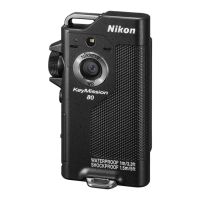
Detailed technical specifications of the Nikon KeyMission 80 camera and its components.
 General
| Maximum frame rate | - fps |
|---|---|
| Supported video modes | 1080p |
| Video formats supported | AVC, H.264, MOV, MPEG4 |
| Maximum video resolution | 1920 x 1080 pixels |
| Photo mode | Yes |
| Sensor type | CMOS |
| Total megapixels | 12.35 MP |
| Optical sensor size | 1/2.3 \ |
| Image formats supported | JPEG XR |
| Effective megapixels (movie) | 12.4 MP |
| ISO sensitivity | 100, 1600 |
| Light exposure modes | Auto, Manual |
| Light exposure correction | ± 2EV (1/3EV step) |
| Flip-out screen | No |
| Display diagonal | 1.75 \ |
| Maximum focal length (35mm film equiv) | 4.45 mm |
| USB connector type | Micro-USB |
| USB 2.0 ports quantity | 1 |
| Storage media | Memory card |
| Compatible memory cards | MicroSD (TransFlash), microSDHC, microSDXC |
| Product color | Black |
| Waterproof up to | 1 m |
| Protection features | Dust resistant, Freeze resistant, Shock resistant, Water resistant, Waterproof |
| Languages support | DEU, DUT, ENG, ESP, FRE, ITA, JPN, KOR, RUS |
| Fastest camera shutter speed | 1/6400 s |
| Focus adjustment | Auto |
| Operating temperature (T-T) | -10 - 40 °C |
| Operating relative humidity (H-H) | 0 - 85 % |
| Charging time | 2.5 h |
| Battery life (max) | - h |
| Video recording time | 0.8 h |
| Battery life (CIPA standard) | 220 shots |
 Weight and Dimensions
| Depth | 15 mm |
|---|---|
| Width | 44.8 mm |
| Height | 86.5 mm |
| Weight | - g |
| Weight (including battery) | 74 g |