3-46 Navigation
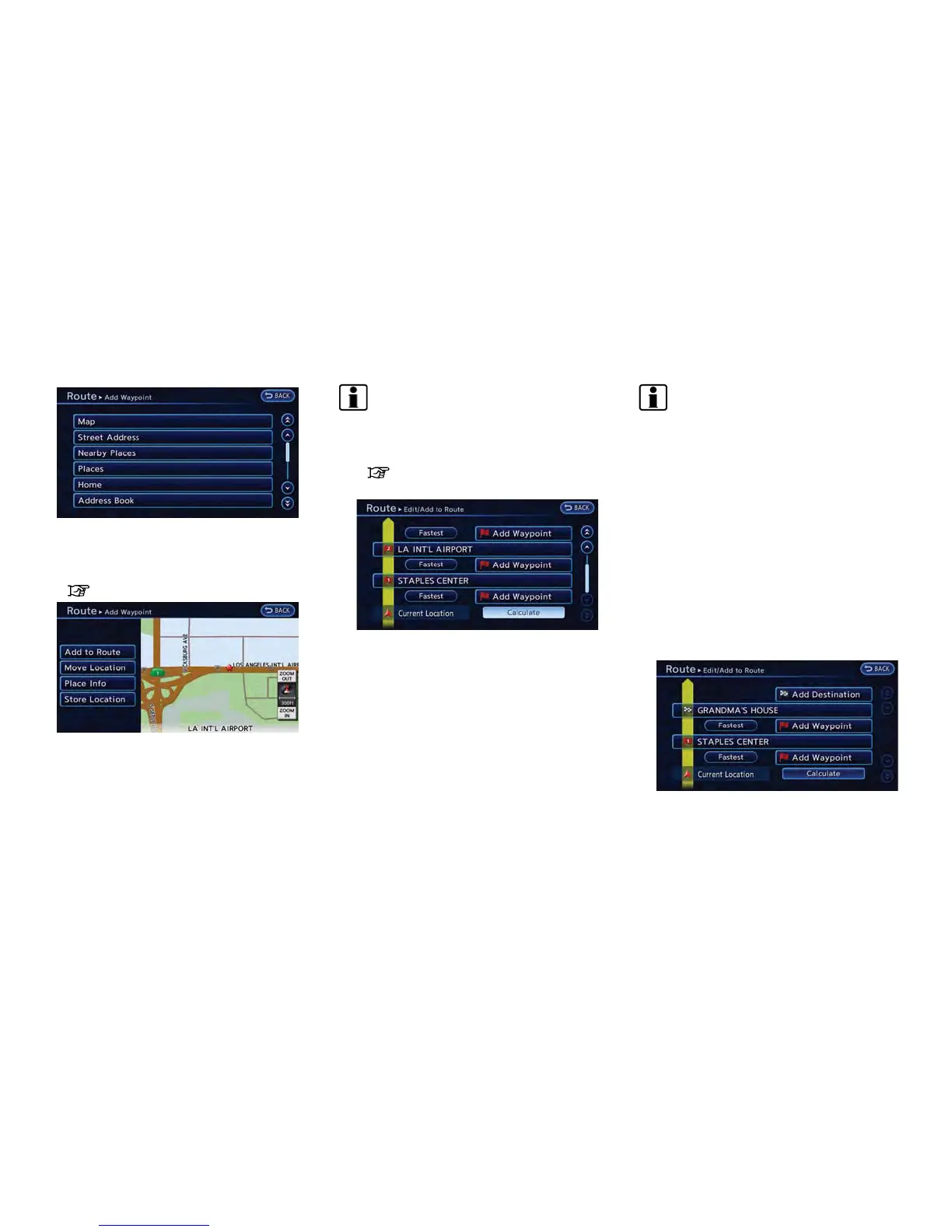
4. Set a destination or waypoint. The method of
searching for a destination or waypoint is the
same as the one for a destination.
“Setting destination” (page 3-17)
5. The selected location is displayed at the
center of the map. Touch [Add to Route]
after confirming the location.
INFO:
Even after setting a destination/waypoint,
the destination/waypoint location can be
adjusted, the route can be stored, etc.
“Editing/deleting destination or way-
point” (page 3-46)
6. Return to the Edit Route screen. Set the
route conditions as necessary.
7. Touch [Calculate]. The system will recalcu-
late the routes. After the route search is
completed, the display will automatically
return to the current location map screen.
INFO:
. The prior route is automatically deleted.
. Added waypoints and search conditions will
not be taken into consideration for the route
calculation until [Calculate] is touched.
Editing/deleting destination or
waypoint
The destination or waypoint that has already
been set can be modified or deleted. If a location
is modified or deleted when a suggested route is
already set, the prior suggested route will be
recalculated accordingly.
1. Push the MENU button and touch [Route].
2. Touch [Edit/Add to Route].
3. Touch a destination or waypoint that is
already set.



 To Next Page