7-8 Bluetooth
®
Hands-Free Phone System
.
[Number]:
Edit the phone number using the keypad
displayed on the screen.
.
[Type]:
Select an icon from the icon list.
8. After finishing the setting, touch [OK].
PHONE SETTINGS
The Bluetooth
®
Hands-Free Phone System can
be set in detail according to the user’s
preference.
1. Push the MENU button and touch [Set-
tings].
2. Touch [Phone & CARWINGS].
3. Touch [Phone].
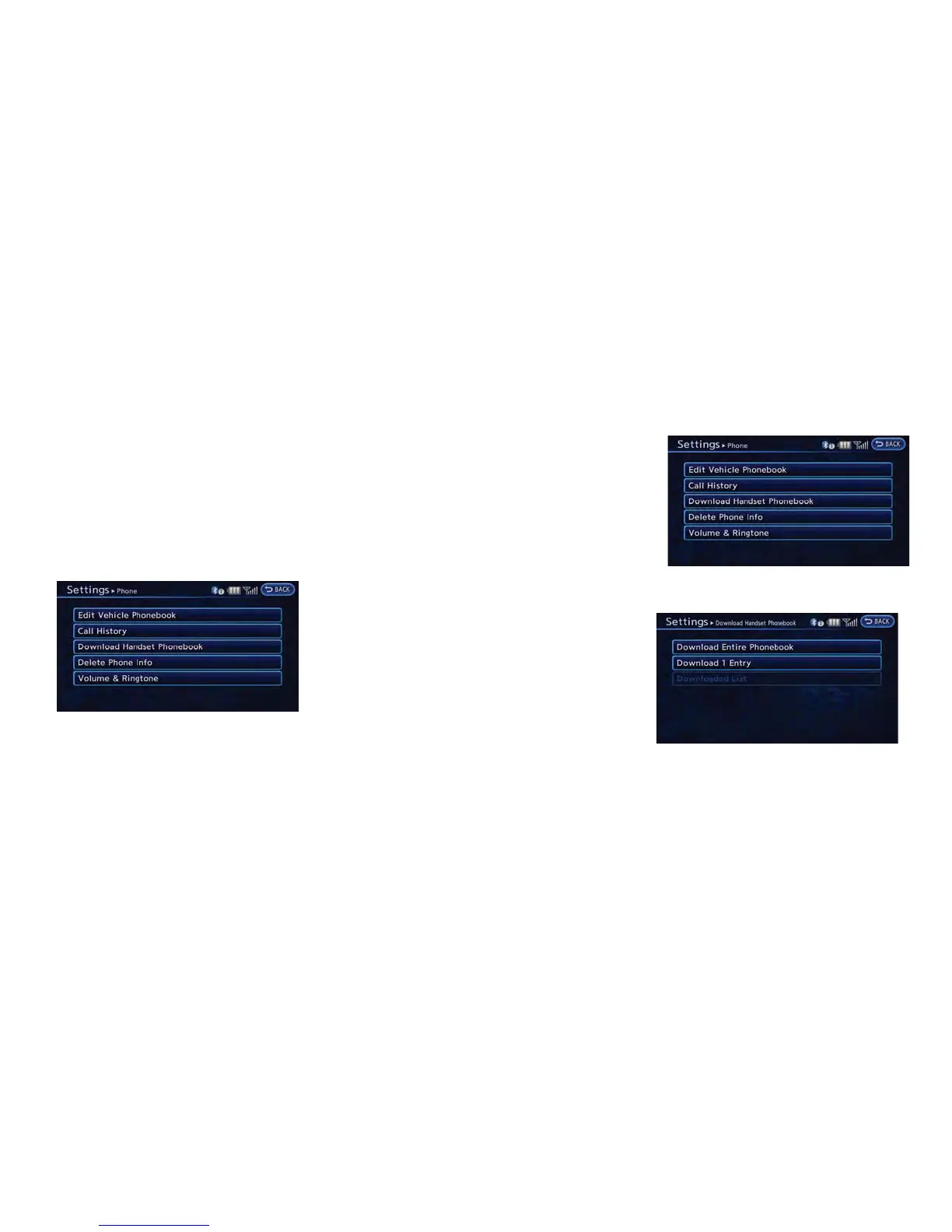
4. Touch the item you would like to set.
Available settings
. [Edit Vehicle Phonebook]:
Phonebook registration and editing/deleting
the registered phonebook can be per-
formed.
. [Call History]:
The call history lists of the incoming calls
and outgoing calls are displayed. The phone
numbers that are stored in the incoming or
outgoing history lists can be registered.
. [Download Handset Phonebook]:
Phonebook data should be registered in the
system after downloading the phonebook
from a cellular phone that is connected to
the vehicle. A maximum of 5 phonebook can
be registered from cellular phones.
. [Delete Phone Info]:
The phone information (phonebook or his-
tory) can be deleted all at the same time or
one by one.
. [Volume & Ringtone]:
Adjust various phone volume settings.
Downloading phonebook memory
1. Push the MENU button and touch [Set-
tings].
2. Touch [Phone & CARWINGS].
3. Touch [Phone].
4. Touch [Download Handset Phonebook].
5. Touch the method for downloading the
phonebook memory. A message screen is
displayed.
Available methods
.
[Download Entire Phonebook]:
All of the phone numbers that are stored
in a phonebook of a cellular phone that is



 To Next Page