2-4 Unique EV functions
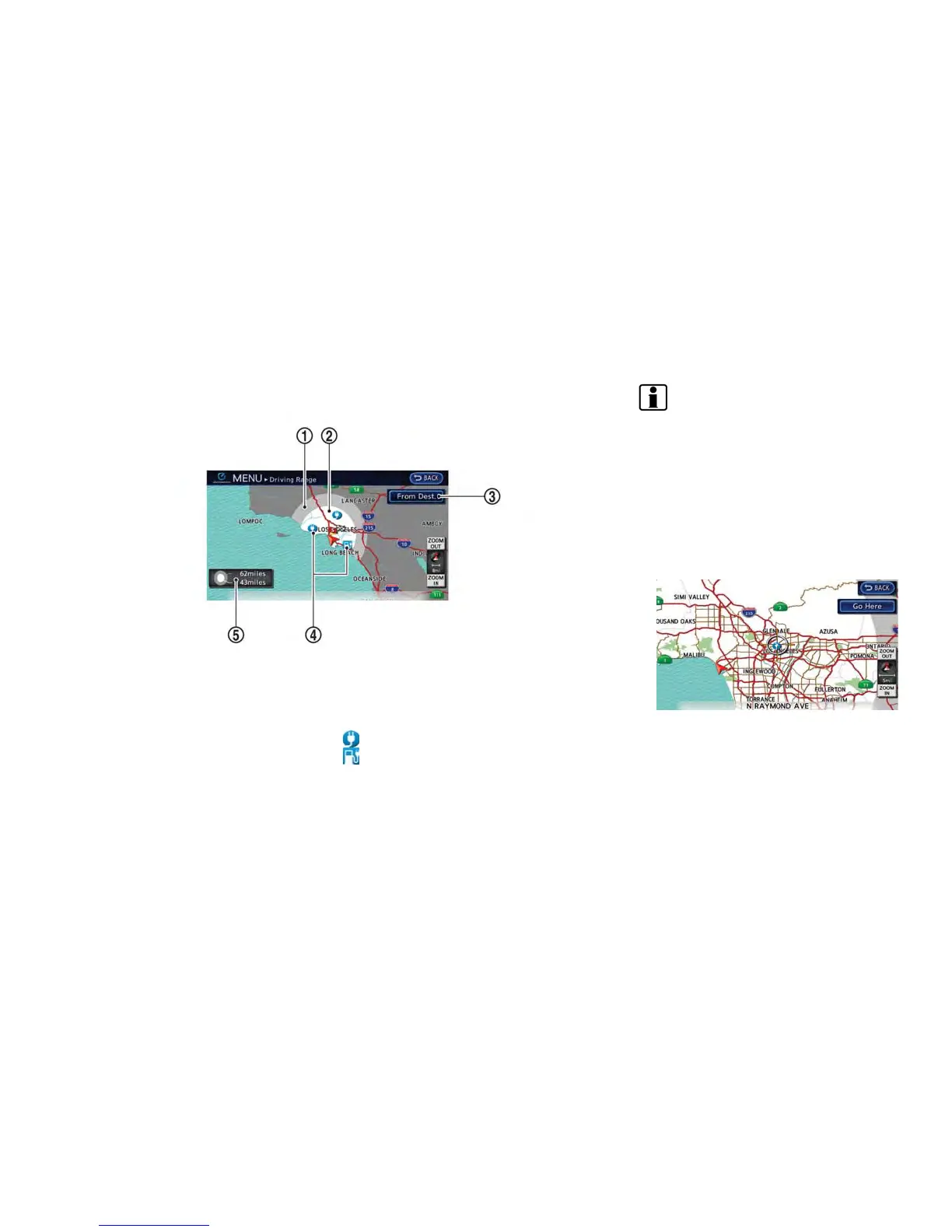
How to view driving range screen
*
1
The extended estimated driving range is dis-
played using the possible driving distance on the
meter as a radius.
*
2
The normal estimated driving range is displayed
based on the current charging condition.
*
3
[From Dest.]:
The estimated driving range around the destina-
tion is displayed while setting the route. If some
waypoints are set, the nearest waypoint from the
current vehicle position is centered on the
estimated driving range map.
[Go Here]:
Any locations that are displayed within the
estimated driving range can be set as a destina-
tion or a waypoint.
*
4
Charging station icons:
: Normal charge icon
: Quick charge icon (for vehicle equipped for
quick charging)
*
5
The possible driving distance is displayed for
each estimated driving range.
INFO:
When a route is set that includes waypoints, the
estimated driving range will be displayed based
on the nearest waypoint.
Setting a charging station as desti-
nation
While the estimated driving area is displayed on
the map screen, the spot where the cross
pointer is placed by moving the map can be
set for the destination.
1. Scroll the map, place the cross pointer over
the preferred location, and touch [Go Here].



 To Next Page