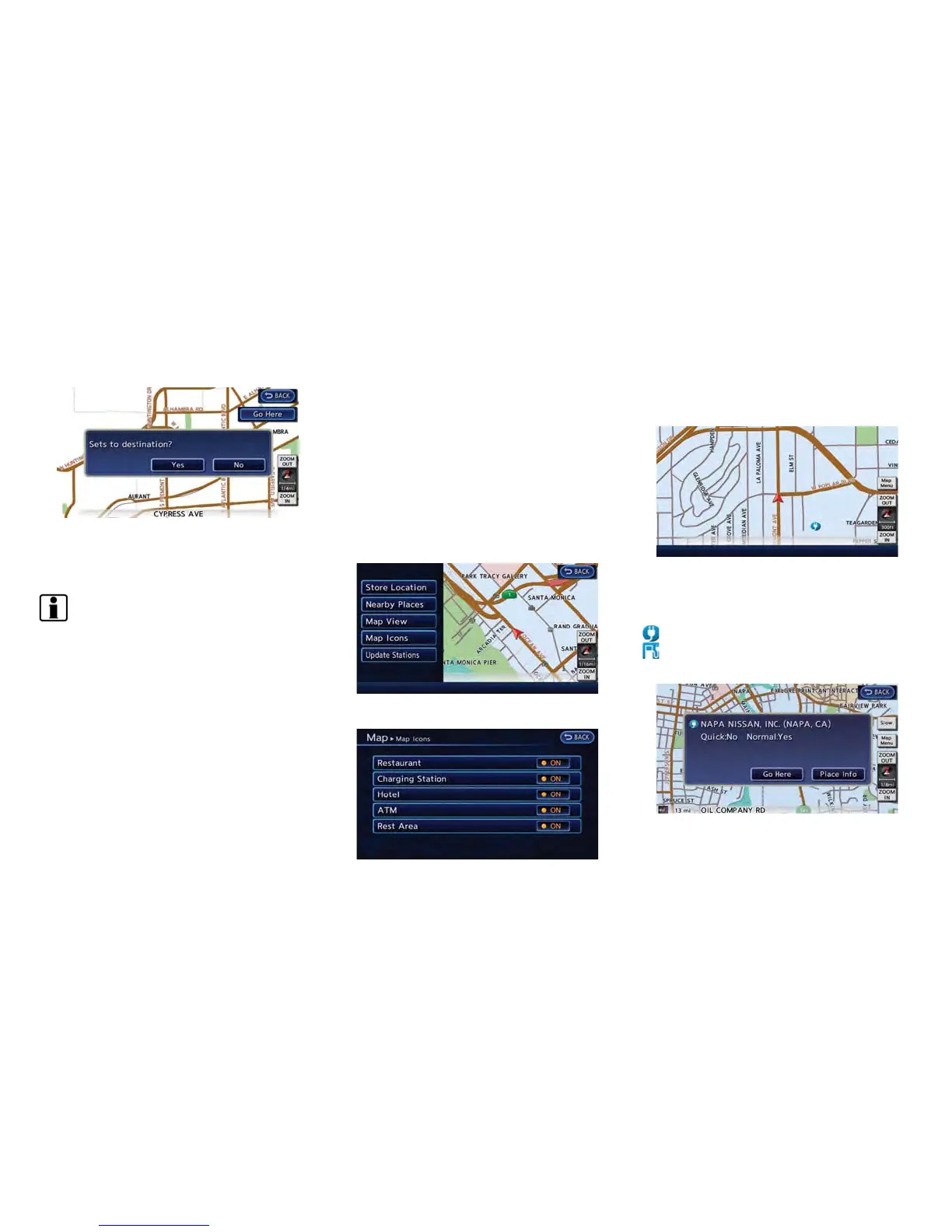
2. The system sets the destination to the
selected location and starts calculating a
route.
INFO:
. This procedure only allows you to set a
destination or waypoint on the driving range
screen. The system does not automatically
set a desired charging station as a destina-
tion or waypoint. When a charging station
displayed on the map is set as a destination
by moving the map, zoom in the map and set
a point as a destination as precisely as
possible. If the destination is not set
precisely, the system may provide guidance
to a location that is not a charging station.
. The driving range is displayed as a numeric
value above the destination or waypoint that
has been set. The values displayed here are
approximate and should only be used as a
guide.
DISPLAYING CHARGING STATION
ICONS ON MAP
The charging station icons are displayed on the
map screen. There are two types of icons: quick
charge (for vehicle equipped for quick charging)
and normal charge.
1. Touch [Map Menu] while the current location
map screen is displayed.
2. Touch [Map Icons].
3. Touch [Charging Station]. The indicator
illuminates when the item is set.
4. Push the MAP button to return to the
current location map screen. The charging
station icons are displayed on the map.
: Normal charge icon
: Quick charge icon (for vehicle equipped for
quick charging)
Unique EV functions 2-5



 To Next Page