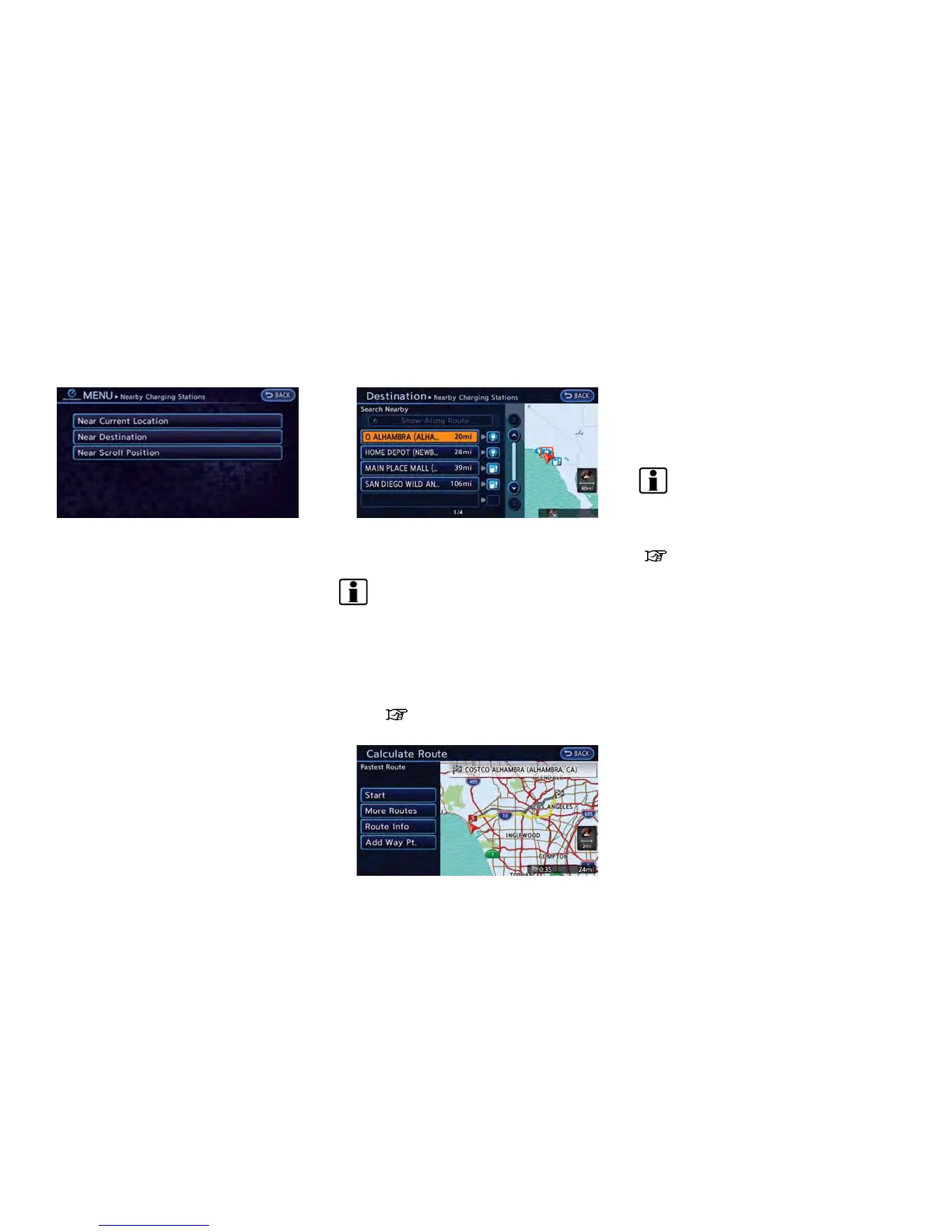
3. Select the method for searching for char-
ging station locations.
.
[Near Current Location]:
Displays a list of charging stations that
are near the current vehicle location.
.
[Near Destination]:
Displays a list of charging stations that
are near the destination, when a destina-
tion has been set.
.
[Near Scroll Position]:
Displays a list of charging stations that
are near the cursor when the map has
been moved.
4. A list screen is displayed. Touch the
preferred charging station from the list.
INFO:
.
If the suggested route is already set,
when [Show Along Route] is touched,
the system displays only the facilities
located along the route.
.
The charging station information screen
is displayed when an icon is touched.
“How to view charging station
information” (page 3-25)
5. The entire route is shown on the map. Touch
[Start] to confirm after checking the dis-
played route. The system starts route
guidance to the selected destination.
INFO:
Before starting route guidance, the route con-
dition can be changed and the route can be
stored in the Address Book, etc.
“Procedures after setting route”
(page 3-36)
NOTE:
Charging stations that have been searched
for using this function are not necessarily
equipped with devices that can be used to
charge a LEAF. Be sure to confirm this in
advance before setting a charging station
as the destination.
How to view charging station infor-
mation
Touch any icon displayed on the list screen to
show the charging station information screen.
Detailed information about a charging station
can be checked.
Navigation 3-25



 To Next Page