Book.
“Confirming route” (page 3-37)
. [Add Way Pt.]:
Allows you to edit the route by adding a
destination or waypoint.
“Adding destination or waypoint”
(page 3-38)
Starting route guidance
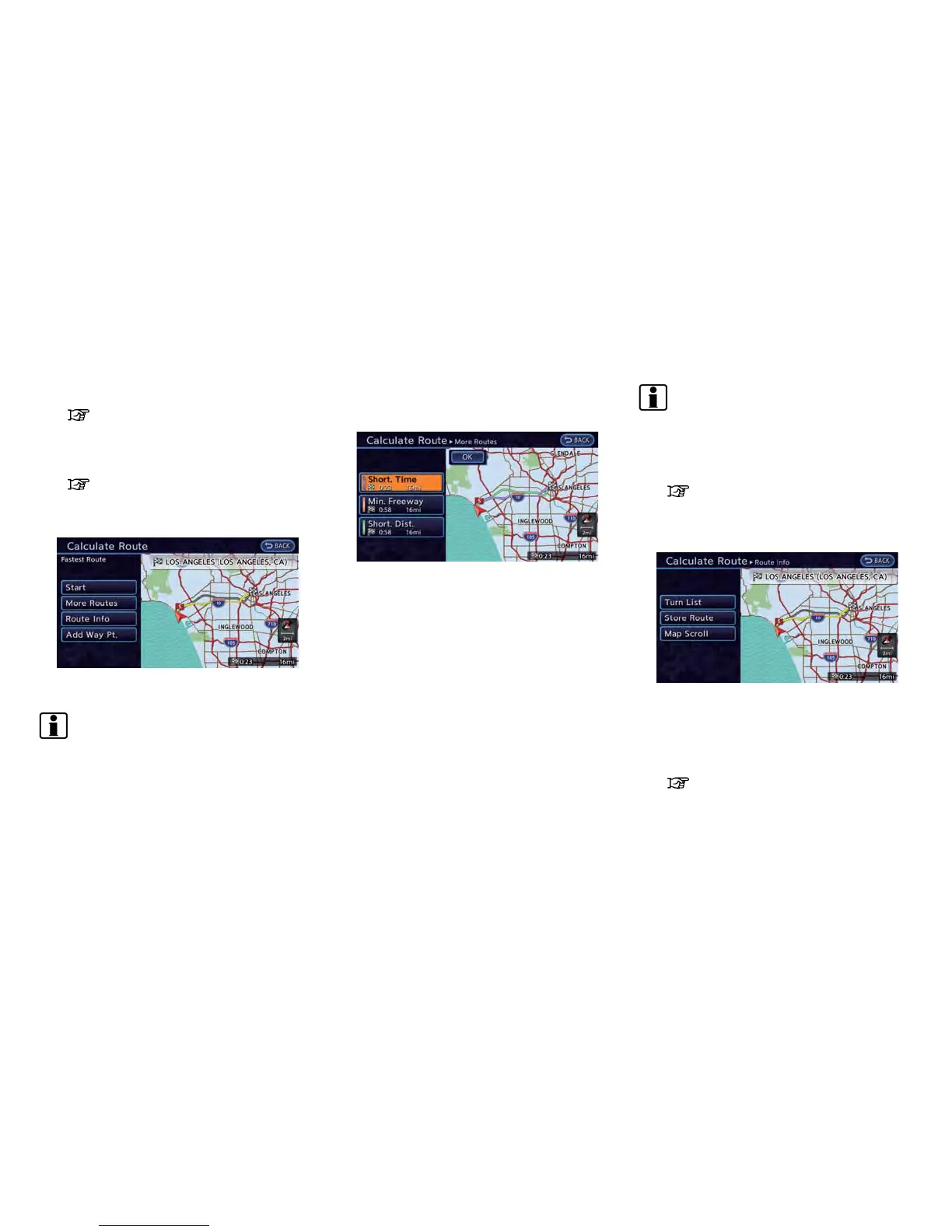
1. Touch [Start]. Route guidance starts.
INFO:
If no operations have been performed on the
system for several seconds, [Start] is automati-
cally selected, and the system starts route
guidance. When the vehicle is being driven,
[Start] is automatically selected and the system
will start the route guidance function.
Changing route condition
1. Touch [More Routes].
2. Touch the preferred route condition. When
the route is selected, a preview is displayed
on the right side of the screen. After
selecting the route condition, touch [OK].
Available route conditions
. [Short. Time] (purple):
Prioritizes the shortest time.
. [Min. Freeway] (orange):
Minimizes the use of freeways.
. [Short. Dist.] (green):
Prioritizes the shortest distance.
INFO:
. The 3 routes may not always be different.
. When using waypoints, [More Routes] is
disabled. After route guidance is started,
change the route between each waypoint.
“Editing route” (page 3-45)
Confirming route
1. Touch [Route Info].
2. Touch the preferred information item.
Available information
. [Turn List]:
Displays the details of the suggested route.
“Using turn list” (page 3-49)
. [Store Route]:
Stores a calculated route. A maximum of 5
routes can be stored. Stored routes can be
easily retrieved and set as the suggested
route. If no waypoints are set on the route,
Navigation 3-37



 To Next Page