To view detailed instructional videos regarding these and other features,
please go to www.nissanownersinfo.mobi.
13
CLOCK SET/ADJUSTMENT
VEHICLE INFORMATION DISPLAY
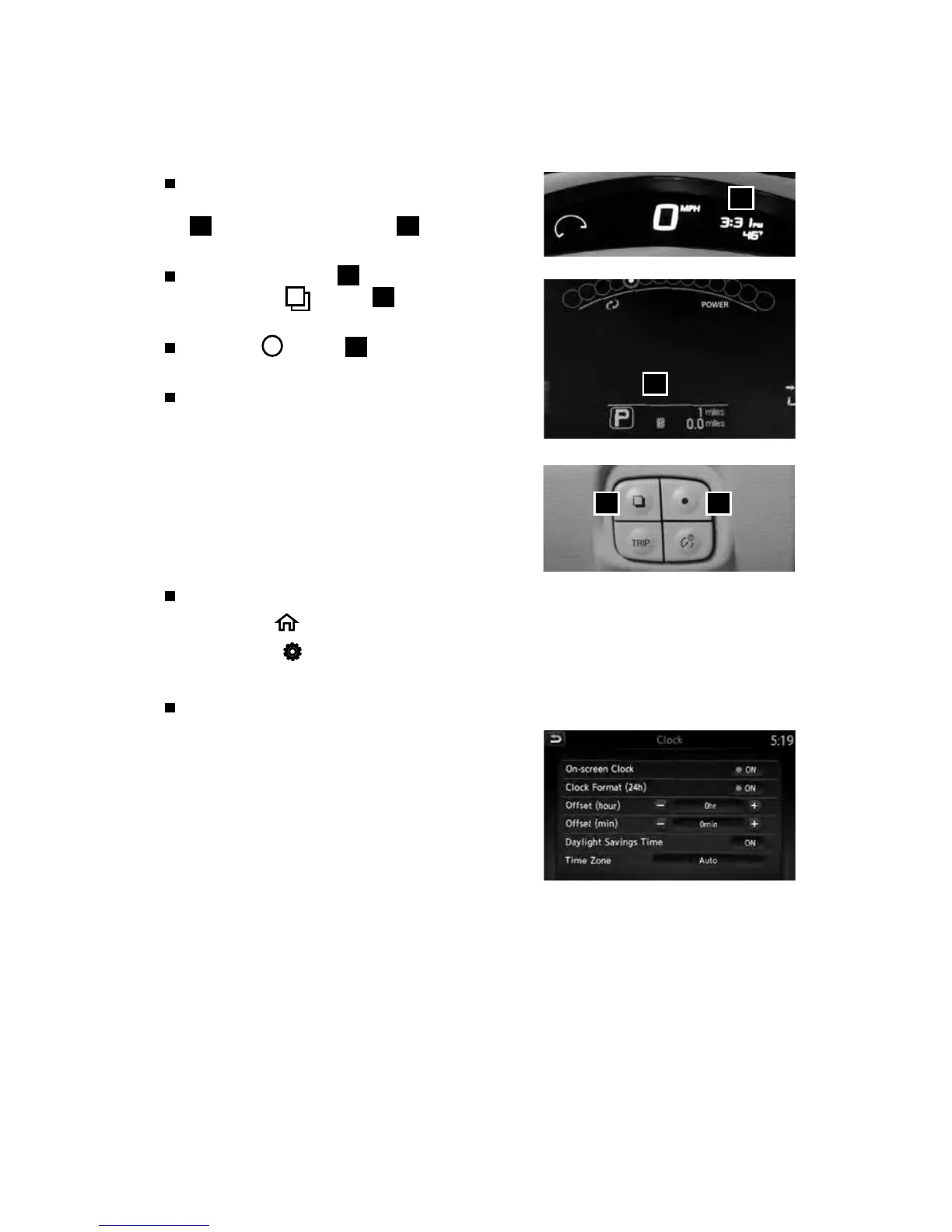
To adjust the instrument panel clock
(for vehicles not equipped with Navigation)
1
, use the Settings menu
2
in the vehicle
information display.
The Settings menu
2
is accessed by
pressing the
button
3
on the left side
of the instrument panel.
Press the
button
4
to cycle through the
various Settings modes.
This clock is linked to the GPS (if so equipped)
through the center display clock.
• Without any adjustments, the correct time
will be displayed based on the vehicle’s
current location.
• There are also controls in the center display
to compensate for Daylight Savings Time.
NAVIGATION DISPLAY (if so equipped)
To adjust the time and the appearance of the clock on the display:
1. Press the
MENU button on the control panel.
2. Touch the
“Settings” key on the Launch Bar.
3. Touch the “Clock” key.
The following settings can be adjusted:
• On-screen Clock: The clock in the upper
right corner of the display can be turned ON
or OFF.
• Clock Format (24h): The clock can be set to
12 hours or 24 hours.
• Oset (hour): The time can be adjusted by
increasing or decreasing per hour.
• Oset (min): The time can be adjusted by increasing or decreasing per minute.
• Daylight Savings Time: The application of Daylight Savings Time can be turned
ON or OFF.
• Time Zone: Adjust the time zone. Choose a time zone from the available list.
1
2
43



 To Next Page