To view detailed instructional videos regarding these and other features,
please go to www.nissanownersinfo.mobi.
26
NISSANCONNECT
SM
MOBILE APPS (if so equipped)
Your vehicle may be equipped with NissanConnect
SM
Mobile Apps, allowing you
to control various compatible smartphone apps through the vehicle’s display
screen. A basic package is included for a period of time from the original in-
service date of the vehicle.
To enroll in NissanConnect
SM
Mobile Apps:
1. Create a Nissan Owner Portal account at owners.NissanUSA.com.
· Make sure to include your vehicle’s VIN when creating your account.
2. Under the NissanConnect Mobile Apps tab, select the red button next to
Manage Subscription to enroll.
3. Next, download the NissanConnect
SM
Mobile Apps companion app from
Google Play or the Apple App Store. Log into the companion app using your
Nissan Owner Portal ID and password.
4. Launch the app, select “United States” and accept the Terms and Conditions.
5. Select “Sign In”, then sign in with the email username and password you
created when registering on the Nissan Owner Portal website.
Pair your cellular phone to the vehicle.
· For Android® devices, the smartphone must be connected through the
Bluetooth® Hands-free Phone system.
· For iPhone® on vehicles WITH Navigation, the device must be connected to
the vehicle’s USB port using your cellular phone’s USB cable.
You can select which apps you want activated in the vehicle from the
NissanConnect
SM
Mobile Apps companion app by selecting “Manage My Apps”.
Some apps shown in the companion app may not appear in your vehicle
depending on availability for your model.
Some apps require you to have the app downloaded and installed on your cellular
phone, while others require you to enter your username and password to log in.
Not all apps shown on the NissanConnect app site are available on all models.
To help identify specic apps available for your vehicle or to contact a specialist
via chat, please visit www.NissanUSA.com/connect/support.
Your available apps will only appear on the screen when your smartphone is
connected to both the vehicle and the Internet. For additional information on
connecting your device, see your Owner’s Manual or visit
www.NissanUSA.com/bluetooth.
The NissanConnect
SM
app must be running
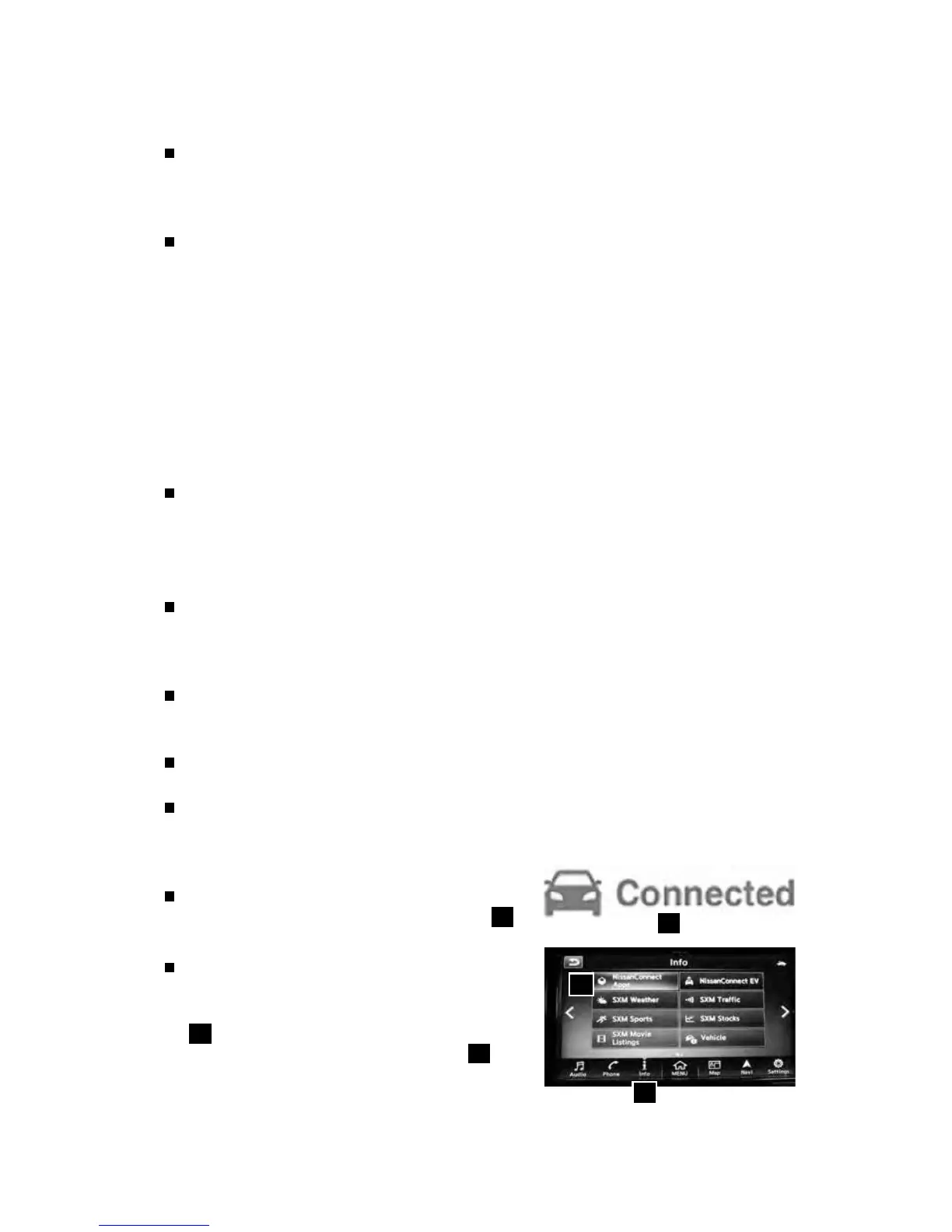
on your device and the Connected icon
1
must be green before using your apps.
Once downloaded, the user can access many
smartphone Apps through the vehicles
touch-screen display by pressing the “Info”
2
button on the Launch Bar, and then
pressing “NissanConnect Apps” key
3
.
SYSTEM GUIDE
2
3
1


 To Next Page
 Loading...