To view detailed instructional videos regarding these and other features,
please go to www.nissanownersinfo.mobi.
30
BLUETOOTH® SYSTEM WITH NAVIGATION* (if so equipped)
CONNECTING PROCEDURE
The vehicle must be stationary when
connecting the cellular phone.
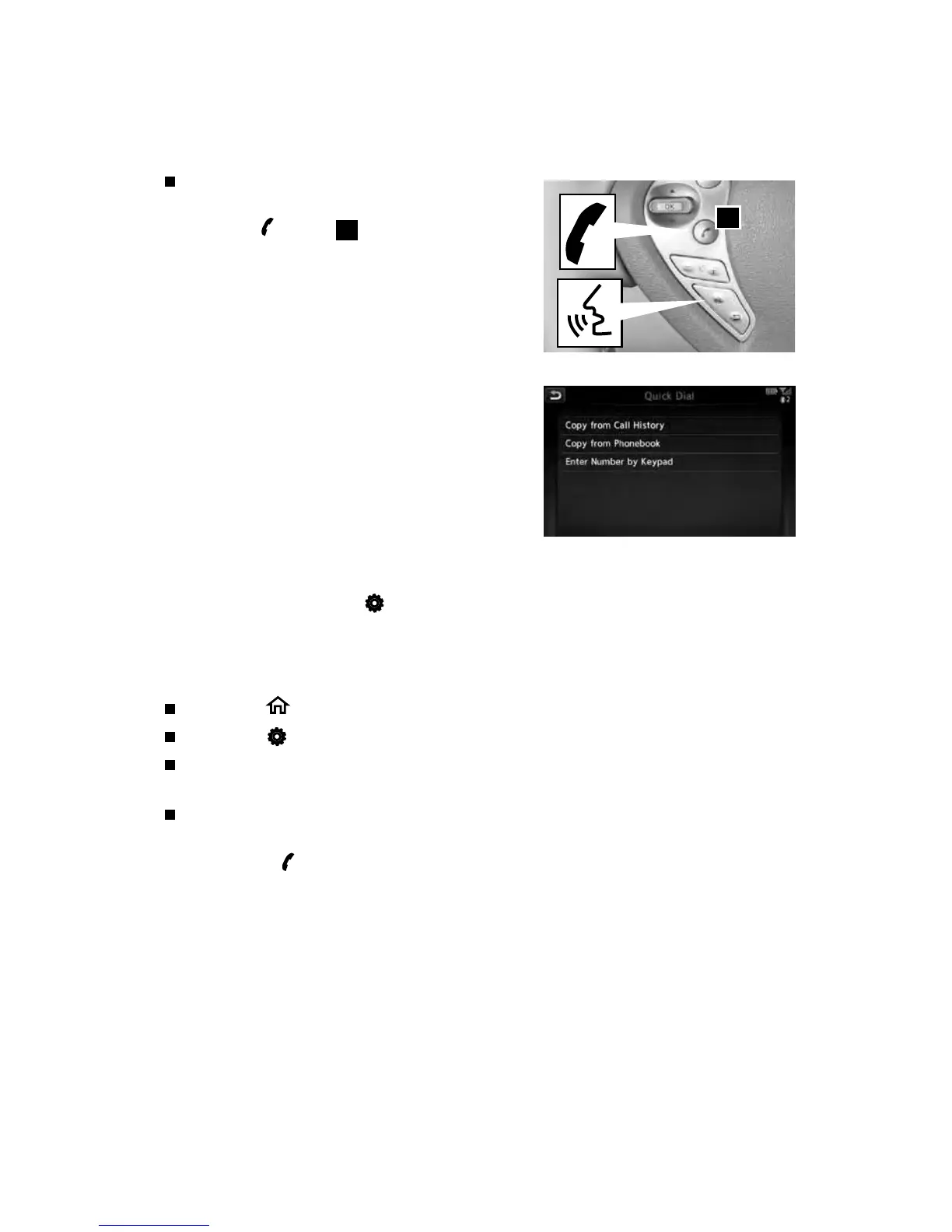
1. Press the
button
1
on the steering
wheel and touch the “Connect Phone” key on
the center display.
2. Initiate connecting from the cellular phone.
• The connecting procedure varies according
to each cellular phone model. For detailed
connecting instructions and a list of
compatible cellular phones, please visit
www.NissanUSA.com/bluetooth.
• When prompted, conrm the PIN on the
display with the PIN shown on the handset.
If your device does not support Secure
Simple Pairing and requests you to input
a PIN, enter “1234” from the handset.
• Some cellular phones may incorrectly state that the connection was
unsuccessful. Please verify that the touch-screen displays that the connection
is successful, or touch
“Settings” > “Bluetooth” > “Select BT Device” > “Phone”
and conrm that your cellular phone is listed.
3. When connecting is complete, the screen will return to the Phone menu.
PHONEBOOK SETUP
Press the MENU button on the control panel.
Touch the “Settings” key on the Launch Bar and touch the “Phonebook” key.
Depending on your cellular phone, the system may automatically download
your cellular phone’s entire phonebook to the vehicle’s Bluetooth® system.
The “Quick Dial” phonebook can also be set for up to ve entries that can be
used with your cellular phone.
1. Press the
button on the steering wheel and touch the “Quick Dial” key.
2. Touch the “Add New” key at the top of the display. There are dierent
methods to input a phone number. Select one of the following options:
• Copy from Call History to save a number from the Outgoing, Incoming or
Missed Calls lists.
• Copy from the Phonebook to save a number that has been downloaded
from your handset to the vehicle.
• Enter Number by Keypad to input the number and name manually.
1
SYSTEM GUIDE



 To Next Page