[ Edit: 2016/ 11/ 24 Model: E12-A ]
Audio main operation
GUID-C4463E2F-F453-4CDB-9169-CF034A624076
Head unit:
GUID-11F97BB9-9503-47D0-8BB9-62C812293875
The auto loudness circuit enhances the low and high
frequency ranges automatically in radio reception, CD
playback and AUX volume.
Power button/Volume control knob:
GUID-11F97BB9-9503-47D0-8BB9-62C812293875
Push the Power button to turn the audio system on and
off while the ignition switch is placed in the “ON” or
“ACC” position.
Turn the Volume control knob to adjust the volume.
Audio settings:
GUID-11F97BB9-9503-47D0-8BB9-62C812293875
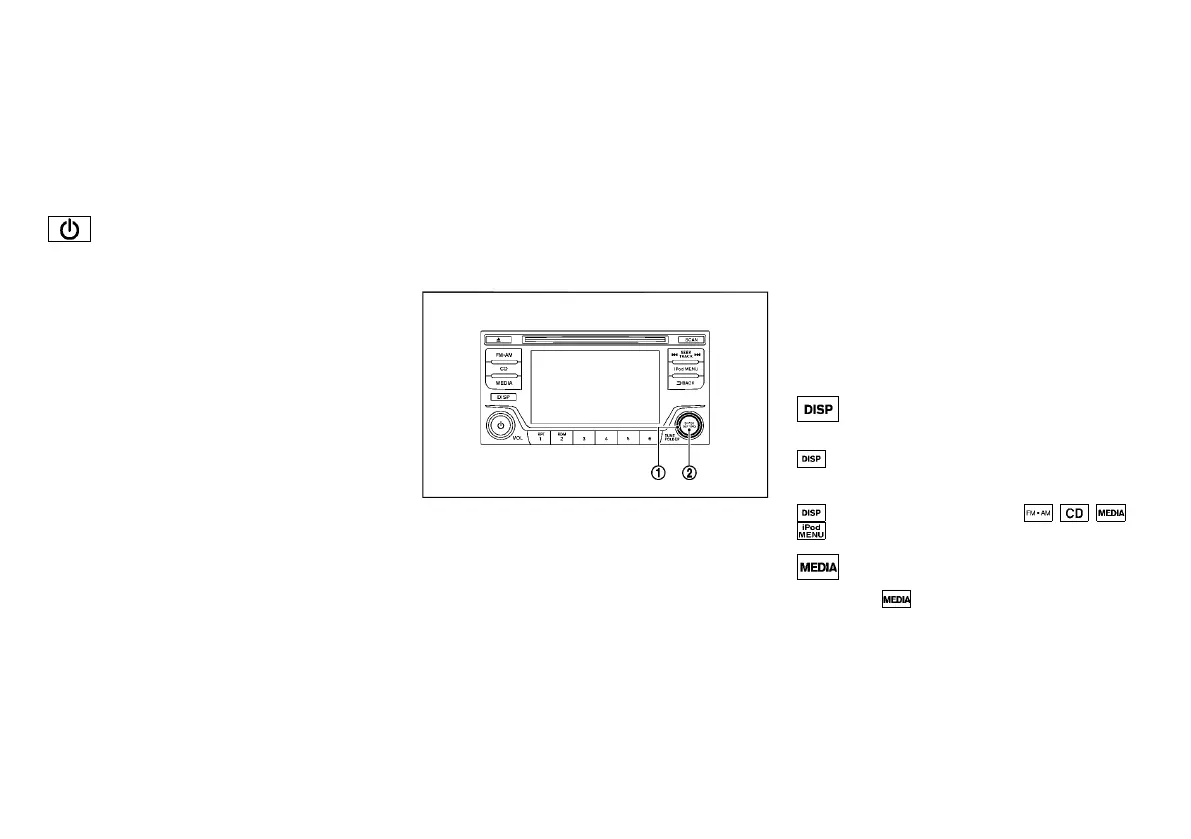
The settings screen will appear when the ENTER/
SETTING button is pushed.
The following items are available in the settings screen.
. Bass, Treble, Balance and Fade
Controls the sound of the audio system. Balance
adjusts the sound between the left and right
speakers. Fade adjusts the sound between the
front and rear speakers.
Select the “Bass”, “Treble”, “Balance” or “Fade”
using the TUNE FOLDER knob, and then push the
ENTER/SETTING button. Turn the TUNE
FOLDER knob to adjust the Bass, Treble, balance
and Fade of the screen to the preferred level.
. Speed Sensitive Vol.
To change the Speed Sensitive Volume (Speed
Sensitive Vol.) level from off (0) to 5, turn the
TUNE FOLDER knob.
. AUX Vol.
Controls the volume level of incoming sound when
an auxiliary device is connected to the system.
Choose a setting between 1 and 3 or choose 0 to
disable the feature entirely.
. Brightness and Contrast
Adjust the brightness and contrast of the screen.
Select “brightness” or “contrast” using the TUNE
FOLDER knob and then push the ENTER/
SETTING button. Turn the TUNE FOLDER knob
to adjust the brightness and contrast of the screen
to the preferred level.
. Clock Adjust
Adjust the clock according to the following
procedure.
JVH1539X
1) Select “Clock Adjust” using the TUNE
FOLDER knob
*
1
and then push the
ENTER/SETTING button
*
2
.
2) Adjust the hour with the TUNE FOLDER knob
*
1
and then push the ENTER/SETTING
button
*
2
.
3) Adjust the minute with the TUNE FOLDER
knob
*
1
and then push the ENTER/
SETTING button
*
2
.
24 hour clock is not available.
. On-Screen Clock
When this item is turned on, a clock is always
displayed in the upper right corner of the screen.
Select the “On-Screen Clock” using the TUNE
FOLDER knob and then push the ENTER/
SETTING button. You can toggle between ON
and OFF using the TUNE FOLDER knob.
. RDS Display
RDS (radio data system) information can be
shown on the display. Select “RDS Display” using
the TUNE FOLDER knob and then push the
ENTER/SETTING button. You can toggle between
ON and OFF using the TUNE FOLDER knob.
. Language Select
The language settings can be changed.
Select “Language Select” using the TUNE
FOLDER knob and then push the ENTER/
SETTING button. Use the TUNE FOLDER knob
to select the preferred language.
DISP button:
GUID-11F97BB9-9503-47D0-8BB9-62C812293875
Display of the screen can be canceled by pushing the
button. You can still listen to music that is being
played back even while the screen display is turned off.
If you want to display the screen again, either push the
button once more or push the , , or
button.
MEDIA button:
GUID-11F97BB9-9503-47D0-8BB9-62C812293875
Pushing the button will switch the displays as
follows:
USB/iPod? AUX? USB/iPod
Monitor, Heater and air conditioner, and audio system 4-21
Condition:


 To Next Page
 Loading...