To view detailed instructional videos regarding these and other features,
please go to www.nissanownersinfo.mobi.
8
ESSENTIAL INFORMATION
WITH NAVIGATION SYSTEM (if so equipped)
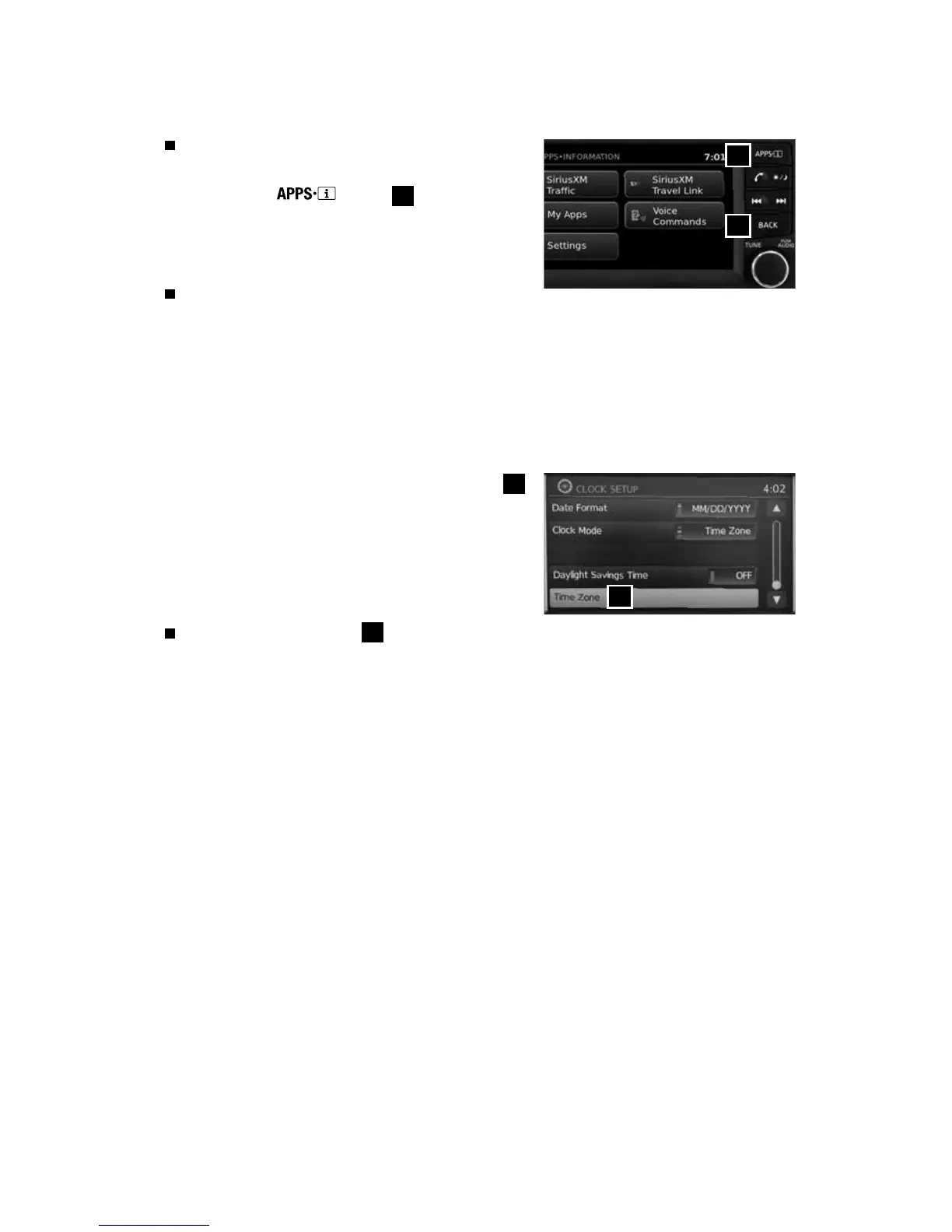
To adjust the time and the appearance of the
clock on the display:
1. Press the
button
9
.
2. Touch the “Settings” key.
3. Touch the “System” key.
4. Touch the “Clock” key.
The following settings can be adjusted:
• Time Format: The clock can be set to 12 hours or 24 hours.
• Date Format: The date can be changed to one of five different formats.
• Clock Mode: From here, the clock mode options are:
· Manual: Allows for the option “Set Clock Manually”. Touch this to begin setting
the clock manually using the “+” or “–” to adjust the hours, minutes, day, and
month up or down.
· Time Zone: Touch the “Time Zone” key
10
to choose from the applicable time zone list
and/or touch the “Daylight Savings Time” key
to switch between ON and OFF.
· Auto: Automatically sets the clock to the
vehicle’s current location.
Press the BACK button
11
to return to the previous screen.
For more information, refer to the “Monitor, climate, audio, phone and voice recognition systems (section 4)” of
your Owner’s Manual.
10
9
11
1938147_16a_Versa_Note_QRG_051415.indd 8 5/14/15 1:49 PM



 To Next Page