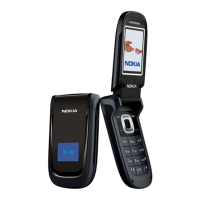
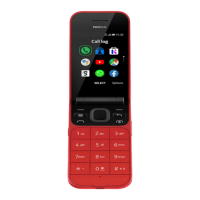
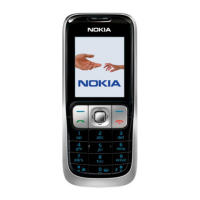
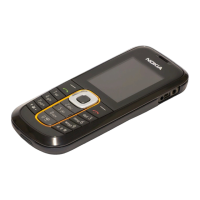
This document serves as the User Guide for the Nokia 2660 Flip, providing comprehensive instructions on its operation, personalization, and maintenance, along with important product and safety information.
Function Description
The Nokia 2660 Flip is a mobile phone designed for essential communication and basic functionalities. It supports calls, contacts, and messaging, allowing users to stay connected. The device features a camera for capturing photos and videos, and includes Bluetooth connectivity for pairing with other devices. It also incorporates a clock with alarm functions, a calendar for scheduling events, and a calculator for basic computations. The phone is equipped with an SOS call key, enabling users to quickly contact pre-selected emergency contacts in critical situations. It supports dual-SIM functionality, allowing the use of two SIM cards simultaneously for greater flexibility in managing calls and network services. The device is designed to be user-friendly with a physical keypad for navigation and text input.
Usage Features
Getting Started:
The guide details how to set up the phone, including opening the back cover, inserting SIM cards (nano-SIM) and a memory card (microSD up to 32 GB), and charging the battery. It emphasizes the importance of using compatible SIM cards and approved accessories.
Keypad and Navigation:
The phone features a physical keypad for interaction. Users can navigate through menus and apps using the scroll key (up, down, left, right) and select items by pressing the scroll key. The "Menu" button provides access to all apps and features, while the "End" key returns to the home screen. Volume keys are available for adjusting audio during calls or when listening to the radio. The keypad can be locked by closing the flip and unlocked by pressing the scroll key and selecting "Unlock > ". Text input is done by repeatedly pressing keys for letters, using '0' for space, '' for special characters, '#' for character cases, and holding a number key for numeric input. The '✉' key is used to delete characters.
- Making Calls: Users can dial a number directly, including international calls by pressing '*' twice for the '+' character, and then press the call key. The phone may prompt to select a SIM card if dual-SIM is active. Calls are ended by pressing the end key.
- Answering Calls: Incoming calls are answered by pressing the call key.
- Adding Contacts: Contacts can be added by navigating to "Menu > Contacts > > Add new contact", selecting a save location, entering the name and number, and then selecting "Save".
- Saving Contacts from Call Log: Numbers from "Missed calls", "Dialed calls", "Received calls", or "Rejected calls" can be saved as new or existing contacts via "Menu > Call history".
- Calling a Contact: Contacts can be called directly from the contacts list.
- Sending Messages: Messages are composed and sent via "Menu > Messaging > + New message". Recipients can be entered directly or selected from contacts.
Personalization:
- Changing Tones: Ringtones and other alert tones can be customized through "Menu > Settings > Personalisation > Sounds".
- Changing Wallpaper: The home screen background can be changed by selecting "Menu > Settings > Personalisation > Lock screen background > Wallpapers".
- Accessibility (Menu View): Users can adjust how the app menu is displayed, choosing between a 3x3 grid (9 apps at once) or 1x1 view (one app at a time) via "Menu > Settings > System > Main menu view".
- ICE Details and SOS Calls: The device supports In Case of Emergency (ICE) features. Users can add personal details ("Menu > Settings > Device > ICE information > Basic info" and "Important Information") and select ICE contacts ("Menu > Settings > Device > SOS > ICE contacts"). Official emergency numbers cannot be used as ICE contacts. SOS calls must be enabled via "Menu > Settings > Device > SOS > SOS settings". To make an SOS call, press and hold the SOS call key for a few seconds; the phone will sequentially call ICE contacts until one answers. The phone automatically switches to handsfree mode during an SOS call.
- Taking Photos: Access the camera via "Menu > Camera". Zoom in or out using the scroll key, and press the scroll key to take a photo. Photos can be viewed in "Menu > Gallery".
- Recording Videos: Switch to video mode via "Menu > Camera" and scroll to the video icon. Press the scroll key to start recording and the stop icon to end. Recorded videos can be viewed in "Menu > Video".
Connectivity:
- Bluetooth: Bluetooth can be switched on via "Menu > Settings > Connectivity > Bluetooth". Devices can be found and paired by selecting "Devices found > Add new device" and confirming the passcode.
Clock, Calendar, and Calculator:
- Alarm Clock: Alarms are set via "Menu > Alarm clock > +New alarm", where users can set the time and other details, then "Save".
- Calendar: Calendar events can be added by selecting a date in "Menu > Calendar", then "Options > Add new schedule", entering details, and "Save".
- Calculator: The calculator is accessed via "Menu > Calculator". Users input numbers, select operations with the scroll key, and press the scroll key for the result. The '✉' key clears number fields.
Maintenance Features
General Device Care:
The guide provides extensive advice on maintaining the device, battery, charger, and accessories.
- Keep Dry: Avoid precipitation, humidity, and liquids to prevent corrosion of electronic circuits.
- Cleanliness: Store the device in clean, dust-free areas. Use a soft, clean, dry cloth for cleaning.
- Temperature: Avoid extreme temperatures (hot or cold) as they can damage the device and battery, and affect performance. Keep the battery between 15°C and 25°C (59°F and 77°F) for optimal performance.
- Physical Handling: Do not drop, knock, or shake the device or battery. Avoid opening the device unless instructed in the user guide, as unauthorized modifications can cause damage and void warranties.
- Magnets: Keep the device away from magnets or magnetic fields.
- Data Backup: Regularly back up important data to multiple locations (device, memory card, computer) or write it down.
- Overheating: During extended operation, if the device feels warm, it may automatically slow down, close apps, switch off charging, or switch itself off to prevent overheating. If issues persist, seek authorized service.
- Charging: Unplug the charger once the device is fully charged; continuous charging should not exceed 12 hours. A fully charged battery will lose charge over time if unused.
- Battery Life: Batteries have a limited lifespan and will eventually wear out. If talk and standby times decrease significantly, the battery should be replaced by an authorized service facility (for non-removable batteries) or with an original rechargeable battery (for removable batteries).
- Charger Compatibility: Use only chargers approved by HMD Global Oy. Charger plug types may vary. Charging time depends on device capability. USB charging is an alternative when wall outlets are unavailable, but efficiency may vary.
- Battery Safety: Do not dismantle, cut, crush, bend, puncture, or damage the battery. Avoid contact with liquid from a leaking battery; if contact occurs, flush with water and seek medical help. Do not modify, insert foreign objects, or immerse the battery in liquids. Batteries can explode if damaged.
- Charger Usage: Use chargers for their intended purpose only. Avoid damaged batteries or chargers. Charge indoors and not during lightning storms. If a charger is not included, use the data cable (if included) and a USB power adaptor, or third-party cables and adaptors compliant with USB 2.0 or later, and applicable safety standards.
- Unplugging: Always pull the plug, not the cord, when disconnecting a charger or accessory.
- Removable Battery Specifics: For devices with removable batteries, always switch off the device and unplug the charger before removal. Avoid short-circuiting by preventing metallic objects from touching battery metal strips.
- Restricted Areas: Switch off the device where mobile use is not allowed (e.g., aircraft, hospitals, near medical equipment, fuel/chemical areas, blasting areas) to prevent interference or danger.
- Road Safety: Prioritize road safety while driving; keep hands free to operate the vehicle.
- Interference: All wireless devices are susceptible to interference.
- Authorized Service: Only authorized personnel should install or repair the product.
- Small Children: The device and accessories are not toys and contain small parts; keep out of reach of small children.
- Medical Devices: Radio transmitting equipment may interfere with inadequately shielded medical devices. Consult a physician or device manufacturer.
- Implanted Medical Devices: Maintain a minimum separation of 15.3 cm (6 inches) between the wireless device and implanted medical devices (pacemakers, insulin pumps, neurostimulators). Hold the device to the ear opposite the implant, avoid carrying it in a breast pocket, and switch it off if interference is suspected. Follow manufacturer directions for the implanted device.
- Hearing Protection: Avoid listening at high volume levels for long periods to prevent hearing damage. Exercise caution when the loudspeaker is in use near the ear. Some wireless devices may interfere with hearing aids.
- Harmful Content: Be cautious when opening messages, accepting connectivity requests, or browsing the internet to avoid viruses and malicious software. Install antivirus software on connected computers. Exercise caution with preinstalled bookmarks and links to third-party sites.
- Vehicles: Radio signals may affect electronic systems in vehicles. Only authorized personnel should install the device in a vehicle. Ensure proper mounting and operation of wireless equipment. Do not store flammable or explosive materials in the same compartment as the device. Avoid placing the device or accessories in the airbag deployment area.
- Potentially Explosive Environments: Switch off the device in potentially explosive environments (e.g., near gasoline pumps, chemical plants, blasting operations) to prevent explosions or fires.
- SAR Information: The device meets RF exposure guidelines. SAR values are provided in the Certification Information section and on www.sar-tick.com. Maintain a separation distance of at least 1.5 cm (5/8 inch) from the body when used with a carry case, belt clip, or other holder that does not contain metal.
- Digital Rights Management (DRM): Users must obey all laws and respect copyrights when using the device, as copyright protection may prevent copying, modifying, or transferring content.
Emptying Your Phone (Restore Factory Settings):
Users can restore the phone to its original factory settings, which will remove all saved data and personalization. If disposing of the phone, users are responsible for removing all private content. To perform a full reset and data removal, type *#7370# on the home screen and enter the security code if prompted.

 Need help?
 General
 Weight and Dimensions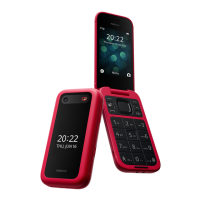

 To Next Page