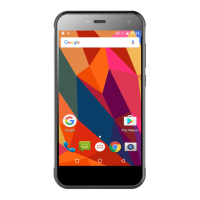
1. Main Menu
→
Camera
2. Aim the camera at the target object to adjust.
3. Click to take a picture. The picture will be saved
automatically.
Thumbnail of the latest photo you take is shown at the lower right
of the screen. Press the thumbnail to view the photos.
·
Press icon , select Delete, to delete the photo.
· Press icon , select Play Slides, to play your photos as slide
show.
·
Press icon , select Edit, to edit photo
·Press icon , select Rotate Left/Rotate Right, to correct photo
by rotation.
·Press icon , select Cut, to cut photo.
·Press icon , select Set Photo as, to set the photo as wallpaper
and contact photo.
·
Press icon , select Details, to view details of the photo.
·Press icon , select Print, to save photo into PDF format.
2. Aim the camera to the target location/object, click to
start to record video, click to stop video recording and
automatically save the recorded video.
3. Press the home button to shut off the camera, and return to the
home screen.
The latest video thumbnail recorded is shown at the lower right of
the screen. Press the thumbnail and then you can:
·
Press , to share the video via message, Bluetooth, email, etc.
·Press icon , select Delete, to delete the video.
·Press icon , select Prune, to cut the video.



 To Next Page