Rotation to On, when you flip the NOOK into landscape orientation (the
Home button is at the right or left), the image on the screen will not adjust.
.
All Setting: Tap this to access more settings.
Wireless & Bluetooth Settings
You saw the Airplane Mode option earlier, and the Wi-Fi options are covered in
Chapter 1. However, you also have Bluetooth connectivity options available.
Bluetooth is Off by default. You can turn it on here. When you turn it on, you are
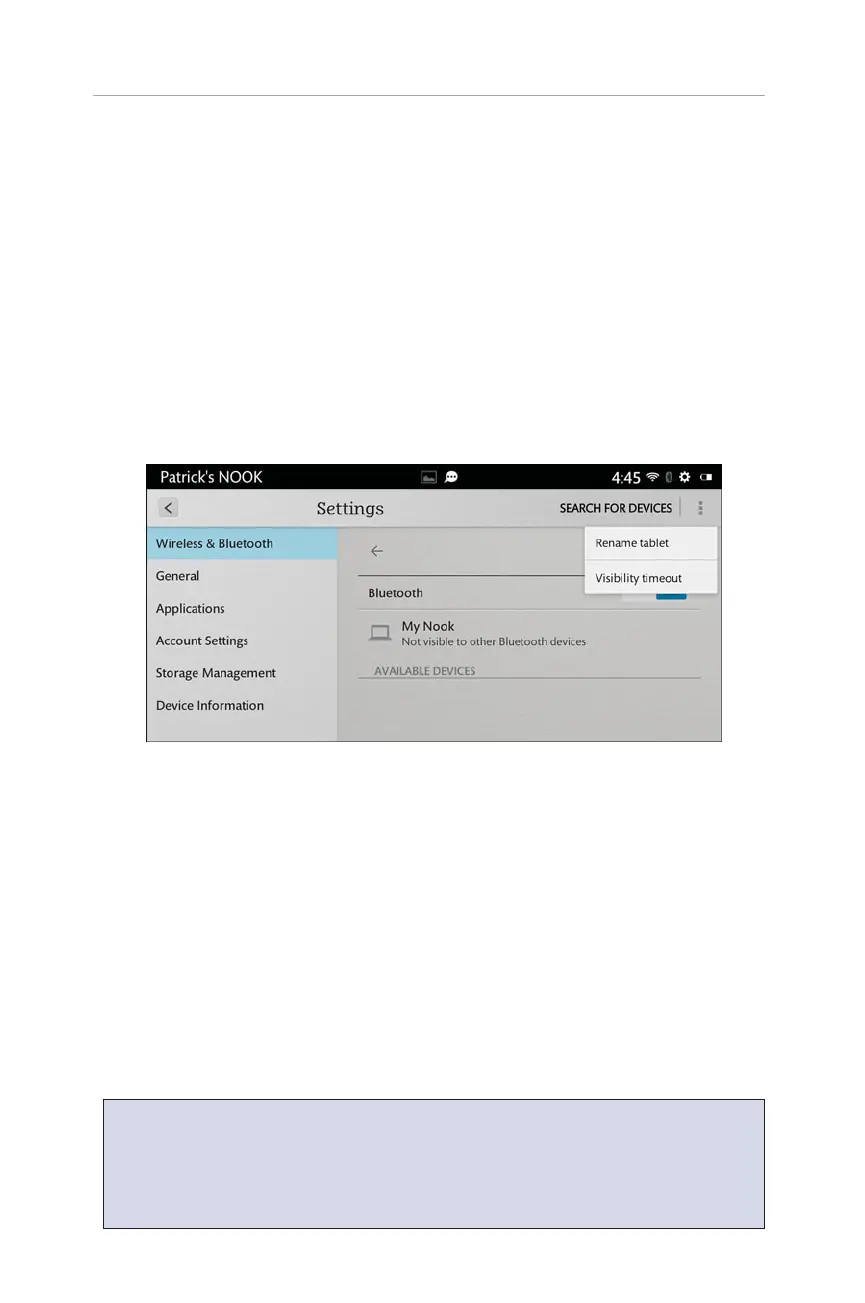
taken to a new screen (see Figure 2.6), and you see a search begin. Your NOOK is
looking for Bluetooth capable devices.
20
CHAPTER 2:
Customizing and Configuring Your NOOK HDs
FIGURE 2.6 Bluetooth settings.
In this screen, you see the name of your device (My Nook) and also available devices.
If you tap the Options button on the top right (the three squares next to Search for
Devices, you see two options: Rename Tablet and Visibility Timeout. Rename Tablet
is self-explanatory; this is a useful item to change for multiple NOOK households to
easily distinguish between their devices.
If you tap Visibility Timeout, you can choose between 2 minutes, 5 minutes, 1 hour,
and never. Essentially, you are setting the length of time that the NOOK remains visi-
ble to Bluetooth devices. If you stop using the Bluetooth device (with earbuds, for
example) and power it off, your NOOK continues to look for Bluetooth connections
to make for as long as the Visibility Timeout is set.
NOTE: To connect a Bluetooth device, make sure you have your NOOK’s
Bluetooth setting turned to On. Follow the instructions that came with your
Bluetooth device about pairing it with another device. When you have paired the
Bluetooth device to your NOOK, you will see it in the list of Available Devices,
and you can tap it to make the connection.


 To Next Page
 Loading...