
 Need help?
Do you have a question about the Nordic ID FR22 and is the answer not in the manual?
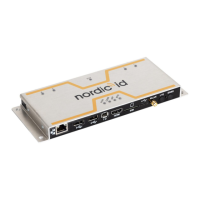
Describes the FR22 as a core device for RFID fixed systems with modular design, offering USB, Ethernet, WLAN, 4G, GPS, BLE, and RFID connectivity.
Details the two available variants of the Nordic ID FR22 based on communication interfaces (with or without LTE).
Discusses the need for external RFID antennas and suggests Nordic ID RAIN RFID antennas, mentioning GA30 and BFA models.
Introduces the device's features and lists the external WLAN/WWAN antennas that need to be fastened.
Lists all physical connectors: Ethernet, USB-A host, USB-C device, Mini-IO, HDMI, SIM slot, SMA, and Extension Port.
Explains how to mount the Nordic ID FR22 using the four holes and provides a template for drilling.
Describes powering via Ethernet (PoE) or PoE+ supply, and lists power consumption ratings.
Lists and describes the function of the 9 LED indicators for user and status indications.
Explains the functionalities of the Reset button for fastboot/bootloader and factory reset.
Introduces Windows tools for testing and configuration, available via Nordic ID Support.
Describes the RFID Demo application for reading/writing tests, statistics, and parameter adjustment.
Explains the Configurator for non-volatile RFID settings and how parameters can be assigned by the host.
Describes the tool for signing zip-files to enhance SW platform security.
Details the Keyboard Wedge software for reading tags and feeding data into active input fields, emulating keyboard input.
Explains accessing the web UI via network, default settings, and login credentials.
Describes the web UI's side navigation menu for device management and the four icons accessible on the top right corner.
Explains the dashboard as the default landing page for real-time system status and health monitoring.
Outlines the six sections of the system menu, mainly for developers, including API docs, Date, Log, Settings, Info, and Web UI.
Explains how to reset the device to factory defaults via System > Settings for troubleshooting or starting fresh.
Covers changing the password, setting the default landing page, and accessing the built-in admin interface.
Discusses using the web browser as a landing page to display local or internet content, with options for navigation or kiosk mode.
Lists configuration parameters for Beeper, Bluetooth, Extension Port, GPIO, USB, and GNSS.
Details network configuration for LAN, WLAN, and LTE interfaces, including DHCP, IP address, gateway, and DNS settings.
Explains the HDMI port settings for resolution, rotation, and how to configure touch input, keyboard layout, and cursor visibility.
Describes how to change connection settings and configure RFID parameters like Q, Rounds, Session, Target, Tx Level, RX Sensitivity, and RF Profile.
Discusses updating the operative system, managing applications, and plugins.
Explains plugins, including the default 'nur3' system plugin, and how to install/uninstall others.
Defines applications as custom or Nordic ID provided software for customers, with or without a user interface.
Introduces the App Center as a repository for apps and plugins, enabling installation and updates, with options for custom repositories.
Explains how to create application-specific passwords for apps/plugins that require credentials.
Describes developer tools like SSH and VNC available in the App Center for debugging and remote assistance.
Declares compliance with essential requirements of RED, EMC, LVD, and RoHS directives.
States compliance with FCC Rules Part 15 and Canadian licence-exempt RSS.
Addresses RF radiation exposure limits and the required minimum separation distance of 20mm.
Warns that the chassis may be hot after prolonged use and advises to wait before handling.
 General
| Brand | Nordic ID |
|---|---|
| Model | FR22 |
| Category | Rfid Systems |
| Language | English |

 To Next Page