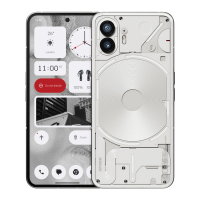
Q: How do I block / blacklist numbers on Nothing Phone (2)?
A: Open the Phone app and tap on the three-dots icon to the right of the search bar. Next,
navigate to Settings > Blocked numbers > Add a number, to block incoming calls and texts from
the added number.
Q: How do I screen cast Nothing Phone (2) to my TV?
A: To set up the screen cast feature, swipe down from the top of the screen two times to access the
expanded Quick Settings. Press the edit (pencil) icon and drag the Screen Cast tile up from the
hidden tiles.
To begin mirroring, swipe down to open the Quick Settings and nd the newly added Screen Cast
tile. Tap it once and select the targeted device to cast to connected in the same local area
network.
Q: How do I enable dark theme on Nothing Phone (2)?
A: Dark theme is enabled by default. To change it, swipe down to access Quick Settings and nd
the "Dark Theme" tile and tap it to toggle it on / off.
Q: How do I change fonts on Nothing Phone (2)?
A: The font in Phone (2) can not be changed. However, to change to font size, navigate to Settings >
Display > Font Size.
Q: How do I restore deleted photos or videos?
A: Open the Photos app and navigate to Library on the bottom bar. Next, tap on "Bin" to see items
deleted within the recent 60 days.


 To Previous Page