• Note: ngerprint / face data unlocking cannot be used without a PIN as otherwise anyone could
simply swipe to unlock the device.
8. About Phone (2)
• Contains all the device specic information such as hardware information, phone number etc.
• Press on the device name to edit how Phone (2) appears on other devices.
• If there is a new software update available for the device, a red number (1) will show up next to
the NothingOS version.
Advanced
1. Glyph Interface
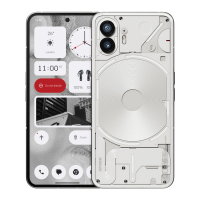
• The Glyph Interface are the ve individually controlled lighting segments on the back of Phone
(2). All of the preloaded Nothing ringtones and notication sounds have their bespoke,
handcrafted Glyph patterns, lighting up the Glyph Interface in sync with audio and vibration,
providing users a new way to interact with Phone (2).
• To setup individual features, nd the Glyph Interface section in the Settings app.
Alternatively, long press the Glyphs toggle in Quick Settings.
• Drag the brightness slider to adjust the brightness of the Glyph Interface. This will scale all
Glyphs down from maximum brightness to the set brightness.
• To preview and set ringtones, nd the Ringtones tab in the Glyph Interface settings. Choose
between setting the default ringtone or pair individual contacts with unique ringtones, then
proceed to decide between Nothing sounds (handcrafted Glyphs) or My sounds (imported
sounds, generated Glyphs).
• To add a custom ringtone, go to My sounds and press "Add new sounds." This will open the le
browser to select the les to import.
• Notication sounds can be set in a similar manner, deciding between original Nothing sounds
or imported sounds.
• Other features of the Glyph Interface include:
•
Charging Metre - passively displays the device's charging progress when plugged in.
•
Google Assistant - lights up the Glyph Interface when Google Assistant is triggered.
•
Flip to Glyph - temporarily silencing and turning off the vibration of the device when Phone
(2) is placed with the screen face down, reducing distractions while not missing out on any
important calls.


 To Next Page