1.4 Dolphin Touch at a glance
3. 4.
F
G
A
B C
D E
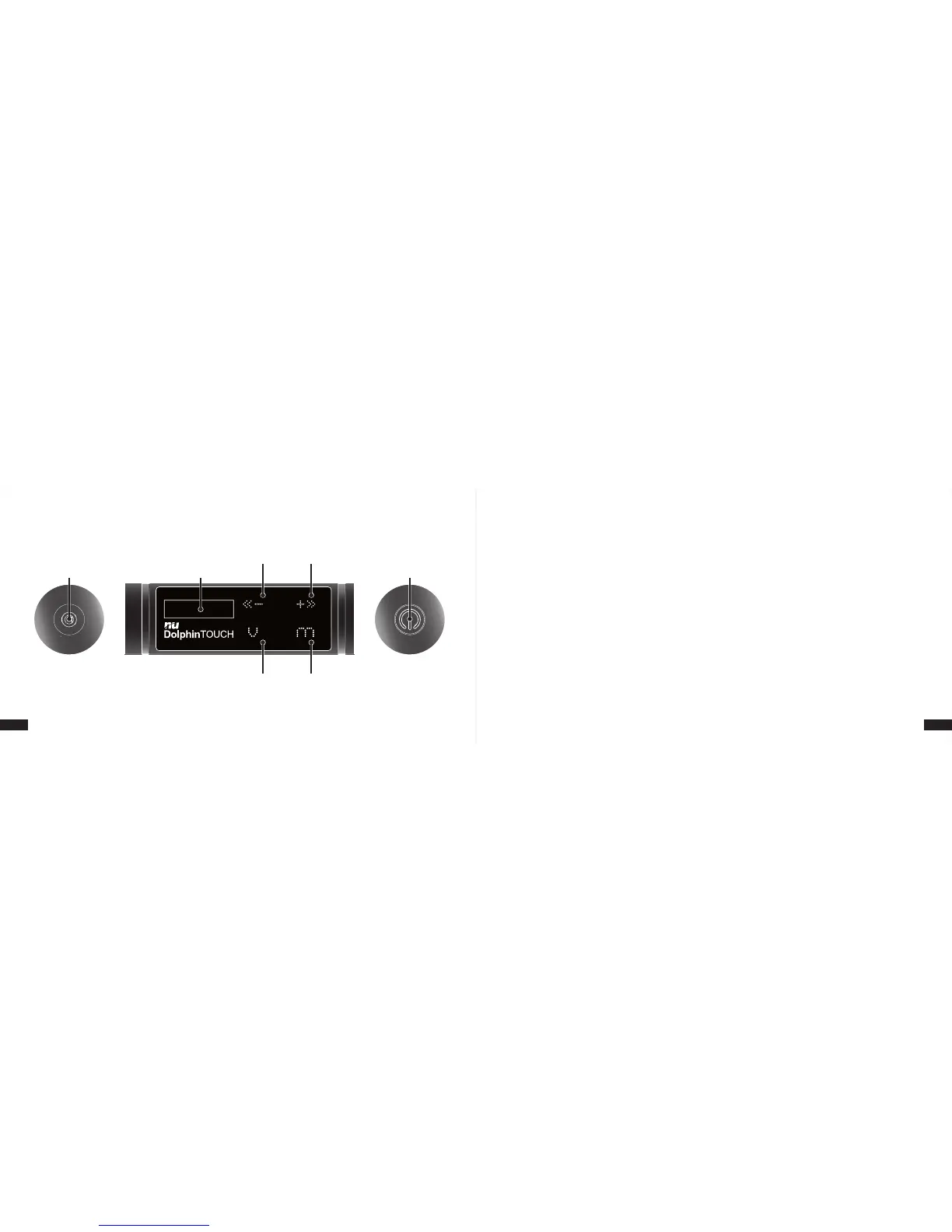
A. High-brightness single-color LCM display
● White LCM display with graphical user interfaces
B. Previous/Volume (decreasing) touch button
● Tap this button to skip to the previous song
● Tap this button to decrease the volume
C. Next/Volume (increasing) touch button
● Tap this button to skip to the next song
● Tap this button to increase the volume
D. Volume/Play Mode touch button
E. Menu touch button
● Tap and hold this button and the volume control will show in the
MP3 screen. You can adjust the volume by tapping -/+ buttons.
● Please refer to “2.1 Main Menu”
F. Earphone Jack (USB Port/Charging Port)
● For earphone connection
● For USB cable connection to the PC
● Only when the earphone or a USB cable is connected can the
Dolphin Touch player be powered on.
G. Power button (Power / Pause and Play / Select)
● Power on/off the player and play/pause music.
● Pause: To pause a song, tap the power button and the song will
be paused. To resume the playback, tap the power button again
and the song will be resumed.
● Power off: To shut off the power, tap and hold the power button
for 5 seconds. A “Goodbye” message will appear on the screen
and the player will power off.
● Function Select: On the function menu, tap the power button to
select a function or enter a submenu.
● Low voltage: when the low-voltage message appears on the
screen, the player will be powered off soon. Meanwhile the battery
icon on the screen will keep displaying zero power until the power
is off.
● Charging: During charging, a “connection to PC” icon will appear
on the screen and the screen backlight will be turned on,
indicating the player is being charged. (The battery has to be
charged for at least 3 hours before use for the first time.)
● Tapping the V button switches the music play mode (It switches
between Normal / Repeat One / Repeat All / Shuffle All / Folder /
Repeat Folder. )


 To Next Page
 Loading...