5. 6.
Charging
Please charge the MP3 player with the supplied USB cable
attaching to the computer or with the AC adapter. The battery must
be fully charged before use.
Power on
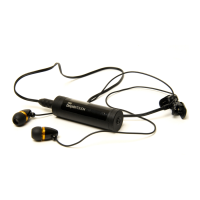
Please attach the earphone to the earphone jack first. Next press
and hold the power button for 2 seconds to turn on the MP3 player.
(The Dolphin Touch will not power on without the earphone attached
to the earphone jack.)
Lock
To lock the touch pad, tap and hold the power button for 2 seconds
while the player is powered on. A key icon will appear on the screen
and the touch pad will be locked and not responsive.
Unlock
To unlock the touch pad, tap and hold the power button for 2
seconds. A unlock key icon will appear on the screen and the touch
pad will be effective again.
Special foolproof design: To avoid false underwater operations
caused by Dolphin Touch's delicate touch pad design, Dolphin Touch
locks the touch pad automatically after 1 minute of idling in the
normal playing mode if the touch pad is unlocked. In this way,
Dolphin Touch ensures you an undisturbed music-listening
experience. To unlock the touch pad, follow the aforementioned
procedures.
Power off
Please press and hold the power button for 4 seconds to turn off the
Dolphin Touch. Or you can detach the earphone from the earphone jack,
and the Dolphin Touch will power off without saving any information.
Connecting to a PC
● Please connect the Dolphin Touch player to an available USB port on
your computer with the supplied USB cable.
● At this moment, the icon will appear on the bottom right of the
Windows system tray. Meanwhile, a “removable disk” icon will appear
in “My Computer”, too, and a “connecting to the PC” icon will
show on the MP3 screen.
File Transfer
● After transferring files, please double click the icon on the bottom
right of the Windows system tray and stop the varying “removable
disk”. When the “Safe to Remove Hardware” dialog pops up, you can
detach the USB cable from the Dolphin Touch.
2. Basic Operations
Settings
System
tools
FM
Radio
Music
Function Overview
2.1 Main Menu
● EQ Mode (Rock, Pop, Classical, Normal, Jazz, Bass,
Random, Browsing playlist.) cable.
● Repeat Mode (Normal / Repeat One / Repeat All /
Shuffle All / Folder / Repeat Folder )
● Contrast
● Backlight
● Power saving
● Language
● 3D surround sound
● Formatting (quick formatting/full formatting)
● Deleting files
● Reorganizing data
● Sorting files
● System Information
● Auto-scanning mode (Tuning mode)
● Saving a radio station
● Music playlist
Using the Dolphin Touch player (Normal Mode)
● The screen is set to music mode after system startup.
● Tap the M button several times to select songs or enter
music function settings and other function settings.
● In addition to power on and off the player, the power button
also works as the select button of songs and the confirm
button of music function settings and other function settings
● To enter the music setting mode, select the function setting
mode and tap the power button.
1. Playing/Pausing Music and Returning to the Music Folder
(After system startup, the default mode is the music mode.)
● Tap the power button to enter the music mode, running
commands, and play the music.
● Tap the power button during music playback to pause/stop
the music. Tap the power button again to resume music
playback.
● Tap the M touch button to return to the music folder.
2. Adjusting Volume
● Tap the V button during music playback to enter the volume
adjusting mode. Adjust the music volume by tapping -/+
buttons. Volume ranges from 0 to 32.
● Tap the M touch button to return to the music playing mode.
Please kindly be understand that standard operating time for “Dolphin
Touch” is as below:
We would suggest you to keep in mind for more fun of using our “Dolphin
Touch.”
1. Under “standby mode” and “display is off” : the playing time can be 8.5 ~9
hours.
2. Under “standby mode” and “display is on” : the playing time can be 3 ~3.5
hours.
3. Playing music and display is “off”: the playing time can be 5.5~6 hours.
4. Playing music and display is “on”: the playing time can be 2~2.5hours.
Therefore, we strongly suggest that when there is not necessary, please let
the display off automatically to save battery energy.
Caution: Fully recharging time: 3 hours Minimum.


 To Next Page
 Loading...