To select text:
Press and hold the Dictate button and dictate:
■ “Select (word)”
OR
■ “Select (first word) through (last word)”
To replace selected text:
1. Press and hold the Dictate button while
dictating.
2. Press and hold the Dictate button and dictate
“Transcribe Report.” Your speech-
recognized text replaces the selected text.
To un-select text:
Press and hold the Dictate button and dictate
“Un-select that.” The cursor is in Insert mode.
To delete selected text:
Press and hold the Dictate button and dictate
“Scratch that.”
Selecting and Replacing Text
To save a report (without signing):
Press and hold the Dictate button and dictate
“Save report.”
To approve a report:
1. Press and hold the Dictate button and dictate
“Approve Report. ”
2. Press and hold the Dictate button and dictate
“Yes.” (Depending on your site, the report
might upload as a preliminary to the
Radiology Information System.)
To unapprove an approved report:
1. Press and hold the Dictate button and dictate
“Reports tab. ”
2. Select Approved in the Show field at the top.
3. Select the Staff Provider in the Reports
assigned to field.
4. Press and hold the Dictate button and dictate
“Find.”
5. Right-click the desired report and select
Unapprove from the menu.
6. Press and hold the Dictate button and dictate
“Yes” to confirm unapproval.
Saving and Approving a Report
To delete a report (prior to signature):
1. Press and hold the Dictate button and dictate
“Reports tab.”
2. Right-click the desired report in your queue.
3. Select Delete from the menu.
4. Press and hold the Dictate button and dictate
“Yes.”
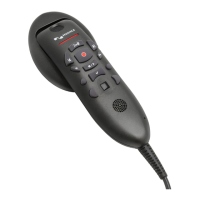
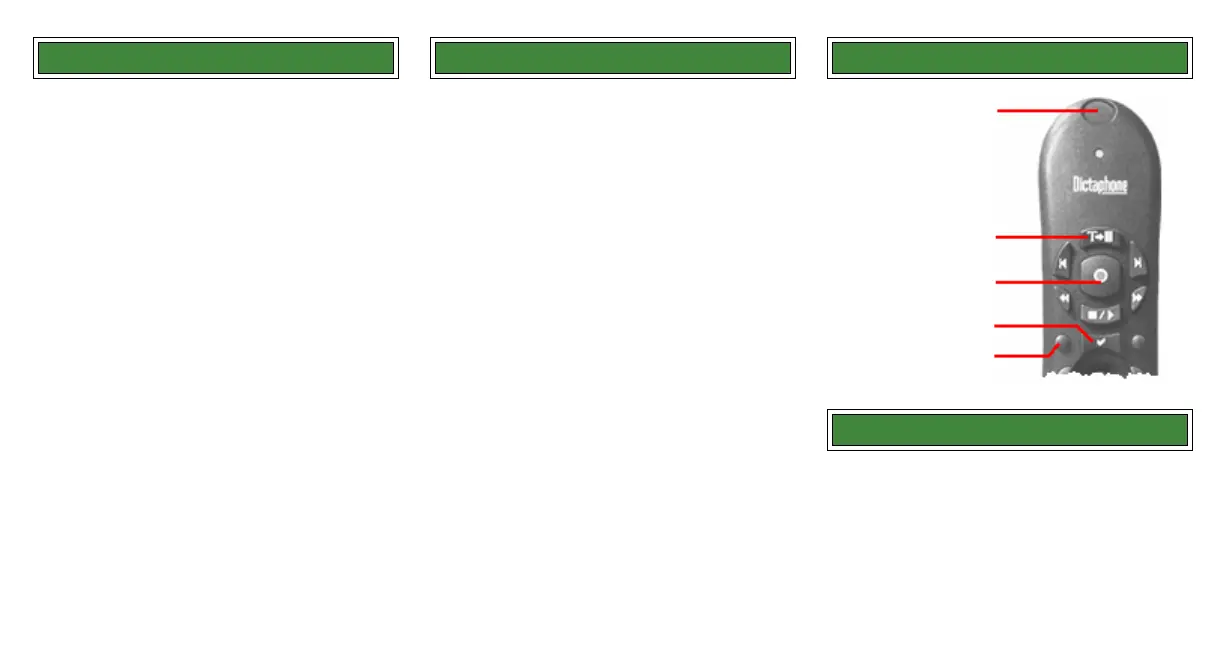
PowerMic II Buttons
Deleting a Report
Transcribe
Dictate
Enter/Select
Button A
Microphone


 To Previous Page
 Loading...