Need help?
Do you have a question about the Obvius AcquiSuite A8820 and is the answer not in the manual?
States limitations for Obvius products in critical applications like nuclear facilities or life support.
Describes AcquiSuite as a cost-effective solution for gathering crucial facility information.
Lists technical specifications for the A8820 Data Acquisition Server.
Lists required and optional hardware for installing the AcquiSuite.
Details DIN rail and mounting tab options for installing the AcquiSuite unit.
Guides on configuring the DAS for network connection using DHCP via front panel.
Provides step-by-step instructions for configuring a static IP address on the DAS.
Details the process for creating an admin user password during initial setup.
Explains how to log into the AcquiSuite web browser interface using username and password.
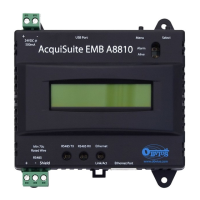
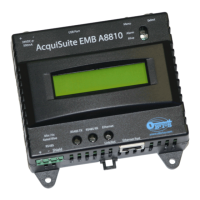
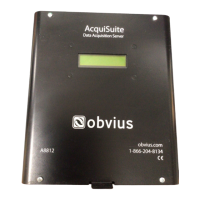
The AcquiSuite™ Data Acquisition Server, model A8820, is a robust and versatile system designed to provide owners and managers of commercial and industrial facilities with an efficient means of gathering crucial information. Its compact footprint and wide industrial temperature range make it an ideal solution for embedded applications, helping to reduce development time and accelerate integration by directly collecting and distributing energy and sensor data from various equipment.
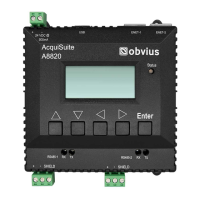
The AcquiSuite A8820 serves as a central hub for data acquisition, capable of communicating with a variety of devices using multiple protocols. It features dual Ethernet ports, allowing for flexible network configurations where one port can connect upstream to the internet (via a firewall/router or Ethernet modem) and the other can connect downstream to a PC, Ethernet meters, and other devices. This dual-port capability enhances network segmentation and management. Additionally, the device includes dual RS485 Modbus ports, each supporting up to 32 external devices, enabling a total of 64 Modbus devices to be integrated into the system. A USB 2.0 Type A port is also available for additional connectivity options. The server supports common communication protocols such as Modbus RTU, Modbus TCP, TCP/IP, HTTP, HTML, and FTP, ensuring broad compatibility with existing infrastructure and data management systems. Its primary role is to collect data from connected meters and sensors, process it, and make it accessible for monitoring, analysis, and reporting. The device is designed for continuous operation in demanding environments, with a focus on reliability and data integrity.
The AcquiSuite A8820 offers a user-friendly interface accessible through its front panel LCD display and a web browser.
Upon initial power-up, the device guides the user through a quick start process. This includes confirming network connections, setting up network modes (DHCP or Static IP), and creating an administrative password.
Users can choose between DHCP (Dynamic Host Configuration Protocol) mode, which is the default and recommended setting, or Static IP mode. In DHCP mode, the device automatically obtains an IP address from the network. In Static IP mode, users can manually assign specific IP addresses, subnet masks, and gateway addresses, providing greater control over network configuration. The front panel LCD allows for easy navigation through these settings using arrow keys to select fields and adjust numerical values.
For security, the device requires an admin password to be set during initial setup. This password protects access to the web browser interface. The system also offers an option to allow the admin password to be reset from the front panel's Advanced menu, which can be useful if the password is forgotten, provided the unit is in a physically secure location.
Once the device is connected to a network and an IP address is assigned, users can access the full configuration and monitoring capabilities through a standard web browser by entering the device's IP address. This interface provides a comprehensive view of the system, allowing for detailed setup, data visualization, and management of connected devices.
The dual RS485 Modbus ports facilitate the creation of Modbus network loops. Users are advised to follow manufacturer instructions for installing and powering Modbus devices and to use appropriate wiring (e.g., 2-wire, twisted pair with shield) for reliable communication. Termination resistors (120 ohm) are recommended for long RS485 runs to prevent signal reflections.
The front panel display provides real-time information on active Ethernet connections and their assigned IP addresses, allowing users to quickly verify network status. The "Remote Assist: Enabled" message indicates that remote support features are active, which can be beneficial for troubleshooting.
The AcquiSuite A8820 is designed for low maintenance, with features that ensure long-term reliability and ease of service.
The device is built to withstand harsh environments, with an operating temperature range of -30°C to +70°C and 95% RH non-condensing. This robust design minimizes the need for frequent repairs or replacements due to environmental factors. When installed outdoors or in harsh environments, it must be mounted in an appropriate listed outdoor or industrial rated enclosure (Type 4X / IP54 in Europe) to protect it from elements.
The front panel menu includes a "Diagnostics" option, which can be used to check the operational status of the device and identify potential issues. This allows for quick assessment of the system's health without requiring specialized tools.
While not explicitly detailed in the provided manual, data acquisition servers typically support firmware updates to enhance functionality, address bugs, and improve security. These updates are usually performed through the web browser interface.
The ability to reset the admin password from the front panel's Advanced menu serves as a crucial maintenance feature, preventing lockout scenarios if the password is forgotten. This feature should be used with caution and only when the device is in a secure location.
The Status LED and LCD display provide immediate visual feedback on the device's operational state, including power-on, system boot progress, and network activity. These indicators help in quickly diagnosing whether the device is functioning correctly or if there's a problem requiring attention.
The use of standard RJ45 connectors for Ethernet and screw terminals for RS485 wiring simplifies installation and replacement of cables, reducing downtime during maintenance. The wiring terminals have specified torque settings (Min = 4.4 in/lb, Max = 5.3 in/lb) to ensure secure connections and prevent issues caused by loose wiring.
The device offers integrated DIN rail mounting clips for standard 35 mm DIN rails and mounting tabs in each corner for screw-based attachment. This flexibility simplifies installation and allows for easy removal or re-installation during maintenance or system upgrades.
 General
| Data Logging | Yes |
|---|---|
| Ethernet Ports | 2 |
| Processor | ARM9 |
| Ethernet | 10/100Base-T |
| Operating System | Linux |
| Protocols | FTP, HTTP, SNMP |
| USB Ports | 1 |
| Serial Ports | 4 RS-232/485 |

 To Next Page