6
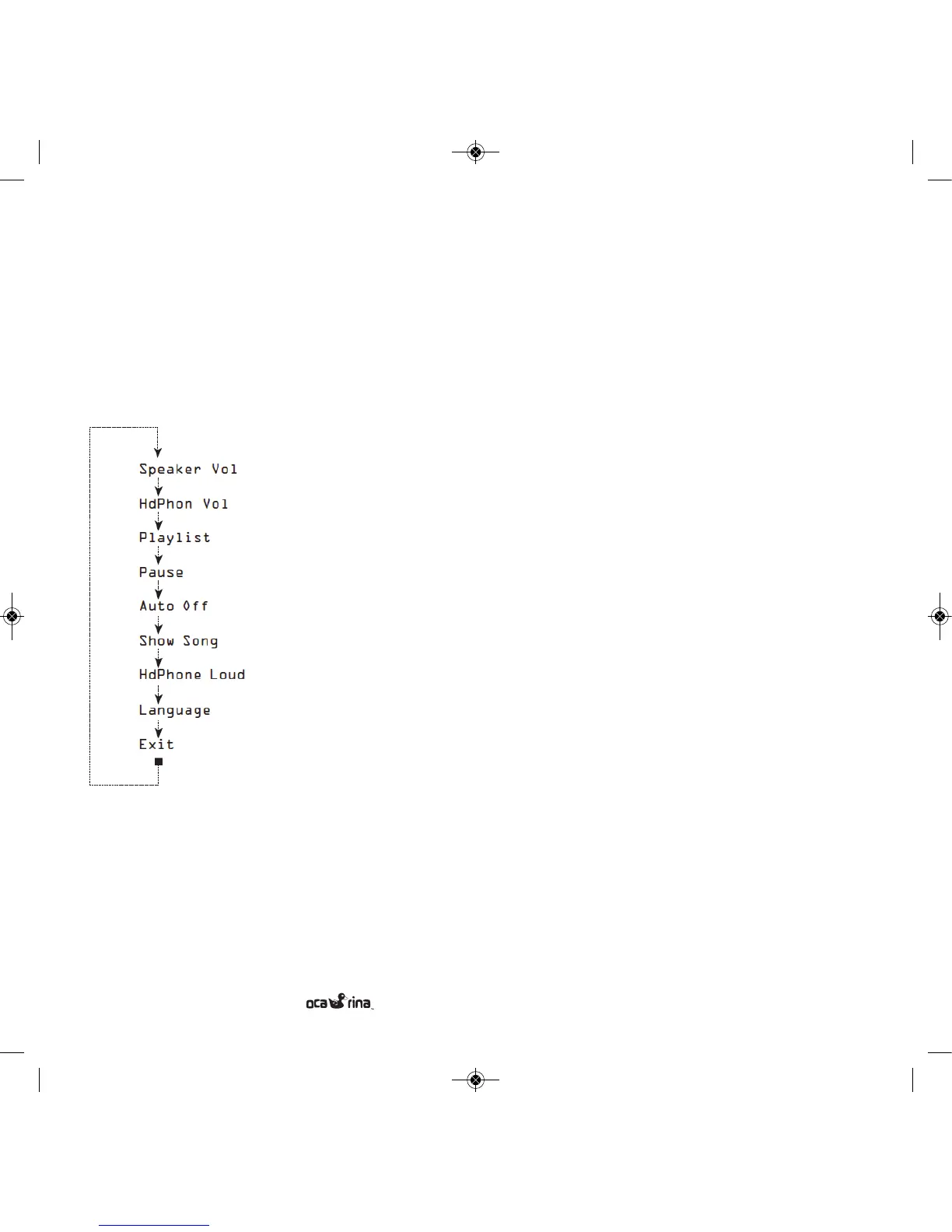
Scrolling through the Settings menu
Pressing the middle button will scroll through the Settings
menu. Pressing the left and right buttons will adjust the value
of each setting.
Each item in the menu is described as follows:
Speaker Volume
The current speaker volume
setting is displayed as a number
between 1 and 10 (loudest).
HdPhone Volume
The current headphone volume
setting is displayed as a number
between 1 and 10 (loudest).
Playlist
A playlist is simply a group of
songs. You can create up 99
playlists (see Playlist section below)
and group songs however you like.
For instance, you might put high
energy songs in a playlist called
“Fun” and lullaby songs in “Relax”.
Note: empty playlists are not displayed and cannot be selected.
Select the Aud playlist to play Audible audiobooks.
Pause
Pause ON allows the middle button to pause/resume the song.
Pause OFF allows the middle button to start and stop the song
from the beginning. Very young children may find the Ocarina
more intuitive with the pause feature o.
Auto O
The current Auto O setting is displayed (minutes). This
feature turns the player o automatically after playing for a
set time. This can be handy at bedtime or to conserve battery
power when the child leaves the player running.
When this feature is o, the Ocarina will play until the
stop/pause button is pressed.
Show Song
Shows the song name on the display.
HdPhone Loud When ON, boosts the headphone volume.
Warning: Do not use the Ocarina with headphones on chil-
dren when HdPhone Loud is ON. Turn this setting ON for
playing the Ocarina through a car stereo or for when adults re-
quire loud headphones.
Language
Selects the language on the display.
Exit
Press the Left or Right buttons to exit from the Settings menu
and return to the normal mode for playing music. The other
way to exit from the Settings menu is to simply not press any
button for 10 seconds. Press the middle button to scroll back
to the top of the Settings menu.
U S E R M A N U A L


 To Next Page