Installation
Hardware
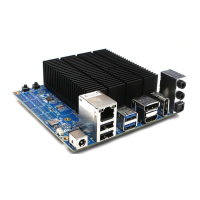
• Connect the backup battery to the board. The backup battery is packaged with the ODROID-
H4, and it will maintain BIOS settings as well as the Real Time Clock on the board.
• Install DDR5 memory cards as desired up to 48GB (1 x 48GB). ODROID-H4 only supports
single channel memory
• Connect any additional peripherals such as a display monitor, keyboard, and mouse. ODROID-
H4 doesn’t support a PS-2 type keyboard or mouse. Only USB keyboard and mouse are
supported.
• For desktop like use, a display device can be connected with HDMI and/or DisplayPort.
Operating system support is required for dual/triple display use.
• Single or dual ethernet (10/100/1000Mbps/2500Mbps) cables can be connected for network
support via on-board Intel I226-V NIC chipset.
• Finally, connect the DC power adapter to the DC jack at the rear side of the ODROID-H4. For
high performance computing and/or multiple storage devices, at least a DC 15V/4A power
adapter is strongly recommend.
• For more detailed installation requirements, please refer to the hardware specification. Also, it
is strongly recommended to install and keep the ODROID-H4 in a secure hardware case to
protect it from environmental hazards.
Entering BIOS menu
• At the very first boot after the ODROID-H4 hardware is assembled, the BIOS will be entered
immediately. You can set hardware configuration options and save them. The BIOS settings
will be maintained until the backup battery is disconnected or discharged.
• You can use the DEL key while booting to enter the BIOS manually.
• The very first booting process might take up to 3 minutes.
The first boot needs a long post process to start the BIOS due to a long period of checking the RAM
timing parameters.
Once the configuration is stored into the backup memory in the SoC, it boots quickly.
If you disconnect the backup coin battery for a while, you will meet the very slow booting process
again.
Operating system


 To Next Page
 Loading...