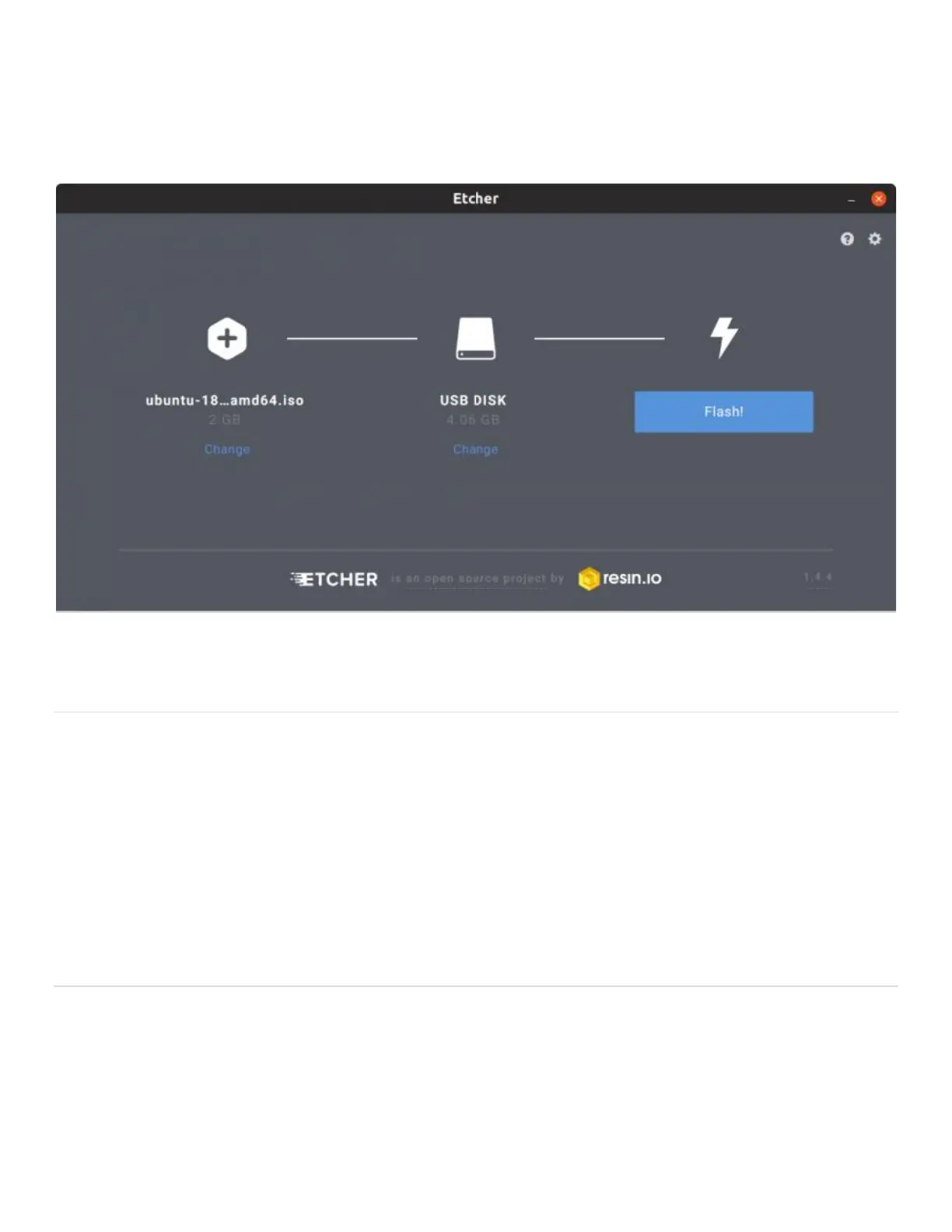
• Open Etcher.
• Click “Select Image” button and select the downloaded OS image.
• Etcher selects a USB stick to flash automatically. If not, or if you want to use a different drive,
click “Change” and select one.
• Click the “Flash” button to start the flashing and verification process.
Installing an operating system from an installation
media
• The instruction in this section can be used to install an operating system from a USB stick or
CD/DVD media or when you want to switch an operating system installed on storage attached
to the ODROID-H4 while changing the boot priority.
• The procedure to install an operating system varies depending on the operating system, but it’s
no different between a regular personal computer and the ODROID-H4. Therefore, you may
also need to contact the operating system provider if you encounter any installation failures.
• After installing an operating system is completed, the operating system will eventually ask you
to remove the installation media from the ODROID-H4 and reboot. On the next boot, if
everything is fine, the operating system you have installed will appear.
Installable boot media on the ODROID-H4
• The ODROID-H4 series can have multiple storage devices that an operating system can be
installed on. These storage devices can be connected to the ODROID-H4 at the same time and
an operating system can be installed and select to use during booting.
1. eMMC (Embedded Multimedia Card)
2. SATA HDD/SSD drive #1 (Only for H4+ and H4 Ultra)
3. SATA HDD/SSD drive #2 (Only for H4+ and H4 Ultra)


 To Next Page
 Loading...