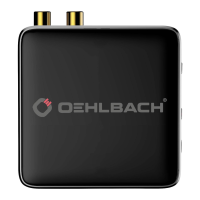
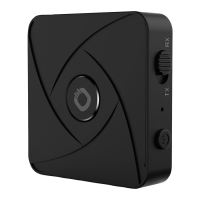
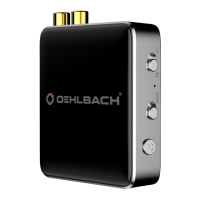
BTR Evolution 5.1
13
Operation
BTR Evolution 5.1 in RX mode
In RX (receiver) mode, the BTR Evolution 5.1 can be used as a Bluetooth
®
receiver. Here, the BTR Evolution
5.1 can be used to send an audio signal from a Bluetooth
®
-enabled device (here as an example, a smart-
phone) to a non-Bluetooth
®
-enabled device (here as an example, a radio).
1. Plug the required connectors of your radio into the correct socket (SPDIF/RCA Output) and set the
switch to the correct position (RX).
2. Switch on the unit by pressing the multifunction switch for three seconds. The blue LED flashes three
times if no unit is stored. Press the multifunction switch twice so that the BTR enters pairing mode.
3. Switch on Bluetooth
®
on your smartphone and confirm the pairing with the BTR.
4. Now you can listen to the music from your smartphone on your radio.
Dual-in operation
This allows you to connect a second device (here as an example, a second smartphone).
1. Press the multifunction switch twice to put the BTR into pairing mode again. In some cases, the first
connected device will be disconnected.
2. Switch on Bluetooth
®
on your second smartphone and confirm the pairing.
3. In some cases, you may now need to reconnect the first device.
4. You can now play music from both devices.
BTR Evolution 5.1 in TX mode
In TX (transmitter) mode, the BTR Evolution 5.1 can be used as a Bluetooth
®
transmitter. In this mode, the
BTR Evolution 5.1 can be used to send an audio signal from a non-Bluetooth
®
enabled device (in this examp-
le, a TV) to a Bluetooth
®
enabled receiving device (in this example, wireless headphones).
1. Plug the required connectors of your TV set into the correct socket (SPDIF/RCA Input) and set the BTR
to transmit mode (TX).
2. Switch on the unit by pressing the multifunction switch for three seconds. The blue LED flashes three
times if no device is stored. Press the multi-function switch twice to put the BTR into pairing mode.
3. Switch on your Bluetooth
®
-enabled headphones and also put them into pairing mode. Establish the
Bluetooth
®
connection between your headphones and the BTR.
4. Now you can hear the sound from your TV on your Bluetooth
®
-enabled headphones.
Dual-link mode
This allows you to connect a second device (here as an example, a second pair of Bluetooth
®
-enabled
headphones).
1. Press the power button twice to put the BTR into pairing mode. In some cases, the first connected
headphone will be disconnected.
2. Switch on your Bluetooth
®
enabled headphones and put them into pairing mode. Establish the
Bluetooth
®
connection between your headphones and the BTR.
3. In some cases, you may need to pair the first headphone again.
4. Now you can hear the sound from both headphones.


 To Next Page