This document provides a comprehensive user guide for the OFFNOVA 4B-2054N Label Printer, detailing its components, setup, driver installation, LED status indicators, maintenance procedures, professional tips, and safety guidelines.
Function Description
The OFFNOVA 4B-2054N is a label printer designed for efficient and reliable label printing. It connects to a computer via a USB cable, allowing users to print various labels for different applications. The printer is equipped with a print head and a roller mechanism to feed and print on label paper. Its design emphasizes ease of use, from initial setup to ongoing operation and maintenance.
Usage Features
The label printer offers several features to ensure a smooth and effective printing experience:
- Quick Start Guide: The manual provides a straightforward quick start guide to get the printer up and running. This includes connecting the printer to a computer using the USB cable, opening the cover via the release latch, and loading the label paper.
- Label Loading: Users are instructed to ensure that the gray guides within the printer are touching the label sides, and that the peel-off side of the label is facing up (towards the ceiling) before closing the cover. This ensures proper label alignment and feeding.
- Power On and Initialization: After loading the labels, users need to turn on the power and wait approximately 5 seconds for the printer to initiate. The power switch is clearly marked with "I" for ON and "O" for OFF.
- Driver Installation: The printer requires driver installation for both Windows and Mac OS operating systems. The manual directs users to the official OFFNOVA website for the latest drivers. For Mac OS, specific steps are provided to address security settings that might block the installation of software from unidentified developers, guiding users to "System Preferences" to "open anyway" and proceed with the installation. It is crucial to ensure the printer is connected and turned on before driver installation.
- LED Status Indicators: The printer features an LED light that provides visual feedback on its status:
- Blue: Indicates that the printer is powered on and ready to print.
- Flashing Blue: Signifies that data is being downloaded or that the printing process is paused.
- Purple: Denotes that the printer is formatting data.
- Red: Alerts the user that the cover is not properly closed.
- Flashing Red: Indicates a paper shortage or a paper jam.
- Professional Tips: The manual includes a section with professional tips to optimize printer usage and longevity:
- Skipping Blank Labels: Pressing the feeder button on the printer allows users to skip a blank label, preventing wastage.
- Label Quality: Users are advised to avoid using poor quality labels, as they can potentially damage the printer.
- Preventing Duplicate Printer Copies: To avoid creating duplicate copies of the printer on the computer, users should insert the printer's USB cable into the same USB port every time they plug it in.
- Clearing Label Jams: In case of a label jam, the user should turn off the printer, allow the print head to cool down, open the cover, ensure the rubber components are clean (using an alcohol pad if dirty), allow the area to dry, and then turn the printer back on.
- Self-Test Function: To perform a self-test, users must ensure label paper is loaded, turn off the printer, then press and hold the feed button while turning on the printer. The LED will blink three times in pink after red, at which point the feed button should be released. It is important to note that after a self-test, the printer MUST be turned off and on again to restore it to proper printing functionality.
Maintenance Features
Proper maintenance is crucial for the longevity and optimal performance of the OFFNOVA label printer. The manual outlines specific steps for cleaning the printer head:
- Printer Head Cleaning: The printer head is a sensitive component located on the upper part of the printer when the cover is open.
- Safety Precaution: Users are cautioned that the printer head can become very hot while the printer is running.
- Cleaning Procedure:
- Power off the printer and remove the power cord.
- Open the printer cover.
- Wait several moments to ensure the printer head has cooled down completely.
- Clean the printer head thoroughly using an alcohol swab.
- Important: DO NOT USE WATER for cleaning.
- Allow 2-3 minutes for the alcohol to completely vaporize.
- Close the cover.
- Reconnect the power cord and print a test page to verify that the printer head is clean and functioning correctly.
Safety Tips
The manual also provides essential safety guidelines to prevent injury and damage to the device:
- Hot Printer Head: The printer head can become very hot after printing. Users should avoid touching it until it has cooled down.
- Power Cord Handling: Do not bend the power cord excessively or place objects on it, as this could lead to fire or electrocution.
- Child Safety: Keep the printer out of reach of children.
- Approved Accessories: Use only approved accessories and do not attempt to disassemble or repair the unit independently.
- Environmental Protection: Keep the printer away from water and other objects that could damage the device.
- Unplug When Not in Use: The printer should remain unplugged when not in use for extended periods.
This comprehensive guide ensures that users can effectively set up, operate, maintain, and troubleshoot their OFFNOVA 4B-2054N Label Printer, promoting both user safety and device longevity.

 Need help?
 General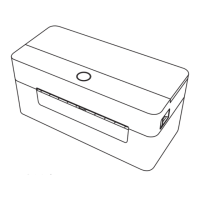

 To Next Page