This document provides an installation guide for the OHP OBD2 WiFi device, which allows users to connect to their vehicle's On-Board Diagnostics II (OBDII) port via WiFi. The device facilitates communication with the vehicle's systems, enabling diagnostic and monitoring functions through compatible software.
Function Description
The OHP OBD2 WiFi device serves as a wireless interface between a vehicle's OBDII port and a computing device (desktop, laptop, tablet, or smartphone). It transmits vehicle data over a WiFi network, allowing users to access diagnostic information, monitor various parameters, and potentially perform certain service procedures. The device is designed to work with FORScan software on Windows computers and the FORScan Lite app on iPhones and Android phones.
Important Technical Specifications
While specific technical specifications like operating voltage, current draw, or supported OBDII protocols are not explicitly detailed in the provided pages, the document highlights key connectivity and software requirements:
- Connectivity: The device establishes a WiFi network (e.g., "WiFi_OBDII") to which a computing device connects.
- IP Address (for Windows): Default IP: 192.168.0.10, Port: 35000.
- Timeout (for Windows): Default timeout: 5 seconds.
- Supported Software:
- FORScan software for Windows desktop/laptop/tablet computers (downloadable from forscan.org/download.html).
- FORScan Lite app for iPhones (App Store) and Android phones (Google Play Store).
- OBDII Port Compatibility: The device plugs directly into the vehicle's standard OBDII port.
- CAN Support (for Windows): MS-CAN support and ISO15765 support are configurable within the FORScan software.
Usage Features
The OHP OBD2 WiFi device offers flexible usage across different platforms:
I. Via Desktop/Laptop/Tablet Windows Computers:
- Physical Connection: Plug the device into the vehicle's OBDII port.
- WiFi Connection:
- Scan for available WiFi networks.
- Identify and connect to the "WiFi_OBDII" network. The network might show "No Internet, open," which is expected as it's a direct device connection.
- Access network properties to verify connection details if needed.
- Software Installation: Download and install the FORScan software from the provided URL (https://forscan.org/download.html).
- Software Configuration:
- Open the FORScan software.
- Navigate to "Settings" and then the "Connection" tab.
- Select "WiFi" as the "Connection type."
- Check the "Auto-connect" box for convenience.
- Verify or adjust IP (192.168.0.10), Port (35000), and Timeout (5 sec) settings if necessary.
- Configure MS-CAN and ISO15765 support as "Auto" or as required.
- Functionality: Once configured, the FORScan software can be used to access vehicle information, read diagnostic trouble codes (DTCs), view live data (PIDs) in various formats (dashboard, table, graph), and perform tests.
II. Via iPhones and Android Phones:
- Physical Connection: Plug the device into the vehicle's OBDII port.
- WiFi Connection:
- Open the phone's settings and navigate to the Wi-Fi section.
- Scan for available Wi-Fi networks.
- Connect to the "WiFi_OBDII" network. It will typically appear as an "Unsecured Network."
- App Installation: Download and install the "FORScan Lite" app from the respective app store (Google Play Store for Android, App Store for iOS).
- App Usage:
- Open the FORScan Lite app.
- The app's interface provides options for "Vehicle" information, "Log" of operations, "Errors" (DTCs), "Dashboard," "Table," "Graph" for PIDs, and "Tests."
- To initiate communication with the vehicle, tap the "CONNECT" button within the app.
- Limitations: It is crucial to note that FORScan Lite has limitations compared to the full FORScan software. As stated in the document, users CANNOT apply configurations, programming functions, or perform some service procedures using FORScan Lite. For these advanced functions, the Windows-based FORScan software on a laptop, desktop, or tablet is required.
Maintenance Features
The document does not explicitly detail maintenance features for the OHP OBD2 WiFi device itself. However, the software and app provide diagnostic capabilities that can assist in vehicle maintenance:
- Diagnostic Trouble Code (DTC) Reading: Both FORScan and FORScan Lite allow users to read and interpret DTCs, which are essential for identifying vehicle issues and guiding repairs.
- Live Data Monitoring (PIDs): The ability to view live data from various vehicle sensors helps in monitoring performance, diagnosing intermittent problems, and verifying repairs.
- Logging: The FORScan software and FORScan Lite app include logging features to record vehicle data and diagnostic sessions, which can be useful for long-term monitoring or sharing information with technicians.
The device itself is designed for plug-and-play operation, requiring no specific maintenance beyond ensuring a secure connection to the OBDII port and keeping the associated software/app updated.

 Need help?
 General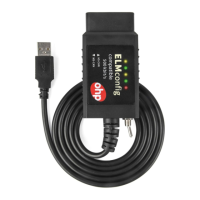

 To Next Page