UNPACK THE BOX CONTENTS
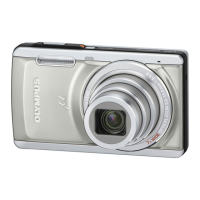
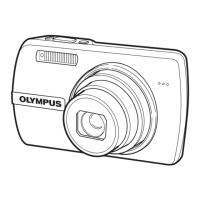
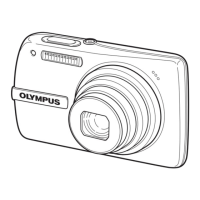
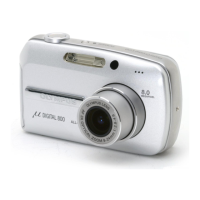
Please gather the items shown in the illustration. You’ll need these
to complete the procedures that follow.
Digital Camera Strap
Card
LI-12B Lithium Ion Battery
LI-10C
Battery Charger
USB Cable AV Cable OLYMPUS Master
software CD-ROM
The following items are also included in the Digital Camera package: Basic manual,
warranty card, Advanced manual on CD-ROM and registration card.
S
T
E
P
REVIEW THE DOCUMENTATION
Quick Start Guide (this document)
Getting started with your digital camera.
Quick Reference Guide (reverse side of this document)
Quick guide to using common features and functions.
Basic Manual (printed booklet)
Guide to mastering the basics of taking and viewing pictures.
Advanced Manual (CD-ROM)
Detailed instructions on all camera features and functions.
Software Installation Guide
(Separate document on OLYMPUS Master CD-ROM)
Detailed instructions for installing the OLYMPUS Master software.
S
T
E
P
CHARGE AND INSERT THE BATTERY
a. Connect the power cable and insert the
battery into the charger and charge
completely (when fully charged, the indicator
turns green - approx. 120 min.).
b. Make sure the camera is off.
c. Open the battery compartment/card cover
and insert the battery with correct orientation.
S
T
E
P
LI-10C battery
charger
Charging
indicator
Power cable
AC wall outlet
S mark
LI-12B
lithium ion battery
n
o
Sliden
Lifto
Battery
oc
knob
INSERT THE CARD
a. Orient and insert the card into the card slot.
b. Close the battery compartment/card cover.
S
T
E
P
Index area
Slideo
Closen
Notch
ATTACH THE STRAP
S
T
E
P
Strap
TURN ON THE CAMERA
a. Set the mode dial to K and
press the POWER switch.
The lens barrier opens, the lens
extends and the monitor turns
on.
Note: To turn the camera off,
press the POWER switch again.
The lens retracts, the lens
barrier closes and the monitor
turns off.
S
T
E
P
Mode dial
POWER switch
SET THE DATE AND TIME
a. With the camera on, press e.
b. Use the arrow pad to select [MODE MENU].
c. Select the [SETUP] tab and press . Select [X]
and press .
d. Select the date format and press .
e. Use or to set each item and press to
move to the next item.
f. Press e when you have finished entering the
date and time.
S
T
E
P
WB
MODE MENU
K
F
CAMCARD
SETUP
X
VIDEO OUT
,
04.01.01
00:00
NTSC
2004
.
01 01
00 00
:
YMD
.
GO
OK
SET
SELECT
TAKING A PICTURE
a. Place the AF target mark on your subject using
the monitor.
b. Press the shutter button halfway to lock the focus
and exposure, then press the shutter button
completely to take the picture.
S
T
E
P
2560 1920
HQ
30
30
P
o
AF target mark
S
utter
utton
REVIEWING A PICTURE
a. Press the QUICK VIEW button.
The last picture taken is displayed.
b. Use the arrow pad to display the
picture you want.
c. Press the QUICK VIEW button
again when you are ready to take
another picture.
S
T
E
P
QUICK VIEW button
Arrow pad
ERASING A PICTURE
a. Select the picture you want to erase and press
e.
b. Press to select [ERASE].
c. Select [YES] and press e.
S
T
E
P
ERASE
MODE MENU
ALBUM ENTRY
m
YES
NO
SELECT
GO
OK
SELECT GO
OK
ERASE
CONNECTING THE CAMERA
TO A COMPUTER
a. Connect the one end of the USB cable (included) to the computer.
S
T
E
P
b. Connect the other end of the USB cable to
the camera. The camera turns on automatically.
c. Select [PC] on the
camera’s monitor and
press e.
USB
SELECT GO
OK
P C
PRINT
EXIT
Hook your finger on
this part and pull open
the connector cover.
VERIFY CAMERA CONNECTION
Windows:
a. From the desktop (“Start“
menu for XP), open “My
Computer“.
b. Verify that the “Removable
Disk“ icon representing the
camera is displayed.
Macintosh:
a. Verify that the “NO_NAME“ icon representing the
camera is displayed.
•The above steps confirm that the camera has been installed
correctly. You can transfer your images immediately using the
standard drag and drop procedure, or enhance your experience using
OLYMPUS Master image editing software (included).
S
T
E
P
ABOUT THE CD-ROM DISCS
You’ve now mastered the basic functionality of your new Olympus Digital
Camera! You are ready to begin exploring the possibilities that digital
photography brings to your computer. Activities such as photo editing,
printing and much more are only steps away!
CD-ROM1
OLYMPUS Master software: To download pictures from the camera, view,
organize, retouch, e-mail and print your digital photos and movies and more!
This CD also contains the complete software user’s manual in Adobe Acrobat
(PDF) format.
CD-ROM2
Advanced Manual: A complete camera guide in Adobe Acrobat (PDF)
format. This manual contains detailed instructions on the camera’s features
and functions which are not covered in the printed Basic Manual or Quick
Start/Quick Reference Guides.
S
T
E
P
INSTALLING THE CAMERA
SOFTWARE
a. Insert the OLYMPUS Master CD-ROM
into your computer’s CD-ROM drive.
b. [For Windows]
Click the “OLYMPUS Master“ button
in the “Setup“ window.
[For Macintosh]
Double-click the “Installer“ icon.
c.
Follow the on-screen instructions. For more details, click
“
Please Read First
“
.
S
T
E
P
Please refer to the Quick Reference Guide
on the reverse side of this sheet to familiarize yourself
with the commonly used features and functions of
your new Olympus Digital Camera.
VE846701
Quick Start Guide
It is strongly recommended that you follow
these step-by-step instructions to set up and
quickly begin using your new Digital
Camera.
Start Here
buttons
e button
Printed in China
d4221qsg_e.fm Page 1 Tuesday, October 26, 2004 1:59 PM


 To Next Page

 General