EasyManua.ls Logo

Olympus VISERA - User Manual

Olympus VISERA
4 pages
Print Icon
To Next Page IconTo Next Page
Loading...
VISERA UHD 4K Camera System Quick Reference Guide
Disclaimer: Information provided in this guide is not exhaustive. Please refer to the complete Instructions For Use for each
item of equipment which should be thoroughlyread and understoodprior to handling, use and storage of the equipment.
Light SourceCamera HeadSwitch On
Switch on the camera system using the workstation master
switch which will then turn from white to green.
There is a secondary power switch on the transformer
under the workstation. This should remain switched on.
Insert the camera head into the camera processor,
ensuring the connector is the correct way up.
The colour bars on the monitor will now be replaced with
an image from the camera head.
Optical connecting part
UP mark
Video connector
Electrical contacts
Video connector socket
Video connector
UP mark
If required, place the lamp onto standby by pressing and
holding the lamp button.
Press the brightness mode button to select Auto.
Warning: When turning ON the light source, never allow
the distal end of an endoscope or a light guide cable to
come in contact with the patient and/or other flammable
materials, such as operating room drapes. Patient injury
and/or a fire can result.
Connect the light guide cable to the output.
Output socket
Brightness mode
indicators
Brightness mode
button
Lamp indicators
Lamp button
Emergency
lamp
Control panel
Issue 1
05/02/2021
KMF-08930
NCDR 02868
Question and Answer IconNeed help?

Do you have a question about the Olympus VISERA and is the answer not in the manual?

Summary

Switch On

Workstation Master Switch

Switch on the camera system using the workstation master switch which will then turn from white to green.

Secondary Power Switch

There is a secondary power switch on the transformer under the workstation.

Camera Head Connection

Inserting the Camera Head

Insert the camera head into the camera processor, ensuring the connector is the correct way up.

Light Source Operation

Connecting Light Guide Cable

Connect the light guide cable to the output socket.

Lamp Standby Mode

Place the lamp onto standby by pressing and holding the lamp button.

Brightness Mode Selection

Press the brightness mode button to select Auto.

Light Source Safety Warning

Warning: Never allow the distal end of an endoscope/light guide cable to contact flammable materials.

Camera Head Attachment

Securing the Telescope

Attach the camera head to the telescope by rotating the endoscope mount and securing the lock ring.

White Balancing Procedure

Performing White Balance

Perform white balance by surrounding the telescope tip with a white swab.

Completing White Balance

Press and hold the white balance button until 'White Balance Complete' appears.

High Intensity Mode

Enabling High Intensity Mode

Enable brighter light by connecting compatible endoscopes and pressing the intensity mode button.

High Intensity Mode Safety

Warning: Do not use high intensity mode with endoscopes of 4.1 mm or less outer diameter to avoid burns.

Contact Caution for High Intensity

Caution: Do not touch the endoscope distal end/light guide connector while the lamp is lit up.

Camera Head Focus

One Touch Auto Focus

Adjust image focus using the one touch auto focus switch on the camera head for optimal results.

Manual Focus Ring

Use the manual focus ring for telescopes of diameter 2.7 mm where auto focus may not work.

Programmable Buttons

Assigning Actions

The three programmable buttons can be assigned to insert actions 1, 2, and 3.

Scope Information Display

Press 'Info' then 'Scope Information' to view data and settings on the monitor.

Scope Information Details

Details include user preset name, scope model, serial number, and remote switch functions.

Troubleshooting

No Power Issues

Ensure all devices are powered on and the transformer isolation switch is turned on.

No Image Issues

Check power, monitor input, and unplug the camera head to verify colour bars.

Dark Image Issues

Check the condition of the telescope and the light lead.

High Intensity Mode Not Lighting Up

Check that a compatible Olympus light lead is being used.

Main Lamp Not Coming On

Check the lamp meter on the light source has not exceeded 500 hours.

Overview

The VISERA UHD 4K Camera System is a medical imaging device designed for endoscopic procedures, providing high-definition 4K video output. This quick reference guide outlines its basic operation, from initial setup to troubleshooting.

Function Description:

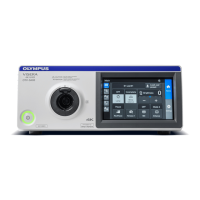
The VISERA UHD 4K Camera System captures and processes high-resolution video during endoscopic examinations. It consists of a camera head, a camera processor, a light source, and a workstation. The system is designed to provide clear, detailed images to assist medical professionals in diagnosis and treatment. Key functions include:

  • Image Acquisition: The camera head, when attached to a telescope, captures video footage.
  • Image Processing: The camera processor handles the 4K video data, ensuring high-quality output.
  • Illumination: The light source provides illumination for the endoscope, crucial for clear visualization within the body cavity.
  • White Balancing: This feature ensures accurate color representation by adjusting the camera's white balance to the ambient light conditions.
  • Auto Focus: The camera head includes a one-touch auto-focus switch to achieve sharp images.
  • High Intensity Mode: Provides brighter illumination for specific endoscopic procedures, especially with larger diameter endoscopes.
  • Programmable Buttons: The camera head features three programmable buttons for quick access to frequently used functions.

Important Technical Specifications:

While specific numerical specifications are not extensively detailed in this quick reference guide, the following can be inferred:

  • Resolution: UHD 4K, indicating a very high-definition video output.
  • Endoscope Compatibility: The system supports various endoscopes, with specific considerations for insertion tube outer diameters (e.g., 4.1 mm or greater for High Intensity Mode, and 2.7 mm for auto-focus limitations).
  • Light Source Lamp Life: The main examination lamp has a recommended replacement interval, with a meter indicating usage (e.g., not exceeding 500 hours).
  • Workstation Integration: The system is designed to be part of a workstation, with a master switch controlling its power.
  • Connectivity: Features standard video and light guide cable connections.

Usage Features:

  • Switch On: The system is powered on via a workstation master switch, which changes from white to green when active. A secondary power switch on the transformer under the workstation should remain on.
  • Camera Head Connection: The camera head is inserted into the camera processor, ensuring the UP mark on the connector aligns correctly. It is then attached to the telescope by rotating the endoscope lock ring. Releasing the camera head mount secures the telescope.
  • Light Source Connection: The light guide cable is connected to the output socket on the light source.
  • Lamp Standby: The lamp can be placed on standby by pressing and holding the lamp button.
  • Brightness Mode: The brightness mode button allows selection of "Auto" mode for automatic brightness adjustment.
  • White Balancing Procedure: After connecting the camera head, telescope, and light guide cable, a white balance must be performed. This involves enclosing the tip of the telescope in a white swab and pressing/holding the white balance button on the processor until "White Balance Complete" appears on the monitor.
  • Auto Focus Operation: The one-touch auto-focus switch on the camera head adjusts image focus. For optimal results, the telescope lens should be clean, and the telescope held stationary for three seconds after pressing the switch. The auto-focus targets the central 5% area of the monitor. For telescopes with a diameter of 2.7 mm, manual focus using the focus ring may be necessary.
  • Programmable Buttons: The camera head has three programmable buttons (1, 2, 3) assigned to "Insert action 1," "Insert action 2," and "Insert action 3" respectively.
  • Information Display: Users can access "Scope information" by pressing the "Info" button on the processor, which displays details such as user preset name, scope model, serial number, and functions assigned to remote switches.

Maintenance Features:

  • Troubleshooting Guide: The guide provides basic troubleshooting steps for common issues:
    • No power: Check if everything is powered on, including the isolation switch on the transformer.
    • No image: Verify all components are switched on (including the monitor), ensure the monitor input is set to SDI 1, and check for color bars when the camera head is unplugged. If no colors appear, contact Olympus Service Helpdesk.
    • Dark image: Inspect the condition of the telescope and light lead.
    • High Intensity Mode doesn't light up: Confirm that a compatible Olympus light lead is being used.
    • Main examination lamp doesn't come on: Check the lamp meter on the light source; if it has exceeded 500 hours, replacement is needed.
  • Lamp Replacement: The light source lamp has a limited lifespan (e.g., 500 hours) and requires replacement when exceeded.
  • Cleaning: The guide implicitly suggests cleaning the telescope lens for optimal auto-focus performance.

Safety Warnings and Cautions:

  • Light Source Safety: When turning on the light source, never allow the distal end of an endoscope or a light guide cable to come into contact with the patient and/or other flammable materials (e.g., operating room drapes) to prevent patient injury or fire.
  • High Intensity Mode Caution: Do not use High Intensity Mode with endoscopes having an insertion tube outer diameter of 4.1 mm or less, as the endoscope can become hot and cause operator burn.
  • Hot Surfaces: Avoid touching the endoscope's distal end and light guide connector while the examination lamp is lit up, as they can become hot and cause operator burn.

This quick reference guide serves as a concise overview; users are advised to consult the complete Instructions For Use for each item of equipment for comprehensive information on handling, use, and storage.

Olympus VISERA Specifications

General IconGeneral
BrandOlympus
ModelVISERA
CategoryDigital Camera
LanguageEnglish

Related product manuals