10
- -
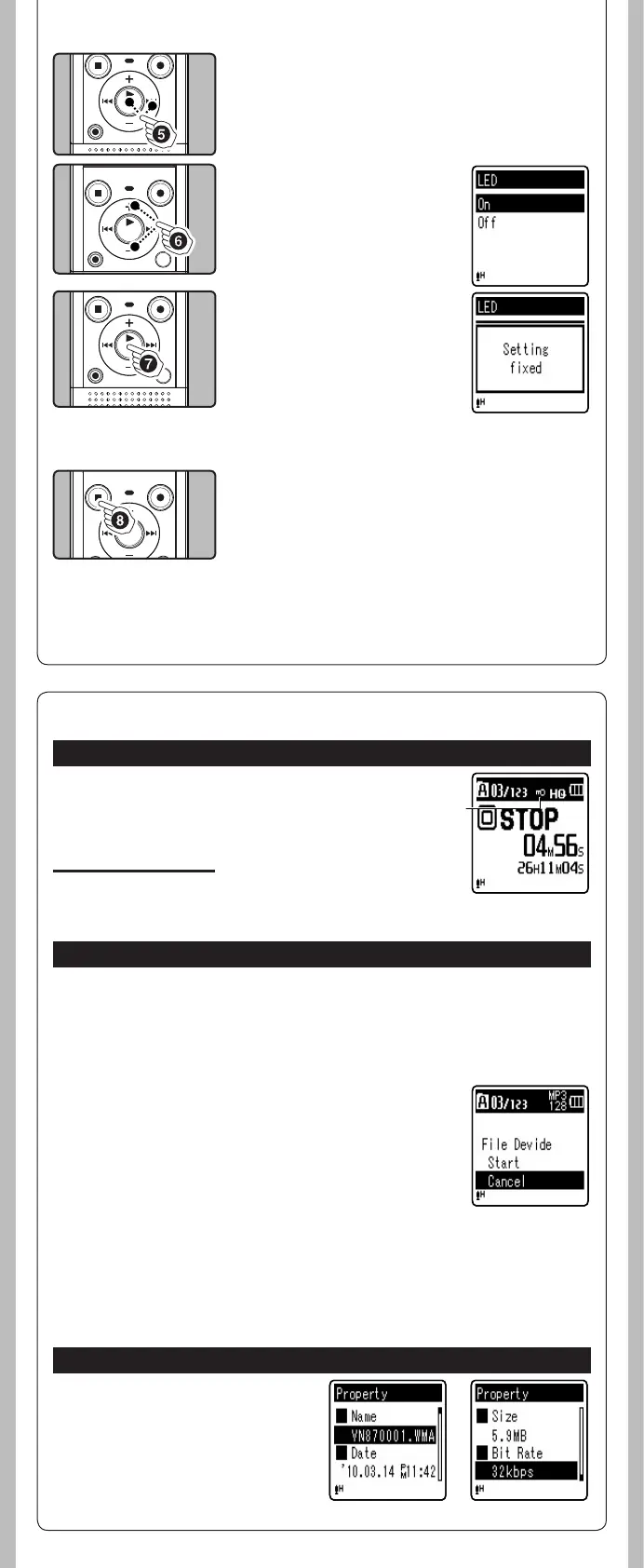
7 Press the `
OK/MENU
button to complete the
setting.
• You will be informed that the
settings have been established
via the screen.
• Pressing the 0 button
without pressing the
`OK/MENU button will cancel
the settings and return you to
the previous screen.
8 Press the
STOP
(4) button to close the menu
screen.
• If you enter the menu during recording or playback and
press the 0 button, it will allow you to return back to
the previous screen without interrupting recording or
playback.
Notes:
• The recorder will stop if you leave it idle for 3 minutes during a menu setup operation, when a
selected item is not applied.
• When entering menu settings during recording or playback, the menu settings will be cancelled
if 8 seconds elapse with no buttons being pressed.
h File Menu
Erase Lock
Locking a file keeps important data from being accidentally erased. Locked
files are not erased when you select to erase all files from a folder.
1 Select [
Erase Lock
] from the menu on the
[
File Menu
].
In Menu mode selection:
[On]: Locks the file and prevents it from being erased.
[Off]: Unlocks the file and allows it to be erased.
a File lock indicator
File Divide (For VN-8700PC/VN-8600PC only)
Files with large capacities and long recording times can be split so that they are easier to manage
and edit.
1 Select the file you want to divide.
2 Start Playback or fast-forward the file, and stop
the playback at divide position.
3 Select [
File Divide
] from the menu on the [
File
Menu
].
4 Press the
+
button to select [
Start
], and then press
the `
OK/MENU
button.
• [Dividing!] will be displayed and file splitting will start.
Splitting is completed when [File divide completed] is
displayed.
Property
Select the files for which you would like to
confirm information in advance before operat-
ing the menu.
1 Select [
Property
] from the
menu on the [
File Menu
].
[Name] (File name), [Date] (Time stamp),
[Size] (File size), [Bit Rate] (File format) will
appear on the display.
Notes:
• Only MP3 le recorded on this recorder can be divided.
• The recorder cannot divide les when the number of les in the folder exceeds 198.
• Locked les cannot be divided.
• After splitting the le, the front part of the le will be renamed as [File name_1.MP3] and the
latter part of the le will be named as [File name_2.MP3].
• If a le has an extremely short recording time, it may not be divide even if it is a MP3 le.
• Do not remove the battery during dividing le. This may damage the data.
6 Press the
+
or
−
button to
change the setting.
5 Press the `
OK/MENU
or 9 button.
• Moves to the setting of the selected item.
a



 To Next Page