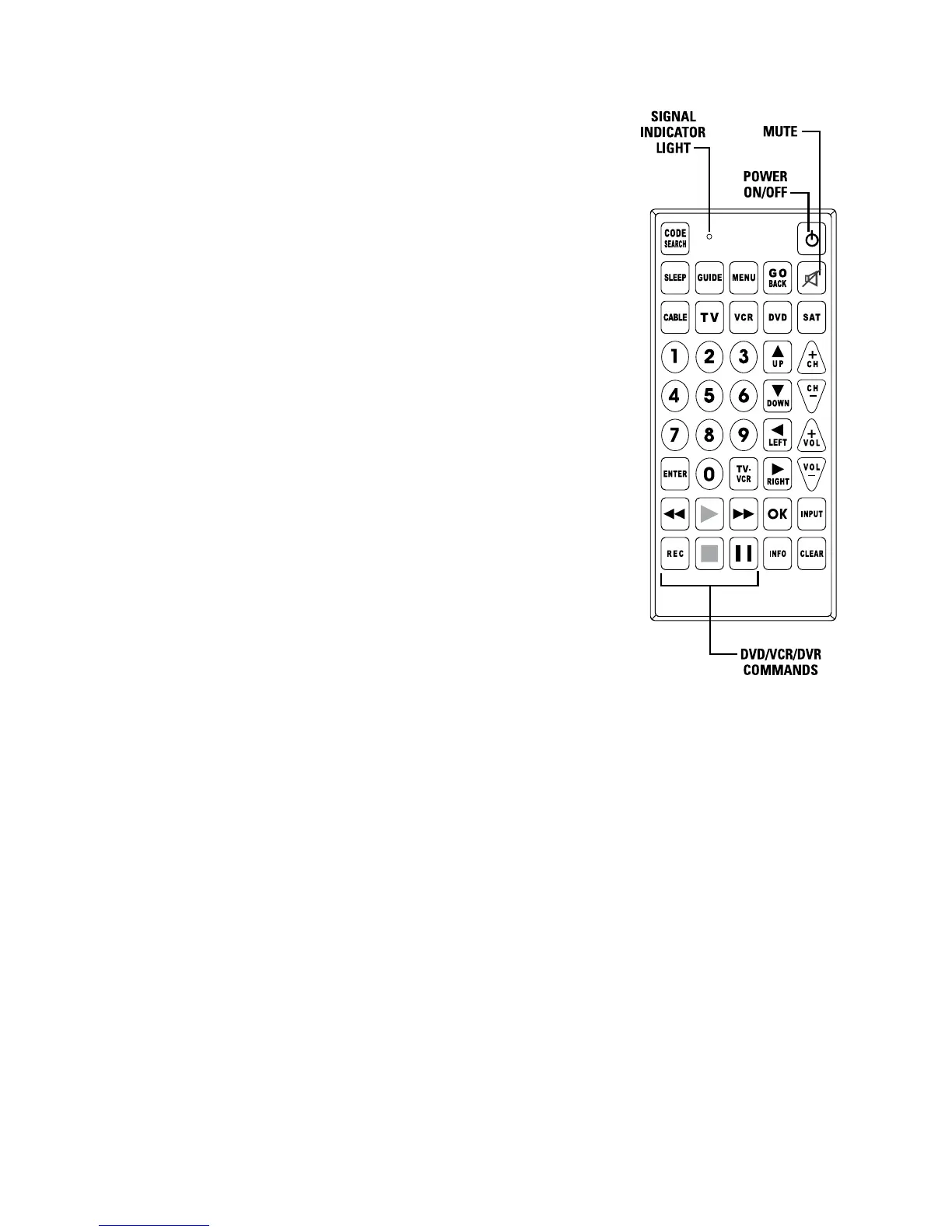
Your Controller’s Functions
On/Off Button – This will perform the same function as the On/Off/
Device/Power button on your original controller, usually turning the
target unit On/Off.
Code Search Button – use this to search while programming your
controller.
Signal Indicator LED Light – this light flashes to indicate the controller
is working.
Sleep Button – activates the target unit’s sleep function (if available),
allowing you to set the amount of time the target unit will turn off
automatically.
Guide Button – activates the target unit’s on-screen TV schedules (if
available on the target unit).
Menu Button – activates the target unit’s main menu. To navigate
through the menu use the arrow direction keys and use the Select
Button to select the currently highlighted option.
Go Back Button – returns you to the last channel viewed (functions in
the same way as the last/previous/recall channel function on the original
controller).
Mute Button – instantly mutes all sound on the target unit.
Cable/TV/VCR/DVD/Sat Buttons – these buttons allow you to quickly
select the devices associated with the controller.
Number Keypad (0-9) – these number buttons function in the same
way as on the original controller (e.g. to enter a channel number). They
are also used while programming the controller to enter the different
device codes (as described later in this manual).
Enter Button – this button is used on certain devices to confirm a
number selection (e.g. some TVs require that a number be confirmed
with the Enter button before changing channel). It will operate in the
same way as a unit’s original controller. It is also used in the while programming the controller (as
described later in this manual).
TV/VCR Button – switches between TV and VCR modes on a target VCR in the same way as your
original VCR’s controller.
Direction Buttons and the OK Button – use these to navigate up/down/left/right through any on-
screen menus and options. The OK button will usually select the highlighted option (the controller will
always operate in the same way as the original controller. This feature is often controlled with the Info
button on some controllers).
VOL + & - Buttons – these buttons increase/decrease the current volume level gradually.
REVERSE,PLAY,FORWARD,REC,STOP,PAUSE:These buttons are for DVD/VCR/DVR use, and operate the
same as on your original VCR or remote. You must press the REC button twice to begin recording.
CH + & - Buttons – these buttons increase/decrease the current channel number by one.
The Rewind, Play, Forward, Record, Stop, Pause Buttons – these buttons operate DVD/VCR/DVR units
in the standard way, and in the same manner as your original controller. When using the Record
function you need to press the REC button twice to begin recording.
The Input Button – allows you to select the video inputs for your TV (if this function is available on
the original unit).
The Info Button – this shows the current date and time (if this function is available on the original
unit. This feature is often controlled with the Display button on some controllers).
The Clear Button – this button removes any current displays (menus, time, date etc.) from the screen
and returns you to normal viewing.
2


 To Next Page
 Loading...