CHAPTER 5: Studio 64X Programs
10 Opcode Systems, Inc.
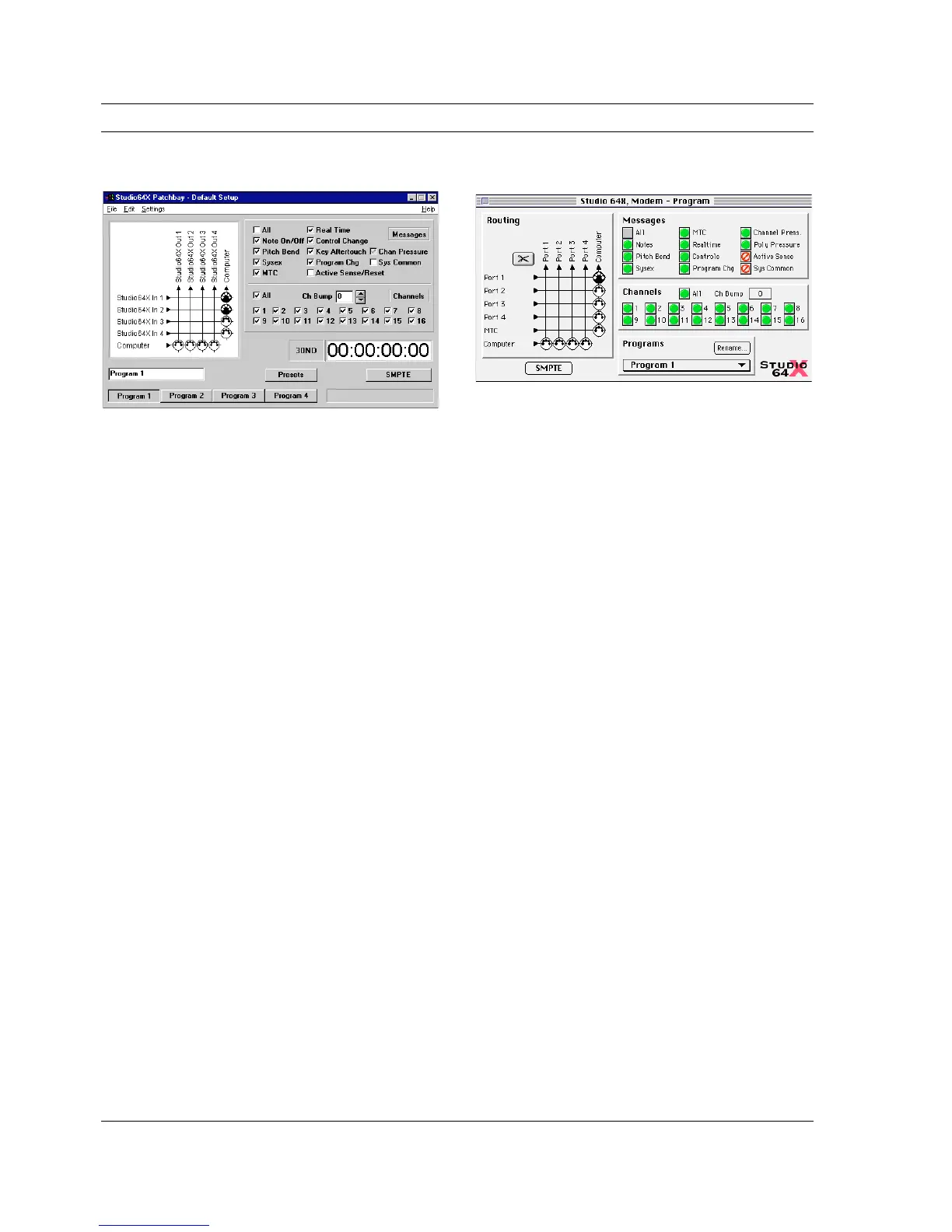
Figure 5.1: Patchbay Window for PC
A Connection Grid, defines connections
between inputs (on left) and outputs (on
top).
B Message Filtering, specifies which MIDI
messages are routed for the selected
connection(s).
C Channel Filtering, specifies which chan-
nels are routed for the selected
connection(s).
D Channel Bump, shifts channel assign-
ment for MIDI messages for the selected
connection(s).
E SMPTE Monitor, displays scrolling
SMPTE frames when receiving/generat-
ing timecode.
F SMPTE button, opens the SMPTE
Window.
G Preset/User Programs Button, specifies
whether the preset or user programs are
displayed.
H Program Name field, renames the cur-
rent program.
I Program Button, specifies the current
program.
J Status Field, displays communication
status between the Studio 64X and PC.
Figure 5.2: Program Edit Window for Macintosh
A Connection Grid, defines connections
between inputs (on left) and outputs (on
top).
B Message Filtering, specifies which MIDI
messages are routed for the selected
connection(s).
C Channel Filtering, specifies which chan-
nels are routed for the selected
connection(s).
D Channel Bump, shifts channel assign-
ment for MIDI messages for the selected
connection(s).
E Rename Button, renames the current
user program.
F Program Pop-up, specifies the current
program.
G SMPTE Button, opens the SMPTE
Window.
For more detailed information on creating
and editing Studio 64X user programs
(including settings in the SMPTE Window),
please consult your online help file.
1
2
3
4
5
67
8
9
J
1
2
3
4
5
6
7


 To Next Page