Navigation 57
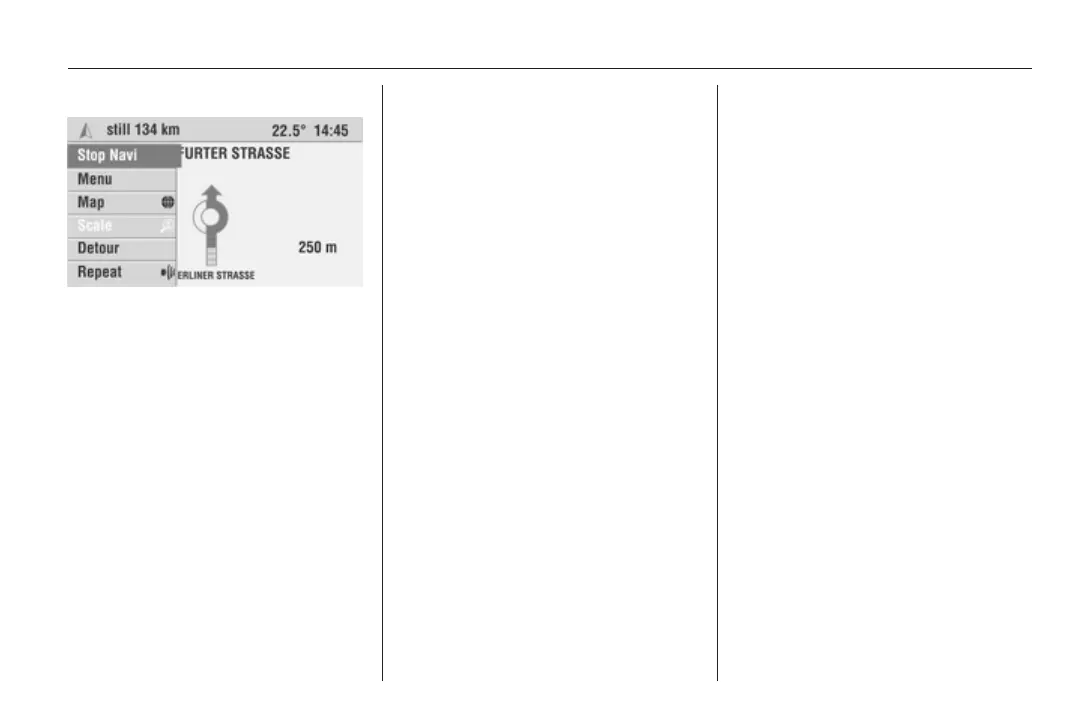
Dynamic menu
On the left-hand side of the guidance
screen a small menu bar with
symbols is displayed. The menu with
the complete menu texts expands
when you turn the multifunction knob.
If the menu bar is collapsed, the menu
item shown as a symbol in the menu
bar and highlighted by the cursor can
be executed directly.
The following menu items are
available in the guidance screen:
With Colour Info Display:
■ Stop navi: Stops guidance.
■ Menu: Opens the submenu with the
Info, Destin. Input, Destination
mem., Journey and View menu
items.
■ Map F, Map/Arrow E, Arrow D:
Toggles between the three possible
display types.
■ Scale w: Changes the scale for
map display.
■ Detour: Opens the menu for
planning an alternative route.
■ Announc. M: Repeats the current
navigation prompt.
With Graphic Info Display:
■ Stop navi: Stops guidance.
■ Menu: Opens the submenu
containing the menu items Destin.
Input, Destination mem. and
Tours.
■ Info: Opens the submenu
containing the menu items TMC
info, Position, Destin. info and
Route list
■ Detour: Opens the menu for
planning an alternative route.
■ Announc. M: Repeats the current
navigation announcement.
Notes on Detour:
■ A detour can be planned at any time
while guidance is active.
■ Planning detours 3 60.
■ When dynamic guidance is active,
information to this effect will appear
automatically as soon as you
approach a traffic hold-up on your
route.
■ Dynamic guidance 3 60.
Set display type
(Colour Info Display only)
Depending on the display type
previously set:
In the guidance screen, move the
cursor to the Map, Map/Arrow,
Arrow menu item.
When the menu is collapsed, the F,
E or D symbols are displayed instead
of the menu texts.
Press the multifunction knob
repeatedly until the required display is
shown in the guidance screen.



 To Next Page