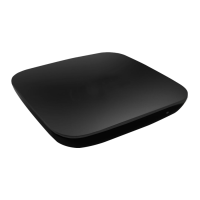
This document is a Quick Reference Guide for the DV8555 Stream TV box, providing essential information for its operation, setup, and troubleshooting. The device is designed to deliver streaming content and enhance the television viewing experience.
Function Description
The DV8555 Stream is a TV box that connects to a television and a network to provide access to various streaming services and media. It acts as a central hub for entertainment, allowing users to watch videos, listen to audio, and view photos on their TV. The device supports both wired and wireless network connections, offering flexibility in setup. It features a remote control with dedicated buttons for common functions like power, volume, navigation, and quick access to popular streaming apps like Netflix. Voice search functionality is also integrated into the remote for convenient content discovery.
Important Technical Specifications
- CPU: ARM Quad 64-bit Cortex-A53
- Android OS: Android 9.0
- Video Output: HDMI2.1, AV
- Video Format Support:
- H.265 10-bit, VP9 Profile2, AVS2-P24K*2K@60fps
- H.264 AVC/MVC 4K*2K@30fps
- MPEG1/2/4
- ASP; VC-1; RealVideo8/9/10 and other video formats
- Audio Format Support: AAC, WAV, MP3 and other audio formats
- Photo Format Support: JPG, BMP, PNG and other photo formats
- Network:
- Wi-Fi: 2.4GHz/5.0GHz 802.11 a/b/g/n/ac
- RJ45 Interface: 10M/100M adaptive
- Operation Temperature: 0℃~40℃
- Power Input: AC100-240V 50/60Hz
- Power Output: DC 5V/2A
- Power Consumption: <8W
- Connectivity Ports (Rear Panel): Power switch, DC In, Network (RJ45), HDMI output, S/P DIF (Optical), AV output, USB
Usage Features
The DV8555 Stream is designed for user-friendly operation.
- Setup: The quick reference guide outlines a three-step connection process:
- Connection with TV: Connect the TV box to the TV using either an HDMI or AV cable.
- Connection with Network: Connect to the internet via an Ethernet cable to the LAN port or wirelessly using the built-Fi.
- Connection with Power: Plug in the provided power adapter to power on the device.
- Remote Control: The included remote control offers comprehensive control over the TV box.
- Standby On/Off: Power button for turning the device on or off.
- Navigation: Up/down and L/R direction keys, along with an Enter/Confirm button, for menu navigation.
- Quick Access: Dedicated buttons for HOME page, Back/Exit, Volume control (VOL + and -), Mute, and Netflix.
- Bluetooth Voice: A specific button for activating voice search, allowing users to speak commands or search queries.
- Bluetooth Pairing: The remote supports Bluetooth pairing by pressing the "OK" and "Mute" keys simultaneously for 10 seconds.
- Indicator Light: The remote has an indicator light that flashes when keys are pressed and flashes quickly when the battery voltage is low.
- Safety Instructions: The manual emphasizes several safety guidelines:
- Keep the product in a horizontal position and avoid placing heavy objects on it.
- Use only the manufacturer-provided power adapter and avoid damaged cords/plugs.
- Do not touch the power adapter with wet hands.
- Do not disassemble or modify the TV box.
- Keep the device away from heat sources and ensure it's in a dry, well-ventilated area.
- Promptly turn off and unplug the device if it emits smoke or an unpleasant odor.
- Unplug the power adapter when the device is not in use for extended periods.
Maintenance Features
The guide provides troubleshooting steps for common issues, which can be considered maintenance features for the user.
- No Display After Power On:
- Possible Reason: Power cord not properly connected.
- Solution: Ensure the device is connected to power and voltage is normal.
- TV Has Images But No Sound:
- Possible Reasons: Audio cable not connected, TV Box is MUTE, audio setting is abnormal, volume is too low.
- Solutions: Re-connect audio cable, press mute button to restore volume, check audio and video settings, turn up the volume.
- Fail to Connect to Network:
- Possible Reasons: Ethernet cable not properly connected, Wi-Fi is turned off or signal is too weak.
- Solutions: Reconnect Ethernet cable, restart Wi-Fi or adjust device position relative to the router.
- Remote Control Failure:
- Possible Reasons: Remote control not in correct direction, remote control voltage is too low, remote control is broken.
- Solutions: Aim remote's sensor at the front panel's sensor, replace batteries, send for local maintenance if broken.
The device also includes an FCC statement, indicating compliance with Part 15 of the FCC Rules, and specifies that the WLAN function for this device is restricted to indoor use only when operating in the 5150 to 5350 MHz frequency range. This information is crucial for understanding regulatory compliance and proper usage within specific frequency bands.


 To Next Page
 General