Installaon guide
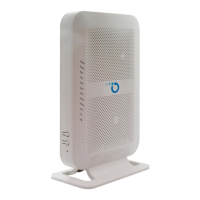
Opsis E704 can be connected to an -
Ethernet based broadband network through
Ethernet WAN (red) interface.
Geng started
Check if the following items are in the box:
Opsis E704 -
Power adapter
Vercal stand
RJ45 Network cable
Label posion
The product label is posioned on the back
side of the device.
Connecng the WAN interface
Connect the network cable with the RJ45
connector to the red colored port labeled
WAN.
Placement
Opsis E704 supports two placement -
opons standing and wall mounted. It is :
recommended to place the
device 'away' from obstacles and objects.
Standing
1. Slide the vercal stand onto the boom
of the Opsis E704.-
2. Place the device on a flat surface.
Wall mount
1. Download and print the
drilling guide from
2. Use the drilling guide to drill the holes,
insert plugs and put screws into place.
3. Use the wall mount points on the back of
the Opsis E704 to mount the device to -
the screws.
Warning: do not cover the device with
anything, this will interfere with the
venlaon of the device.
Operaon Temperature 0°C ~ 40°C
Seng up the Opsis-E704
1. If required, connect your telephone to
the phone port via RJ11 phone cable.
2. If required, connect your personal
devices to the LAN ports via RJ45
network cable.
3. Connect the supplied power adapter to
the Opsis E704 and plug the adapter -
into a power socket.
4. Press the power buon at the back of
the Opsis E704 to turn on the device. -
. The LEDs on the Opsis E704 will start 5 -
blinking.
This process takes about 2 minutes.
6. If the device is connected properly and
the service is acve on the WAN port, the
Internet and the WAN LEDs will be on.


 To Next Page
 Loading...