EasyManua.ls Logo

Optoma FHDQ130 - User Manual

Optoma FHDQ130
74 pages
Print Icon
To Next Page IconTo Next Page
Loading...
Page 1 of 74
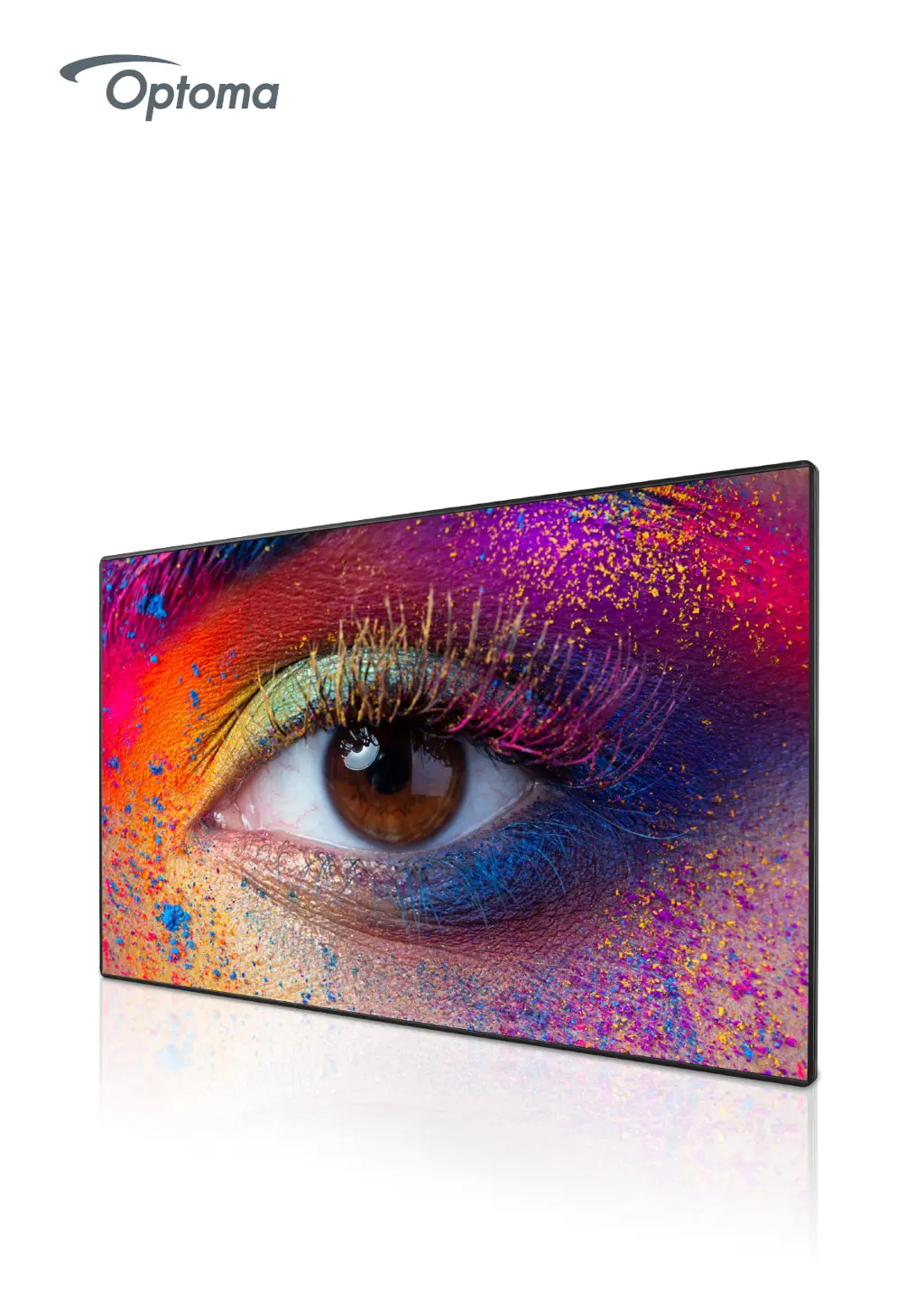
1.5mm Pixel Pitch with SMD LEDs
FHDQ130
All-in-one LED Display
A modular system for Indoor applications
Operation Manual
2019.07
Document version 1.20

Questions and Answers

  • D
    David RandallAug 10, 2025
    Why is the picture too dark on my Optoma Monitor?
    • K
      Kimberly WernerAug 11, 2025
      If the picture on your Optoma Monitor is too dark, verify that the source is correctly connected and that the wires and connectors are not damaged. You can also adjust the brightness using either the remote control or the on-screen buttons.
  • L
    Lori MercerAug 18, 2025
    How to fix if the left and right of the Optoma FHDQ130 screen are not horizontal?
    • M
      Mark KimAug 18, 2025
      To correct a screen that is not horizontal on your Optoma Monitor, check if the monitor's placement is level and ensure that the screen is correctly installed.
  • P
    Pamela GriffinAug 25, 2025
    What to do if the Optoma Monitor remote control is not working?
    • B
      Bryan HodgesAug 26, 2025
      If the remote control for your Optoma Monitor isn't working, first, replace the battery with the same type. Ensure that the IR sensor on the remote is properly aligned with the screen during use.
  • J
    Joshua WrightSep 1, 2025
    How to fix a blurred screen on Optoma FHDQ130?
    • M
      Megan TurnerSep 2, 2025
      To resolve a blurred screen on your Optoma Monitor, check that the source is correctly connected and inspect the wire and connector for any damage.

Optoma FHDQ130 Specifications

General IconGeneral
BrandOptoma
ModelFHDQ130
CategoryMonitor
LanguageEnglish

Related product manuals