Use onscreen gestures to move around the screen; open menus,
select items, zoom in or out on web pages, and more.
Swipe
-
Swipe by quickly sliding your finger in any direction.
Drag -
Touch and hold an item to move it to a new position.
Double Tap -
Tap two times rapidly to zoom in or out on a web
page or picture.
Zoom -
Spread two fingers apart on a web page, map or
image to zoom in. Pinch to zoom out.
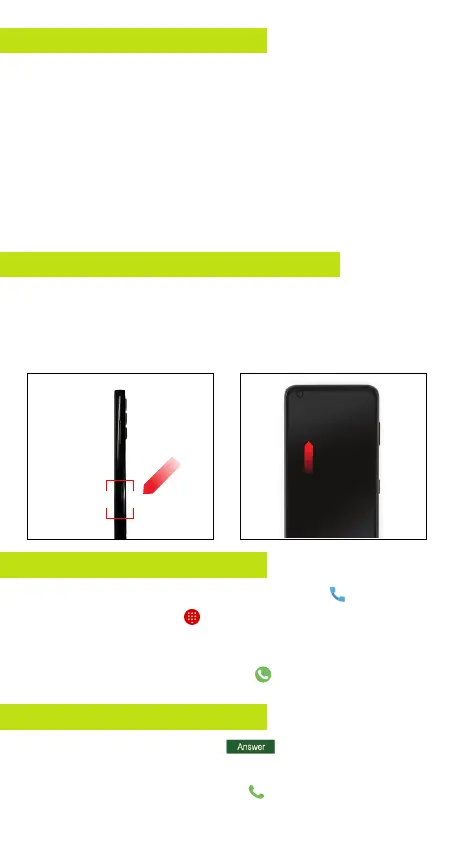
To turn on your screen, press the
Power/Lock
button. Then
swipe up on the screen to unlock it.
To turn off your screen and prevent accidental key presses, press
the
Power/Lock
button.
• From the Home Screen, tap the
Phone
icon .
• Tap the
Keypad
icon
.
• Enter the number you want to call or the first letters of the
contact’s name and select the contact.
• Tap the
Call
icon to place the call
.
• From the Home Screen, tap to answer the
incoming call
.
Using Onscreen Gestures
Lock and Unlock your Phone
Make a Call
Receive a Call
• From the Lock Screen slide up, icon to answer an
incoming call
.



 To Next Page