Need help?
Do you have a question about the ORi Pocket Office and is the answer not in the manual?
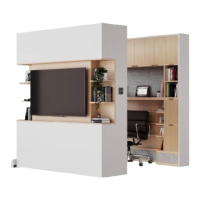
Dedicated workspace with space for monitors, chair, and storage that appears when needed.
The back of the Pocket Office doubles as a standing desk for ergonomic work.
Built-in display space for books, plants, treasures, and up to a 65-inch TV.
Provides significant storage to reduce clutter and keep items accessible.
Built-in LED lighting creates a warm and effective glow for the workspace.
Tap the Ori logo to wake the Ori Square and activate its various icons.
Use the icon on the bottom of the Square to hide or reveal your office space.
Tap the light icon to toggle Ori's lights on/off and adjust brightness.
Download the Ori App via QR codes for phone-based remote control.
A one-stop shop for setup, voice control, service, feedback, and referrals.
Assistance for issues related to the Ori App or digital setup processes.
Solutions for problems concerning the Ori system's movement capabilities.
Support for Ori Square responsiveness and LED lighting malfunctions.
Guidance for product damage, other issues, and general support inquiries.
Guidance on adjusting or resetting the Ori Pocket Office's preset positions.
Instructions for accommodating an office chair inside the unit when closed.
How to move the Pocket Office manually if power is lost.
Describes the auto-stop feature that halts movement upon encountering obstacles.
Explains the system's protection against too many plugged-in devices.
Warnings and precautions to reduce the risk of electric shock during use.
Basic precautions for operating the furnishing safely, especially with children.
Warnings about children climbing and the risk of furniture tipping over.
Instructions for proper grounding and connecting to a grounded outlet.
 General
| Brand | ORi |
|---|---|
| Model | Pocket Office |
| Category | Indoor Furnishing |
| Language | English |

 To Next Page