3
1. Overview and
Operating Modes
The SynScan GoTo hand controller provides easy, comput-
erized location of thousands of night sky objects – planets,
nebulas, star clusters, galaxies, and more for viewing through
your telescope. The SynScan hand controller, combined with
the optical encoders and electronic drive motors of your GoTo
mount, allow you to automatically point your telescope to a
specific object, or tour the skies with push-button simplic-
ity. The user-friendly menus allow automatic slewing to over
42,000 objects and stars. Even inexperienced astronomers will
quickly master SynScan’s intuitive features and functionality.
1.1 Keypad Layout and Connection Ports
The hand controller’s two-line liquid crystal display (LCD) is
backlit for comfortable viewing. The contrast of the text and the
brightness of the red backlight are both adjustable.
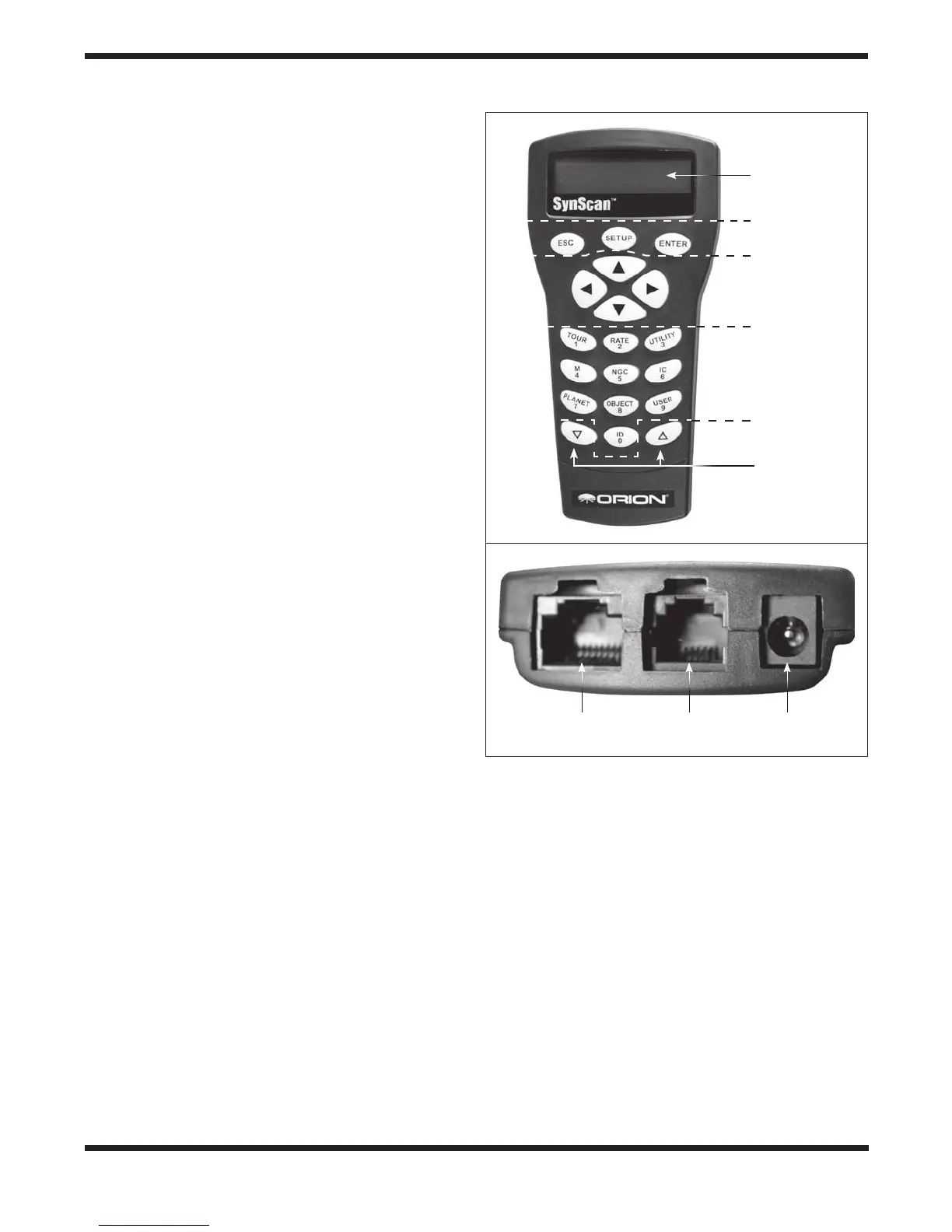
There are four categories of control keys on the hand control-
ler (Figure 1a):
1. Mode keys
2. Direction keys
3. Scroll keys
4. Dual Purpose keys
ModeKeys
The three mode keys are ESC, ENTER, and SETUP.
ESC is used to escape from a certain command or go back a
level in the menu tree.
• SETUP is a quick hot key that takes you to the Setup
submenu.
• ENTER is used to select the functions and submenus in the
menu tree, and to confirm certain functional operations.
DirectionKeys
The direction keys (Up, Down, Left, Right) allow the user to
have complete control of the mount at almost any step in
operation. These controls are locked out when the telescope is
slewing to an object. The direction keys are very helpful when
initially aligning the mount, centering objects in the eyepiece
field of view, slewing, and manually guiding. The left and right
direction keys can also be used to move the text cursor when
entering data on the hand controller.
ScrollKeys
The Up and Down scroll keys allow you to scroll up and down
within the menu tree or selections displayed on the hand con-
troller screen.
DualPurpose(Shortcut)Keys
The dual purpose keys serve two distinct purposes. They are
used for data entry and as quick-reference (shortcut) keys.
• TOUR: Takes you on a preset tour of the best night sky
objects visible
• RATE: Changes the speed of the motors when the
directional buttons are pressed. There are 10 slew speeds
to choose from, with 0 being the slowest and 9 being the
fastest.
• UTILITY: Displays functions such as “Show Position”,
“Display Time”… etc.
• USER: Gives access to up to 25 user-defined coordinates
• ID: Identifies the object the mount is currently pointing to
• NGC, IC, M, Planet, and Object: Allows direct access to
database of thousands of objects
To connect the SynScan hand controller to your mount, plug
the 8-pin RJ-45 connector of the coil cable that came with
your SynScan into the corresponding port on the bottom of
the hand controller (Figure 1b), and plug the other end of the
cable into the port on the mount’s drive panel. The table below
lists the “Hand Control” ports on different Orion GoTo mounts.
Scroll keys
Dual purpose
(shortcut)
keys
Direction
keys
Mode keys
Display
screen
Figure 1. a) The SynScan GoTo hand controller.
b) Connection ports on bottom of controller.
Hand controller
port
Computer interface
(serial) port
12V DC
power jack
a.
b.


 To Next Page