Copy White or Black Keys dynamic curve
It is possible to copy the dynamic curve from the black keys to the white keys:
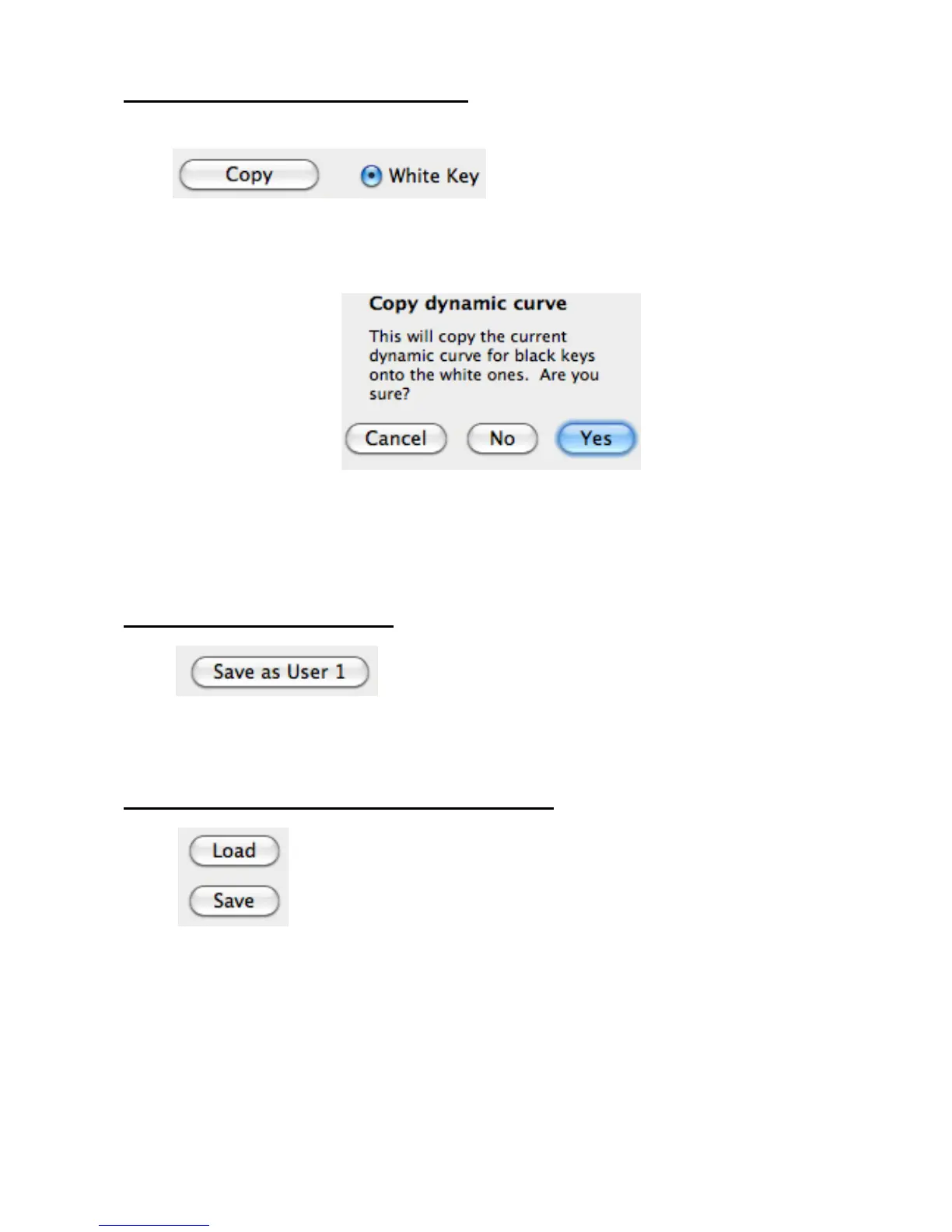
Select White Key check box and press Copy.
A dialog box will appear: Press Yes.
It is also possible to copy the dynamic curve from the white keys to the black keys:
Select Black Key check box and press Copy.
A dialog box will appear: Press Yes.
Saving the User Dynamic Curve
When the editing of the new Dynamic Curve is complete it is possible to save it in the
internal memory of the JamKey as “User 1” by pressing the “Save as User 1” button.
Loading and Saving Dynamic Curves to a computer
Dynamic Curves can also be loaded/saved to a computer.
Select the desired operation with the Load or Save buttons.
NOTE: When a new Dynamic Curve is loaded from the computer into the JamKey, it will
be loaded and stored as “User 1”. The previous “User 1” Dynamic Curve will be deleted.
Save as many new Dynamic Curves as necessary on the computer for future use.


 To Next Page
 Loading...