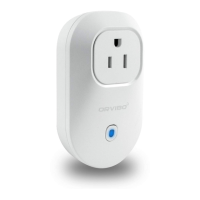
2. Press the button for 7 seconds until the green LED
Open eWeLink, click”+”. You’ll see the pairing icons.
please select the 1st icon, click next.
For iOS users, select the pairing icon accordingly. Then go to
Setting>WiFi>connect the WiFi begins with ITEAD
password 12345678. Go back to eWeLink, click next.
and connect smart home device around you.
4. Input your home SSID & password:
4.1 If no password, keep it blank.
only support 2.4G WiFi communication
5. Name the device to complete.
device is “Offline” on eWeLink, for the device needs 1
minute to connect to your router and server. When the green LED on,
the device is “Online”, if eWeLink shows still “Offline”, please close
2. Press the button for 7 seconds until the green LED
Open eWeLink, click”+”. You’ll see the pairing icons.
please select the 1st icon, click next.
For iOS users, select the pairing icon accordingly. Then go to
Setting>WiFi>connect the WiFi begins with ITEAD
password 12345678. Go back to eWeLink, click next.
and connect smart home device around you.
4. Input your home SSID & password:
4.1 If no password, keep it blank.
only support 2.4G WiFi communication
5. Name the device to complete.
device is “Offline” on eWeLink, for the device needs 1
minute to connect to your router and server. When the green LED on,
the device is “Online”, if eWeLink shows still “Offline”, please close
and connect smart home device around you.
device is “Offline” on eWeLink, for the device needs 1
minute to connect to your router and server. When the green LED on,
the device is “Online”, if eWeLink shows still “Offline”, please close



 To Next Page
 Loading...