www.osram.com/lightify-4you
LIGHTIFY Home - Onboarding-Guide
Onboarding OSRAM LIGHTIFY 4
First Steps
10
11
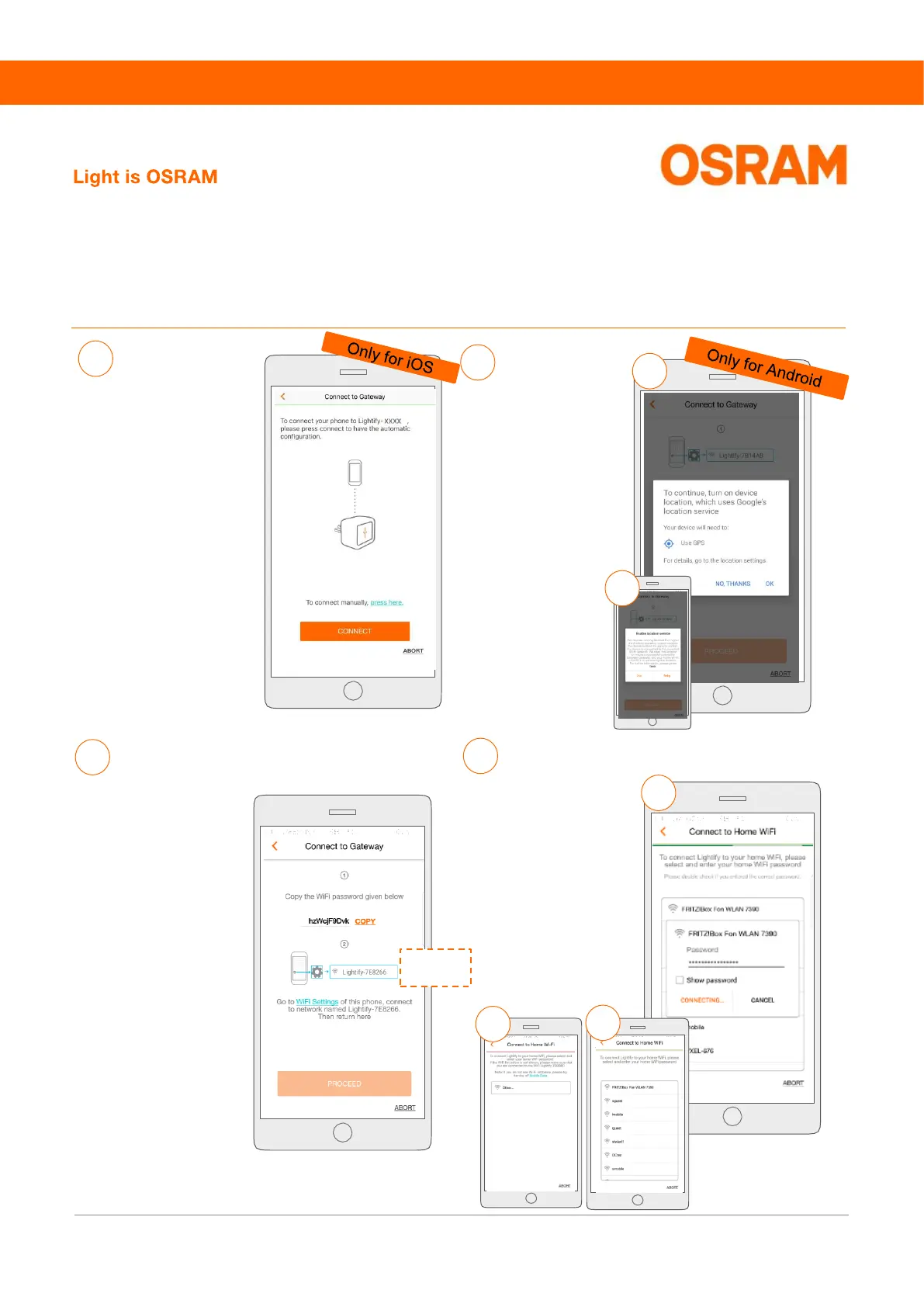
Please connect to the
WiFi hotspot of your
Gateway:
1. Copy the WiFi
password
2. Go to the WiFi
settings of your
mobile phone
3. Select the Gateway's
WiFi (Lightify-
XXXXXX) and enter
the password. The
connection to your
Gateway should now
be established.
4. Return to the
LIGHTIFY App and
press “PROCEED”
12
Please connect your
Gateway to your home WiFi.
a) If the WiFi list is not
displayed, please make
sure that the "mobile
data“ is switched off
b) Select your home WiFi
c) Enter the password of
your home WiFi
a
b
.
a
b
c
On devices running with
Android 9 or higher, the
operating system has to
track the device's
location (GPS), to
confirm the connection
to the required WiFi
network. You can
disable the permission
again in step 12. For
further information, see
page 6.
Gateway-
WLAN
9
In this step iPhone users
will be connected directly
to the Gateway Wi-fi.
Please click on Connect to
proceed to step 12.
If this doesn´t work or you
want to connect manually,
please tap on “press here”
and you will be directed to
step 11.


 To Next Page
 Loading...