www.osram.com/lightify-4you
Additional information for Android user
Onboarding OSRAM LIGHTIFY 6
Operating systems 8 or higher
b
a
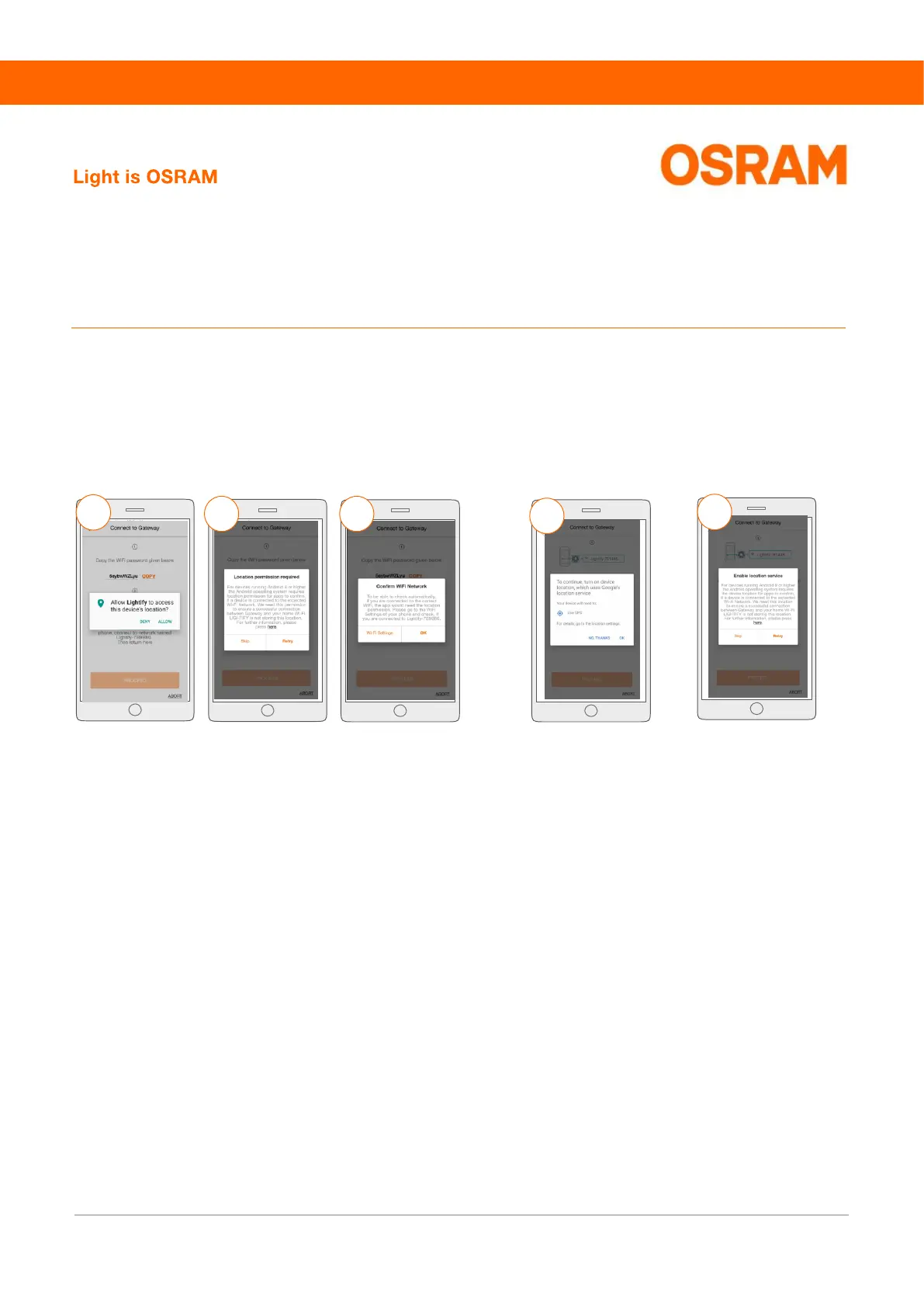
a) Press „Allow“ to activate the location tracking in the
LIGHTIFY App—you will automatically get forwarded to the
next step. After pressing „Deny“, screen b) opens.
b) Please press on „Retry“ to confirm the location tracking—
this is needed to successfully connect the Gateway with
your home WiFi. After pressing „Skip“, screen c) opens.
c) When pressing „OK“, the screen „Connect to Gateway“
opens. Please go to the WiFi settings of your mobile phone
and check, if the connection has been established.
a) Please press „OK“ to enable the device's location tracking
for Google´s location service
b) After the location tracking has been activated, press "Retry"
to continue.
Furhter information to step 10: deactivate the location
tracking for Android 9 and higher
Further information to step 8: location permission for Android 8
and higher
On devices running with Android 8 or higher, the operating system needs to track the device's location (GPS), to confirm the
connection to the required WiFi network. See step 12 to deactivate the permission.
c
a
b



 To Next Page