EasyManua.ls Logo

OtterBox UNLIMITED Series - User Manual

OtterBox UNLIMITED Series
2 pages
Print Icon
To Next Page IconTo Next Page
Loading...
UNLIMITED SERIES INSTALLATION
1
2
3
KICKSTAND INSTRUCTIONS:
To open kickstand, pinch gray latch
button and lift outer ring
Kickstand can be rotated to achieve four
dierent orientations:
A. This orientation is recommended for
typing and pressing on the tablet
screen.
B. This orientation is recommended for
viewing only.
C. This orientation is recommended for
viewing only.
D. This orientation is recommended for
typing and pressing on the tablet
screen.
Snap outer ring back into place
1
2
CASE INSTALLATION:
After installing the pencil holder,
insert tablet into the bottom
edge of the case rst
Push/pinch tablet into case,
working around the case
perimeter in a circle
4
1
2
3
SCREEN PROTECTOR INSTALLATION:
Once tablet is installed into the case, clean the screen thoroughly
Remove the protective lm on the adhesive side rst
Using home button and edges of case to align protector, install the screen protector
onto the tablet working from the bottom edge towards the top
Remove the protective lm by pulling on tab
KEYBOARD INSTALLATION:
Once tablet is inserted into
the case
Make sure keyboard is charged
Turn keyboard power switch on
Press “Fn+C” to turn on wireless
matching
Open Wireless Networks on
your tablet and click the
keyboard name
Input numbers on tablet and
press “Enter”
5
6
4
1
2
3
ACTIVATING KEYBOARD
TRACK PAD:
In tablet setting go to “Accessi-
bility”, then “Touch”
Make sure the Assistive Touch
is “on”
Press “Fn+command” to activate
the trackpad
*Keyboard automatically sleeps if you do not use it
within 10 minutes. To restart, press any key and wait
3-5 seconds.
1
2
3
PENCIL HOLDER INSTALLATION:
Pencil holder is optional
Remove rubber plug on right side
of case
Insert the pencil holder through
inside of case
Then pull elastic strap through
to outside of case
1
2
3
4
A
B
C
D
Question and Answer IconNeed help?

Do you have a question about the OtterBox UNLIMITED Series and is the answer not in the manual?

Summary

Pencil Holder Installation

Case Installation

Screen Protector Installation

Keyboard Installation

Activating Keyboard Track Pad

Enables trackpad functionality via tablet settings and keyboard shortcuts.

Kickstand Instructions

Hand Strap Installation

Shoulder Strap Installation

Folio Instructions

Table Stand Instructions

Privacy Screen Instructions

Overview

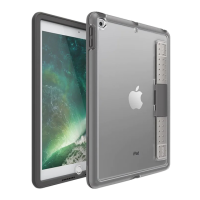
This document provides installation and usage instructions for the OtterBox Unlimited Series, a protective case system designed for tablets, featuring various accessories like a pencil holder, screen protector, keyboard, kickstand, hand strap, shoulder strap, folio, table stand, and privacy screen.

Device Function Description

The OtterBox Unlimited Series offers comprehensive protection and enhanced functionality for tablets. It integrates multiple components to secure the device, facilitate different viewing and interaction modes, and improve portability.

Important Technical Specifications

The system is modular, allowing users to customize their tablet setup based on their needs. Key components include:

  • Case: Provides primary protection for the tablet.
  • Pencil Holder: An optional accessory for storing a stylus or pencil.
  • Screen Protector: An adhesive film to guard the tablet screen against scratches and damage.
  • Keyboard: A wireless keyboard with an integrated trackpad for improved typing and navigation.
  • Kickstand: An integrated stand offering multiple viewing orientations.
  • Hand Strap: An accessory for secure one-handed holding.
  • Shoulder Strap: For convenient carrying of the tablet.
  • Folio: A cover that doubles as a stand, supporting both landscape and portrait modes.
  • Table Stand: A separate stand for versatile tablet positioning, including 360° rotation.
  • Privacy Screen: An adhesive screen that limits viewing angles to protect sensitive information.

Usage Features

Pencil Holder Installation:

  1. The pencil holder is optional.
  2. Remove the rubber plug from the right side of the case.
  3. Insert the pencil holder through the inside of the case.
  4. Pull the elastic strap through to the outside of the case.

Case Installation:

  1. After installing the pencil holder, insert the tablet into the bottom edge of the case first.
  2. Push/pinch the tablet into the case, working around the case perimeter in a circle.

Screen Protector Installation:

  1. Once the tablet is installed in the case, thoroughly clean the screen.
  2. Remove the protective film from the adhesive side.
  3. Align the protector using the home button and case edges, then install it onto the tablet, working from the bottom edge towards the top.
  4. Remove the remaining protective film by pulling on the tab.

Keyboard Installation:

  1. Ensure the tablet is inserted into the case.
  2. Verify the keyboard is charged.
  3. Turn on the keyboard power switch.
  4. Press "Fn+C" to activate wireless matching.
  5. Open "Wireless Networks" on your tablet and select the keyboard name.
  6. Input the numbers displayed on the tablet and press "Enter".

Activating Keyboard Trackpad:

  1. Go to "Accessibility" then "Touch" in your tablet settings.
  2. Ensure "Assistive Touch" is "on".
  3. Press "Fn+command" to activate the trackpad.
    • The keyboard automatically sleeps if unused for 10 minutes. To restart, press any key and wait 3-5 seconds.

Kickstand Instructions:

  1. To open the kickstand, pinch the gray latch button and lift the outer ring.
  2. The kickstand can be rotated to achieve four different orientations:
    • A: Recommended for typing and pressing on the tablet screen.
    • B: Recommended for viewing only.
    • C: Recommended for viewing only.
    • D: Recommended for typing and pressing on the tablet screen.
  3. Snap the outer ring back into place when done.

Hand Strap Installation:

  1. Pinch the gray latch to open the kickstand before installing the hand strap.
  2. Insert the hand strap ends through the slots at the side of the kickstand.
  3. Fasten the Velcro ends of the strap together.
  4. Snap the outer ring of the kickstand back into place.
  5. Rotate the hand strap for comfortable positioning.

Shoulder Strap Installation:

  1. Thread the buckle cord through the case anchor point.
  2. Pull the cord loop through the buckle hook.
  3. Repeat for the other buckle.
  4. To adjust the shoulder strap, slide one or both of the length adjustment sliders.

Folio Instructions:

  1. The folio can be rotated for use as a stand in landscape or portrait mode:
    • A: Rest the bottom of the tablet in the interior folio groove.
    • B: Fold the folio into a triangle to prop up the back of the tablet.
    • Folio can be configured into an acute triangle or an equilateral triangle depending on the angle you prefer.

Table Stand Instructions:

  1. Remove the Allen wrench from underneath the stand base.
  2. Set the stand on a flat surface and lift the long arm open.
  3. Release the tablet holder arms.
  4. Insert the tablet into the holder either horizontally or vertically.
  5. Click the holder hinges firmly on the tablet.
    • A: The holder spins 360°, allowing you to orient the tablet into portrait or landscape mode.
    • Using the Allen wrench, adjust then tighten the angle of the tablet holder hinge and stand hinge.
    • Stand and tablet holder feature cable holes to thread wires through.
    • To attach a tablet with case and kickstand, the holders of the stand should be attached towards one end of the tablet.

Privacy Screen Instructions:

  1. The privacy screen protector can be installed over a bare device screen or an existing screen protector.
  2. Set the Unlimited Series case on a flat surface.
    • There is no need to remove your tablet from inside the case.
  3. Using the home button and bottom edge of the case for alignment, attach the privacy screen on top of the screen or screen protector.
  4. To remove the privacy screen, pull from the upper right corner.

Maintenance Features

  • Privacy Screen Cleaning: The privacy screen adhesive can be cleaned with water and a lint-free cloth.
  • Privacy Screen Storage: When not in use, store the privacy screen on the included backer board.
  • Keyboard Sleep Mode: The keyboard enters sleep mode after 10 minutes of inactivity to conserve battery. Press any key to wake it up (3-5 seconds).

OtterBox UNLIMITED Series Specifications

General IconGeneral
BrandOtterBox
ModelUNLIMITED Series
CategoryTablet Accessories
LanguageEnglish