S3 Display
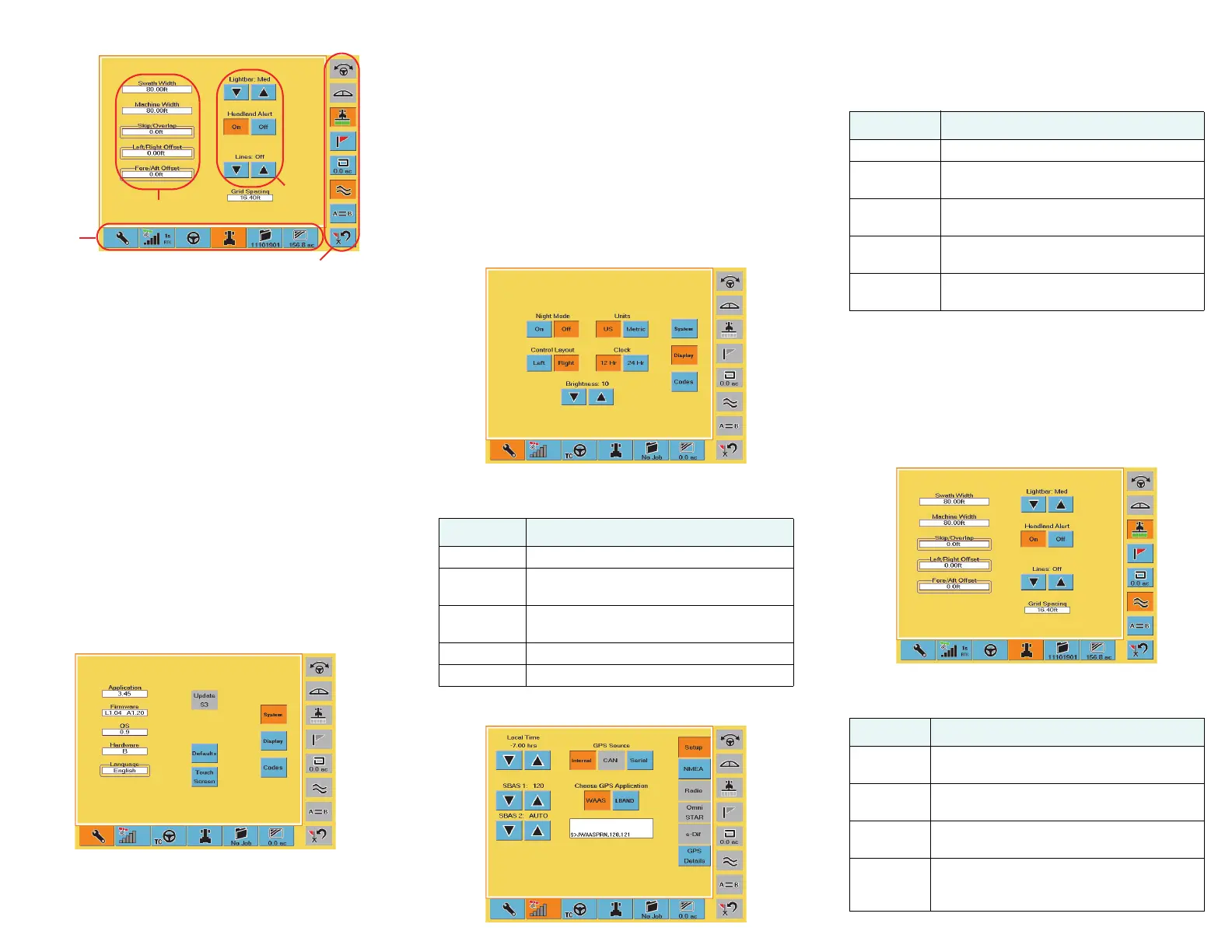
The S3 display consists of control buttons, screen tabs,
and screens (with fields and buttons).
• Control buttons allow you to perform such tasks
as engaging automated steering and displaying the
lightbar. Control buttons can be on the left or right
of the screen. An orange control button is active.
• You navigate the S3 using tabs (along the bottom
of the display) and screens. Touch a tab to display
the screen (or one of several screens) for that tab.
An orange tab is active (related screen displayed).
•Use fields to edit the specific settings and buttons
to adjust settings or activate functionality. If a field
has a line around you can edit its value. If a button
or field is gray, you cannot use/edit it.
Configuring the S3
The S3 has several screens in which you configure
important settings before beginning your initial pass.
Configuring System Settings
The System screen allows you to view hardware and
software information as well as change the system
language and calibrate the touch screen.
Your S3 is shipped factory-calibrated. However, you can
re-calibrate the touch screen if necessary.
1. On the System screen touch the Touch Screen
button. The calibration screen appears.
2. Each time a “Press” message appears press and hold
until “Release” appears until the following message
appears: Touch the screen to verify the target moves
to your finger.
3. Press and drag around the screen to verify the
onscreen image follows your finger.
4. Touch OK. You are returned to the System screen.
Configuring Display Settings
The Display screen has various settings that affect the
way the system displays and records information.
Configuring GPS Settings
The GPS Setup screen has various settings that relate to
the type of GPS differential correction the system uses.
Several of the fields on the GPS Setup screen provide
useful diagnostic information.
Configuring Steering Settings
S3 uses the settings on the Steering tab when you are
using an optional automated steering control unit, such
as Hemisphere GPS’ Outback eDriveTC/eDriveVSi or
eDriveX. Several of the fields on the Steering screen
provide useful diagnostic information.
Configuring Vehicle Settings
The Vehicle screen has various settings related to the
machinery and implements you use in the current job.
Control buttons
Tabs
Fields
Buttons
Buttons Description
Night Mode Set display for daytime/nighttime lighting.
Control
Layout
Place control buttons on left/right of
screen.
Units Set the measurement units (for display
and data recording) to US or Metric.
Clock Set the clock to 12-hour or 24-hour format.
Brightness Adjust display brightness.
Buttons Description
Local Time Set the system clock to the local time.
SBAS 1
SBAS 2
Change the SBAS satellites used in the
S3’s position calculation (default is Auto).
GPS Source Select the GPS source: Internal, CAN,
Serial, or Radio.
Choose GPS
Application
Set the type of differential correction S3
uses to calculate a position.
Message
window
Displays system generated messages
(useful when performing diagnostics).
Buttons Description
Swath
Width
S3-generated value (sum of Machine Width
and Skip/Overlap values).
Machine
Width
Width of the vehicle or implement for the
current job.
Skip/
Overlap
Set this value to drive a pattern where rows
intentionally skip or overlap.
Left/Right
Offset
Distance between the GPS antenna
centerline and the vehicle or implement
centerline. Set to right or left.


 To Previous Page
 Loading...