EasyManua.ls Logo

OWIM SOKL 1920 B2 - User Manual

OWIM SOKL 1920 B2
29 pages
Print Icon
To Next Page IconTo Next Page
Loading...
IAN 289836
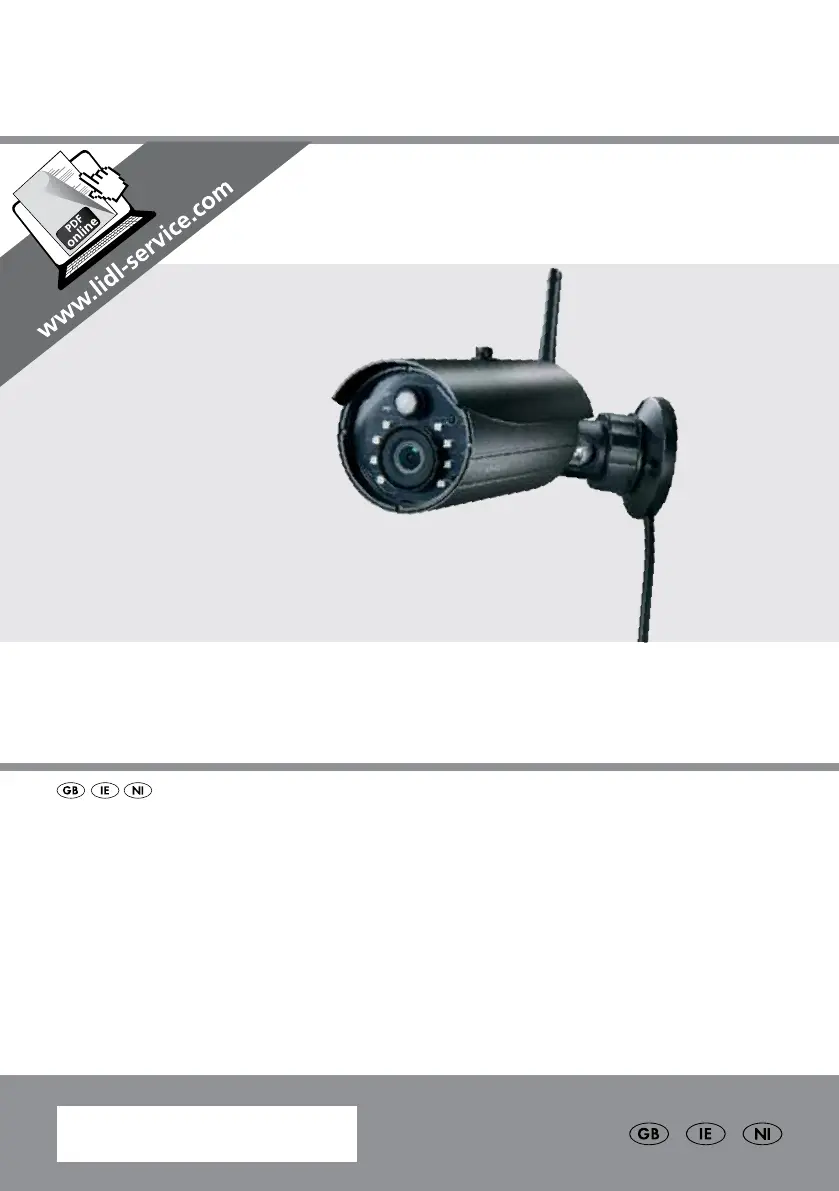
WI-FI SURVEILLANCE CAMERA
SOKL 1920 B2
WI-FI SURVEILLANCE CAMERA
Assembly, operating and safety instructions

Questions and Answers

  • C
    courtney73Sep 10, 2025
    How to improve poor image quality on OWIM SOKL 1920 B2 Security Camera?
    • M
      mathew74Sep 10, 2025
      To improve poor image quality, clean the camera lens with a slightly moistened cloth. Be aware that other wireless devices may reduce the signal strength. Try to maximize the space between the camera and other wireless devices.
  • D
    daniel83Aug 22, 2025
    Why is my OWIM Security Camera not recording video clips?
    • J
      jameswadeAug 23, 2025
      If your camera isn't recording video clips, first ensure that the microSD card is correctly inserted and formatted. Also, make sure that the motion detection function is enabled.
  • K
    Kimberly BruceAug 25, 2025
    What to do if my OWIM Security Camera has no image?
    • S
      Sarah WhiteAug 25, 2025
      If no image appears, ensure your smart device is properly connected to 3G/4G/Wi-Fi. Also, verify that the camera is properly configured.
  • P
    porterjoeAug 26, 2025
    Why is motion detection not working properly on my OWIM Security Camera?
    • B
      Brett KellyAug 27, 2025
      If motion detection isn't working properly, make sure the sensitivity setting is enabled. Clean the sensor with a slightly moist cloth. Also, check if the masking was programmed incorrectly.
  • V
    vmichaelAug 27, 2025
    Why does my OWIM Security Camera show poor image quality?
    • A
      Ashley WilsonAug 27, 2025
      To improve image quality, clean the camera lens using a slightly moistened cloth. Also, leave as much space as possible between the camera and other wireless devices.
  • M
    Mr. Brian WatsonAug 29, 2025
    Why am I getting a microSD card error on my OWIM Security Camera?
    • K
      katrina58Aug 29, 2025
      If you're getting a microSD card error, make sure the microSD card is correctly inserted and formatted. Ensure you are using a Class 10 rated microSD card or faster. Format the microSD card when it is used for the first time.
  • M
    Megan HoustonSep 18, 2025
    What to do if my OWIM SOKL 1920 B2 Security Camera cannot find the Wi-Fi router?
    • J
      Jesse HardingSep 18, 2025
      If the Wi-Fi router cannot be found, make sure the SSID broadcasting function is enabled. If necessary, consult your Wi-Fi router manufacturer, refer to the user manual of the Wi-Fi router, or contact the system administrator of your network.
  • R
    Riley FloresSep 12, 2025
    Why can't my OWIM SOKL 1920 B2 Security Camera record video clips?
    • B
      Brenda RodriguezSep 12, 2025
      If the camera can't record video clips, ensure the microSD card has been correctly inserted and formatted. Also, verify that the motion detection function is enabled.
  • R
    Reginald AdamsSep 8, 2025
    Why is motion detection not working on my OWIM Security Camera?
    • T
      Thomas AlvarezSep 8, 2025
      If motion detection isn't working correctly, first ensure the sensitivity setting is enabled. Clean the sensor with a slightly moist cloth, as accumulated dirt and lint may obstruct the motion detector sensor. Lastly, check if the masking was programmed incorrectly.
  • J
    Jason JohnsonSep 5, 2025
    How to fix OWIM SOKL 1920 B2 Security Camera when the application cannot find the camera?
    • C
      Curtis FlowersSep 5, 2025
      If the application can't find the camera, verify that your home network supports the DHCP protocol. Also, ensure the router/Wi-Fi router and the camera are turned on. During the initial configuration, the camera and your smart device must be connected to the same Wi-Fi router. Check that all cables are properly connected. If problems persist, use the "Add Device" function to manually add the camera.

Summary

Warning Remarks and Symbols

Warning Symbol Explanations

Details DANGER, WARNING, CAUTION, NOTE signal words and their meanings.

Product Safety Symbols

Explains IP66, protection classes, DC/AC symbols.

Introduction and Intended Use

Product Overview and Application Scope

Congratulates purchase, emphasizes safety, and defines private use.

Scope of Delivery and Requirements

Items Included in Delivery

Lists all parts supplied with the camera.

Necessary Items and Tools

Lists necessary external components and tools.

Product Description and Technical Data

Component Identification

Lists and identifies all parts of the camera and accessories.

Camera Specifications

Details camera resolution, frame rate, angle, and motion detection.

Technical Data Details

Network and Power Adapter Specifications

Lists network connection, protocols, power adaptor details.

Safety Information and Warnings

General Safety Precautions

Advises reading all safety info, states warranty invalidity for non-compliance.

Child Safety and Packaging Hazards

Warns about packaging material danger and keeping children away.

Comprehensive Safety Instructions

Electrical Safety and Handling Precautions

Covers electric shock risks, repairs, immersion in water, damaged products.

Power Adapter, Cord, and Cable Safety

Details safe use of adapter, cord damage, placement, and cable security.

Further Safety Instructions

Installation, Environmental, and Radio Interference Safety

Covers installation safety, environmental factors, and radio interference.

Wireless Safety and IP Code

Details wireless interference, distance from devices, and IP66 rating.

Safety, IP Rating, and Personal Rights

Power Adapter vs. Camera IP Rating Clarification

Clarifies that only the camera has IP66, power adapter is for indoor use only.

Privacy, Copyright, and Identification Rights

Discusses image consent, privacy, personal identification, and workplace monitoring.

Road Traffic and Notice Requirements

Advises on capturing road traffic and posting surveillance notices.

Trademark Notices and Assembly Hints

Trademark Acknowledgements

Lists registered trademarks like Apple, Google, Microsoft.

Optimal Camera Placement Guidance

Guides on positioning for front door, backyard, and avoiding reflective surfaces.

Avoiding False Motion Triggers

Explains how to prevent false detection from wind, people, vehicles, reflections.

Getting Started with Installation

Pre-Installation Checks and microSD Card Installation

Advises router connection, interference checks, and microSD card insertion.

Camera Mounting Procedure

Details using template, drilling, fixing mount, and cable routing.

Cable Connections, Router, and App Setup

Connecting Camera and Power Cables

Explains connecting camera, power, and PoE cables.

Router Connection and Preparation

Guides on connecting the camera to the router via Ethernet.

App Installation and Camera Pairing

Instructions for downloading the app and pairing the camera.

Camera Configuration and PC Software

Connecting an Existing Camera

Steps to connect to an already configured camera.

UGRS Player Installation and Setup

Instructions for installing the UGRS Windows viewing software.

UGRS Player Software Setup

File Organization and Software Installation

Steps for organizing downloaded files and running the player setup.

Accessing and Using the UGRS Player

Explains accessing the player and refers to other setup sections.

UGRS Installation and Compatibility Mode

UGRS Software Installation Process

Details loading the CD or executing the software file.

Configuring Windows Compatibility Mode

Guides on setting compatibility mode for the UGRS Player.

PC Connection and Android Feature

Camera Connection via PC Software

Explains using the PC software to connect, view, and control the camera.

Android Hardware Acceleration for Video

Describes enabling hardware acceleration for better video streaming.

Camera Setup via Mobile App

iOS App Setup Overview

Shows the setup process for iOS devices.

Android App Setup Overview

Shows the setup process for Android devices.

Camera App Functions and Management

Live View, Snapshots, and Recording

Accessing live video, taking screenshots, and recording clips.

Night Vision, Arm;Disarm, and Event Viewing

Managing night vision, camera arming, and viewing recorded events.

Camera Management and Advanced Settings

Adding, deleting cameras, and accessing advanced configuration.

Advanced Settings - iOS System

Password, Time, and Video Settings

Managing passwords, time zones, and video quality.

Environment, Image, and Wi-Fi Settings

Configuring environment, image orientation, and Wi-Fi connection.

Sensitivity Settings Explained

Configuring motion detection modes and sensitivity.

Sensitivity and Notification Settings

Motion Detection Configuration Details

Details software detection, sensitivity, and motion masking.

Push Notification Setup

How to enable and name push notifications.

Email Alert Configuration

Instructions for setting up email alerts with Gmail.

MicroSD Card and Android Advanced Settings

MicroSD Card Management Options

Formatting and overwriting SD card data.

Android Admin, Security, and Wi-Fi Settings

Managing passwords, security, Wi-Fi, and time for Android.

Android Email Alert Setup

Setting up email alerts for Android devices.

Settings Configuration

Base, Video, and Sensitivity Settings

Email alerts, video quality, environment mode, motion detection.

MicroSD Card Settings Management

Formatting and overwriting the microSD card.

Device Settings and App Features

Reconnecting and Multi-Camera View

Reconnecting the camera and viewing multiple streams.

Info, Security, Notifications, and Acceleration

Accessing info, PIN lock, notifications, and video acceleration.

Troubleshooting Common Issues

Application, Image, and Connection Problems

Resolving app connection, no image, and poor quality issues.

Motion Detection, Recording, and Wi-Fi Issues

Troubleshooting motion detection failures and recording errors.

Email Alerts and Other Troubleshooting

Solutions for email alerts, microSD card errors, and white spots.

Glossary and Cleaning Instructions

Technical Term Definitions

Explains terms like Alert, CCTV, DHCP, IP, LED, SSID, SSL, Wi-Fi.

Camera and Accessory Cleaning Procedures

Instructions for safe cleaning of the product and its parts.

Product Compliance and Warranty Information

EU Declaration of Conformity Details

Details compliance with EU directives.

Product Warranty Terms and Conditions

Outlines the 3-year warranty, terms, and conditions.

OWIM SOKL 1920 B2 Specifications

General IconGeneral
BrandOWIM
ModelSOKL 1920 B2
CategorySecurity Camera
LanguageEnglish