13 Troubleshooting
Use the following troubleshooting guide to resolve problems related to setup, connection, and operation. For information on troubleshooting alarms, including
technical alarms, see Section 8.5.
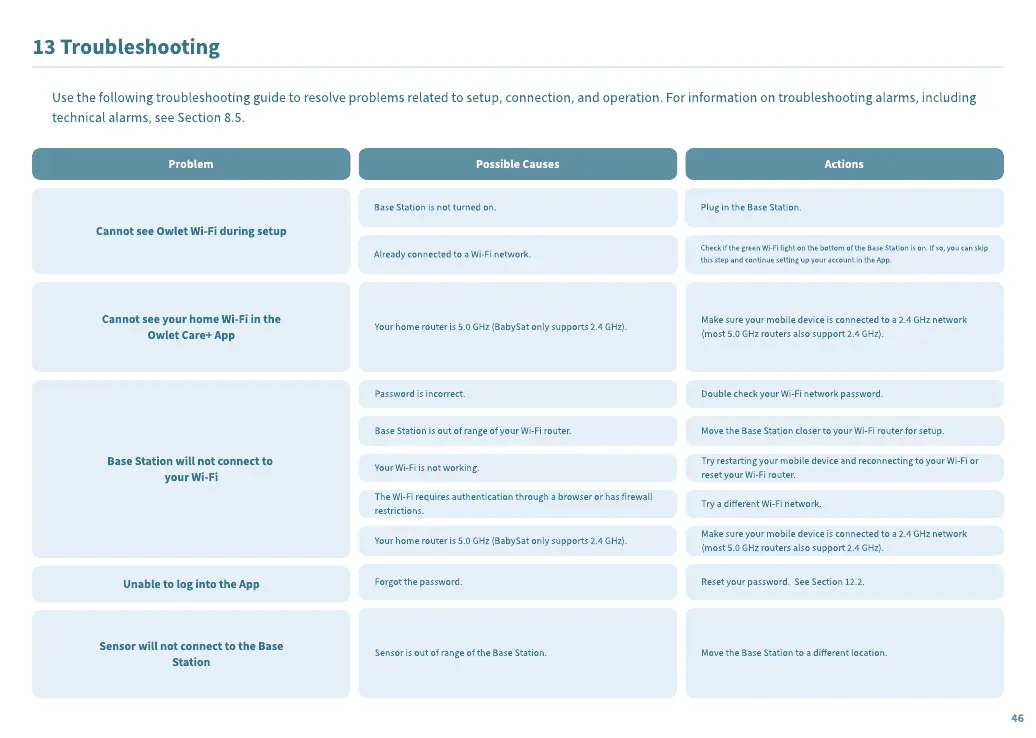
Problem
Possible Causes Actions
Cannot see Owlet Wi-Fi during setup
Cannot see your home Wi-Fi in the
Owlet Care+ App
Base Station will not connect to
your Wi-Fi
Unable to log into the App
Sensor will not connect to the Base
Station
Base Station is not turned on.
Already connected to a Wi-Fi network.
Your home router is 5.0 GHz (BabySat only supports 2.4 GHz).
Password is incorrect.
Base Station is out of range of your Wi-Fi router.
Your Wi-Fi is not working.
The Wi-Fi requires authentication through a browser or has firewall
restrictions.
Your home router is 5.0 GHz (BabySat only supports 2.4 GHz).
Forgot the password.
Sensor is out of range of the Base Station.
Plug in the Base Station.
C
heck if the green Wi-Fi light on the bottom of the Base Station is on.
I
f so, you can skip
this step and continue setting up your account in the App.
M
ake sure your mobile device is connected to a 2.4 GHz network
(most 5.0 GHz routers also support 2.4 GHz).
D
ouble check your Wi-Fi network password.
M
ove the Base Station closer to your Wi-Fi router for setup.
Try restarting your mobile device and reconnecting to your Wi-Fi or
reset your Wi-Fi router.
Try a di
erent Wi-Fi network.
M
ake sure your mobile device is connected to a 2.4 GHz network
(most 5.0 GHz routers also support 2.4 GHz).
R
eset your password.
See Section
1
2.2.
M
ove the Base Station to a di
erent location.
46


 To Next Page
 Loading...