Trouble Shooting
For
safety, please observe
the following points.
•
When trouble
occurs,
turn the
power
OFF
immediately
and
contact
your dealer.
If smoke comes out of this unit or a bad odor
or
strange noise comes out, continuing
to
use
the unit can
cause
a fire
or
electrical shock. Turn the
power
OFF immediately,
unplug the power cord
from the outlet
and contact your dealer.
•
Absolutely do not
remove
the
rear cover.
There
are parts at
high
voltage inside,
so
touching
them
can
cause
an electrical
shock. Leave inspection, adjustment and cleaning of the
interior
to
your
dealer.
•
Do not put anything inside the casing.
If liquid or
a
foreign
object
should
get
inside accidentally, immediately
tum the
power
OFF, unplug the
power
cord
from
the outlet and
contact
your dealer. Continuing to
use the unit can cause a
fire, electrical
shock or breakdown of the unit.
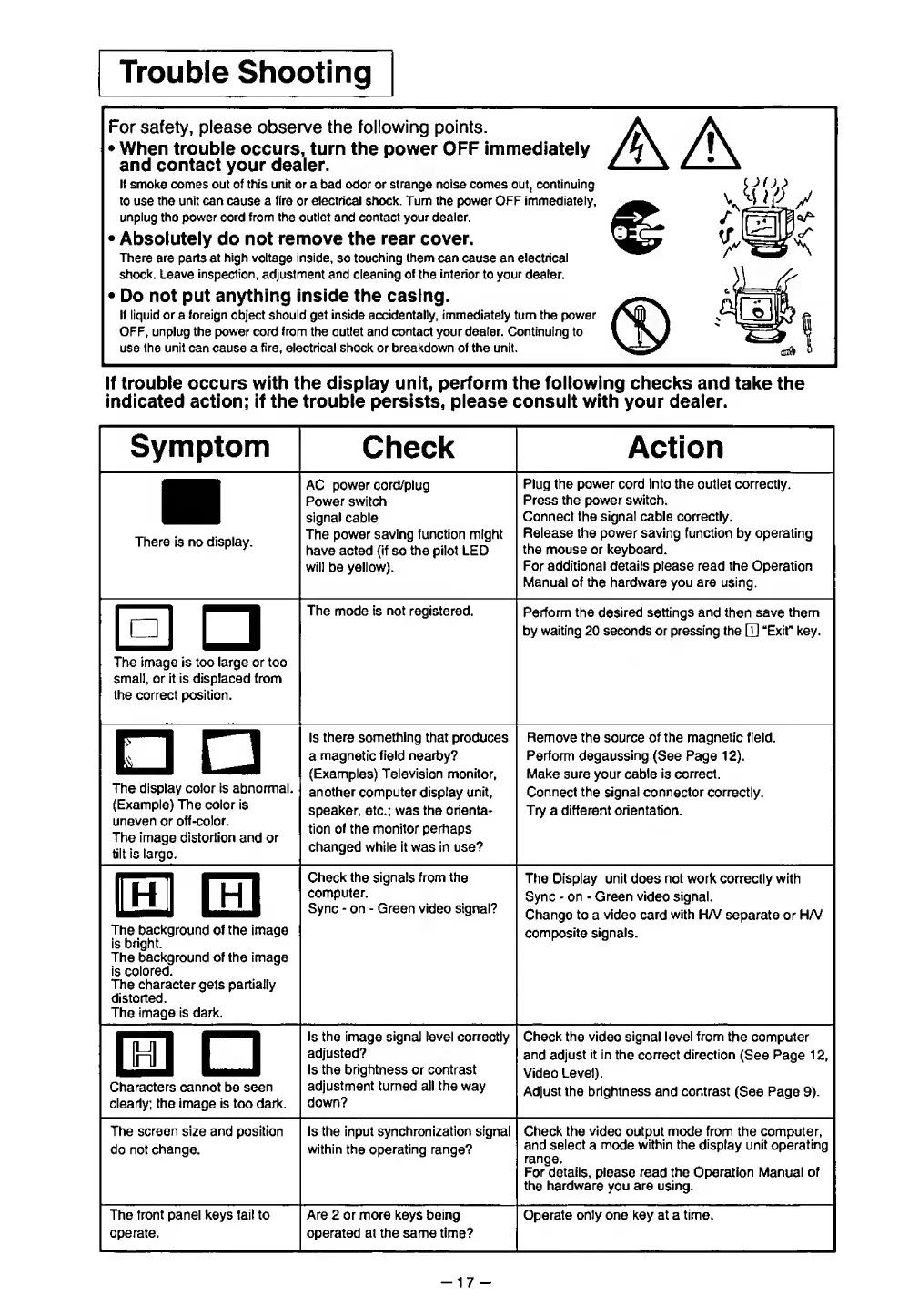
If trouble occurs
with the display unit, perform the following
checks and
take
the
indicated action; if the trouble persists, please consult with your dealer.
Symptom
Check
Action
There
is no
display.
AC power cord/plug
Power
switch
signal
cable
The power
saving
function might
have acted {if so the pilot LED
will be yellow).
Plug
the
power cord
into the outlet
correctly.
Press the power switch.
Connect the signal cable correctly.
Release the power saving function by operating
the mouse or keyboard.
For additional details please read the Operation
Manual of the hardware you are using.
O
The image is too large or too
small, or it is displaced from
the correct position.
The mode is
not
registered.
Perform the desired settings and then save them
by waiting 20 seconds or pressing the "Exit" key.
The display
color is
abnormal.
(Example) The color is
uneven
or off-color.
The
image distortion and or
tilt is large.
Is
there something
that
produces
a
magnetic
field
nearby?
(Examples) Television monitor,
another computer
display
unit,
speaker, etc.; was the orienta-
lion
01
ine monitor perndps
changed
while
it was in use?
Remove the
source of the
magnetic field.
Perform degaussing
(See Page
12).
Make sure your cable is correct.
Connect
the signal connector correctly.
Try
a
different orientation.
ED
El
The
background
of the image
is
bright.
The background
of
the
image
is
colored.
The character gets partially
distorted.
The image is dark.
Check
the
signals
from the
computer.
Sync
-
on
-
Green video
signal?
The Display unit
does not
work correctly
with
Sync
-
on Green video signal.
Change
to a
video card
with H/V
separate or HA/
composite signals.
m
Characters cannot
be
seen
clearly;
the image
is too dark.
Is the image signal level correctly
adjusted?
Is the brightness or contrast
adjustment turned all the way
down?
Check the video signal level
from
the computer
and adjust
it in
the correct
direction
(See
Page
12,
Video
Level).
Adjust the brightness and contrast
(See
Page
9).
The
screen
size and position
do not
change.
Is the input synchronization signal
within
the operating range?
Check the
video
output mode from the computer,
and select a
mode within
the
display
unit
operating
range.
For
details, please read the Operation Manual
of
the hardware
you
are using.
The front panel keys fail to
operate.
Are 2
or
more
keys
being
operated at the same time?
Operate
only
one
key
at
a
time.
-17
-


 To Next Page
 Loading...